> For the complete documentation index, see [llms.txt](https://docs.stackai.com/llms.txt). Markdown versions of documentation pages are available by appending `.md` to page URLs; this page is available as [Markdown](https://docs.stackai.com/agentic-adoption-and-security/technical-considerations/whitelisting-stackai-in-microsoft-entra.md).
# Whitelisting StackAI in Microsoft Entra
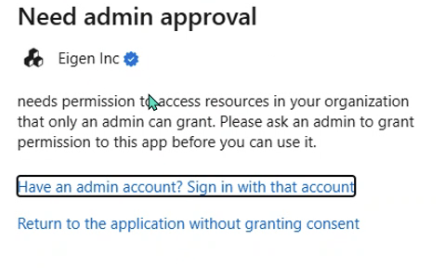
If you are getting the following message when trying to make a connection, you need to follow the steps below to whitelist StackAI as a third-party app in Microsoft Entra. The following steps need to be completed by your Microsoft Entra administrator.
### Whitelisting StackAI (as a third-party OAuth2 App) in Microsoft Entra
1. Obtain the App Details Get the Application (Client) ID or the Publisher information from the third-party app vendor. Confirm the exact permissions (scopes) the app is requesting.
2. Review Consent Settings in Entra ID Go to the Microsoft Entra admin center. Navigate to Identity > Applications > Enterprise applications. Search for the third-party app. If users have already tried to sign in, it may appear here.
3. Grant Admin Consent (Recommended) Select the app in Enterprise applications. Go to Permissions or Permissions and consent. Click Grant admin consent for \[Your Tenant]. Review the requested permissions and confirm. This step ensures all users can log in without being blocked by consent policies.
4. Adjust User Consent Policies (If Needed) If users are being blocked from consenting to third-party apps: In the Entra admin center, go to Identity > Applications > User consent settings. Review the User consent for applications policy. You can allow users to consent to verified publishers, or only to apps requesting low-risk permissions. For stricter control, keep user consent disabled and rely on admin consent as above.
5. Confirm Conditional Access and Security Settings If you have Conditional Access policies that restrict app access, ensure the third-party app is included as an allowed cloud app. Check for any permissions restrictions or app ban lists in Defender for Cloud Apps or similar tools. Notes You do not need to register the app yourself—the third-party app vendor registers their app with Microsoft and provides you with the necessary details. If you are using Microsoft Defender for Cloud Apps, you can explicitly allow or block OAuth apps in its portal. Always review the permissions requested by the app and ensure they align with your organization's security policies. Troubleshooting If the app does not appear in Enterprise applications, have a user attempt to sign in. This should trigger its appearance. If login is still blocked, check for tenant-wide restrictions on third-party app consent or additional security policies. By following these steps, you can whitelist and enable OAuth2 login for a third-party app in your Microsoft 365/Entra ID environment, ensuring users can access it as intended.
---
# Agent Instructions
This documentation is published with GitBook. GitBook is the documentation platform designed so that both humans and AI agents can read, navigate, and reason over technical content effectively. Learn more at gitbook.com.
## Querying This Documentation
If you need additional information that is not directly available in this page, you can query the documentation dynamically by asking a question.
Perform an HTTP GET request on the current page URL with the `ask` query parameter, and the optional `goal` query parameter:
```
GET https://docs.stackai.com/agentic-adoption-and-security/technical-considerations/whitelisting-stackai-in-microsoft-entra.md?ask=&goal=
```
`ask` is the immediate question: it should be specific, self-contained, and written in natural language.
`goal` is optional and describes the broader end goal you are ultimately trying to accomplish on behalf of the user. GitBook uses it to tailor the answer towards what is most useful for that goal.
The response will contain a direct answer to the question and relevant excerpts and sources from the documentation.
Use this mechanism when the answer is not explicitly present in the current page, you need clarification or additional context, or you want to retrieve related documentation sections.