

Import, export, and version skills
Import and export skills to move their instructions and files as a bundle. Use version history to review earlier content or restore it when a change needs to be reversed.
Before you start
An imported skill bundle must include SKILL.md with a name and description. Use a unique skill name to avoid conflicts.
Import a skill
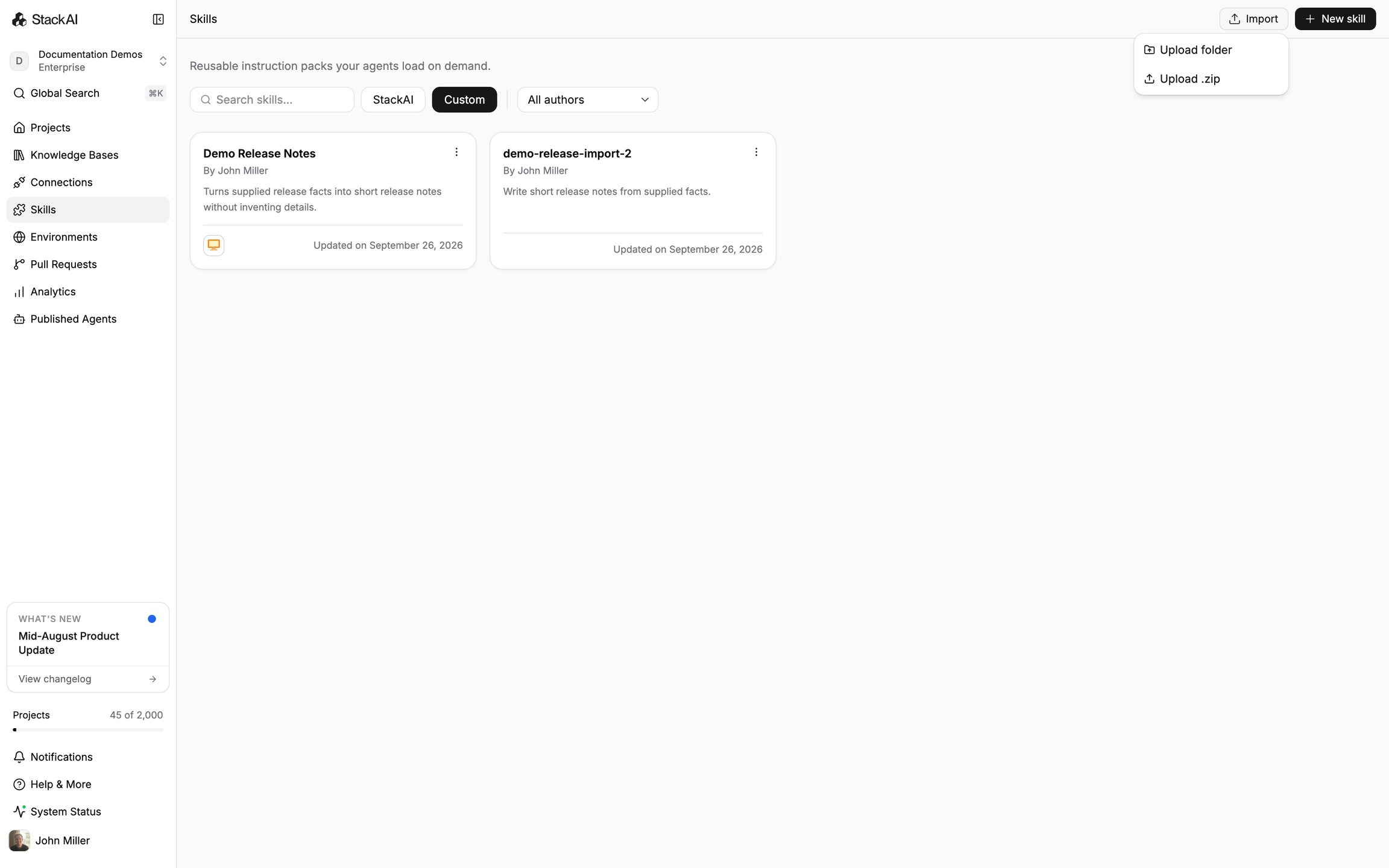
Select Import, then choose Upload .zip or Upload folder. Select a bundle containing SKILL.md and its supporting files.
Export a skill
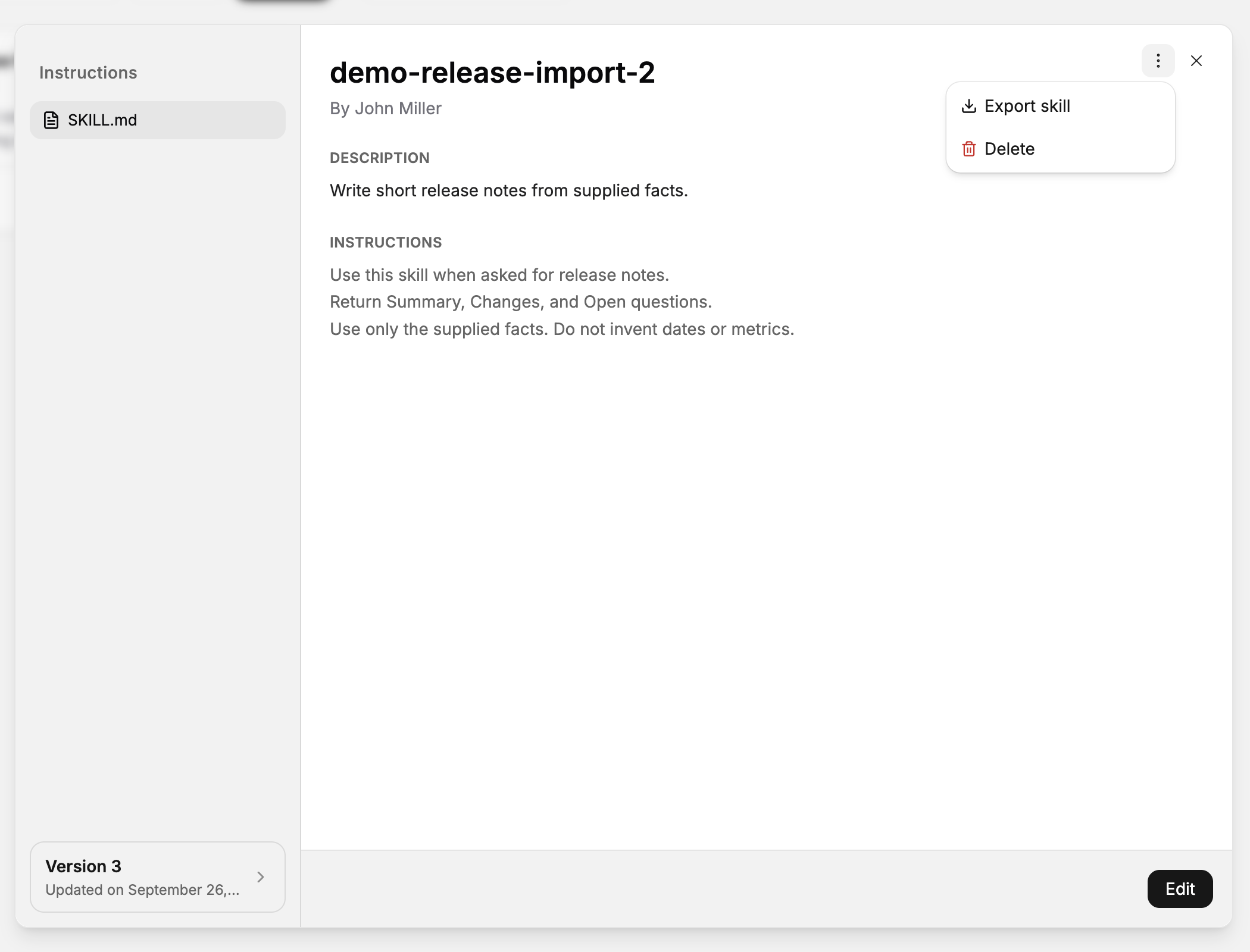
Open a custom skill and select More Options → Export skill. The browser downloads the skill bundle.
Save a new version
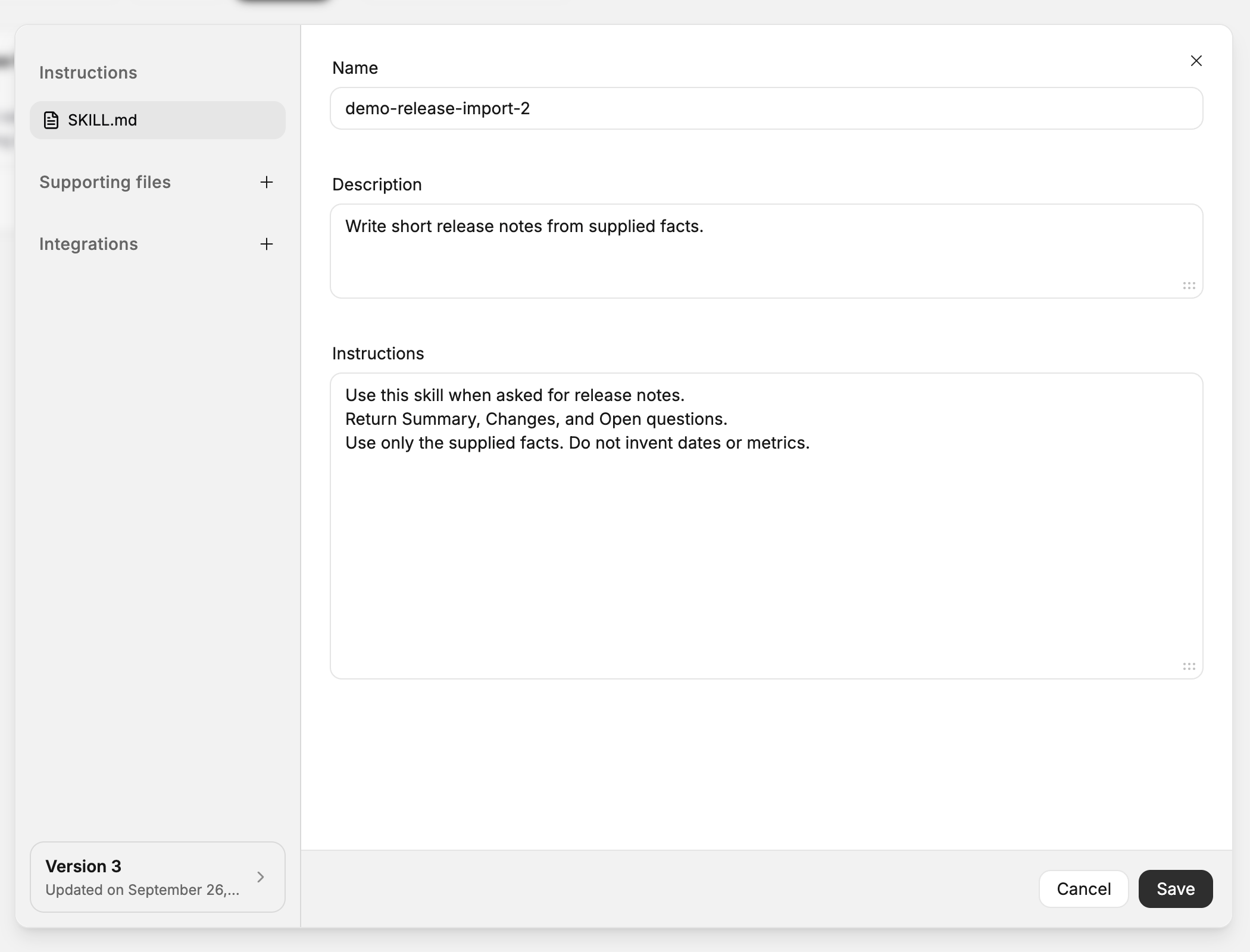
Select Edit, change the instructions or files, and select Save. The saved change creates a new version.
Restore earlier content
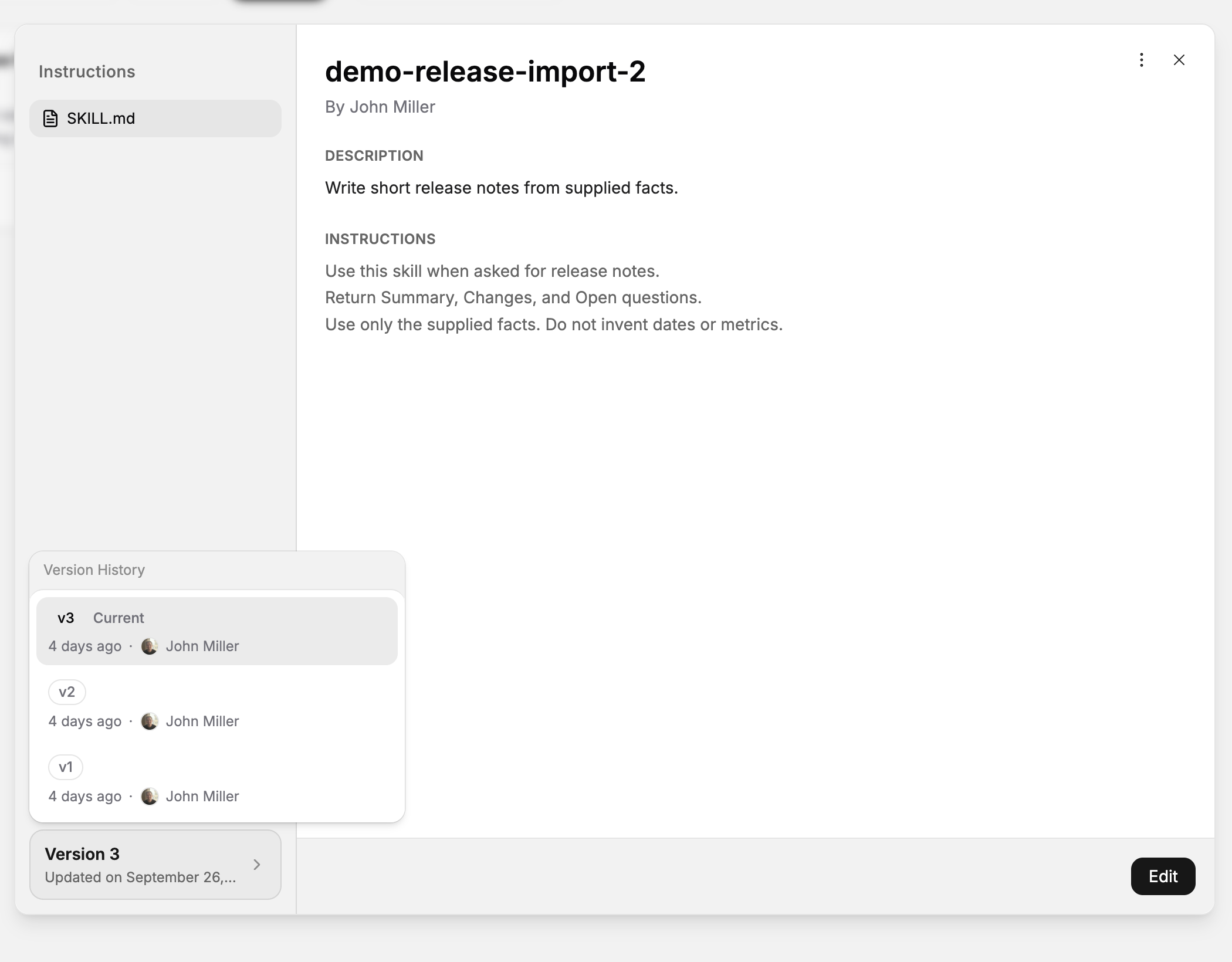
Open Version History and select the version you want to inspect. Select Use this version to load its content into the editor.
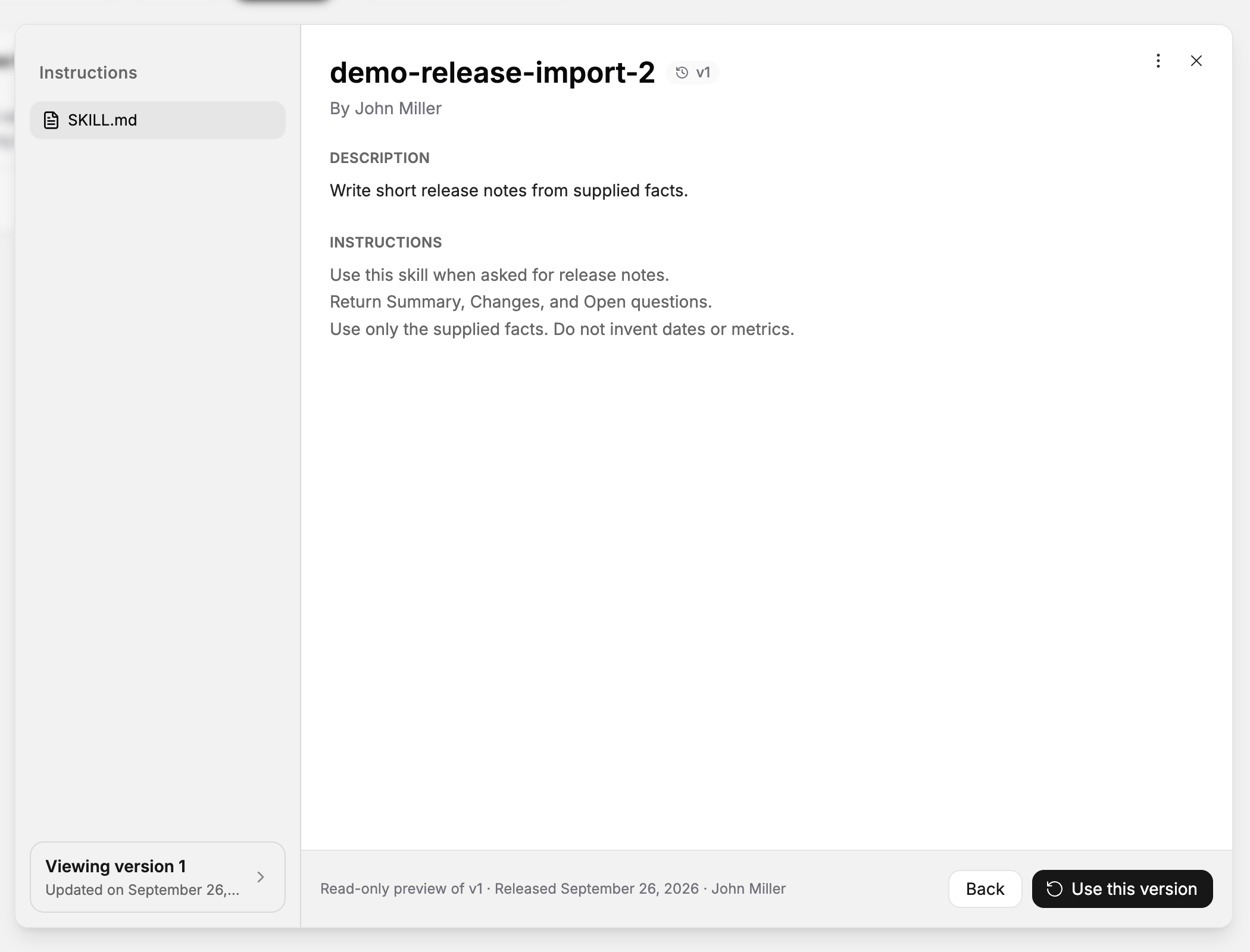
Review the loaded content. Select Save to make it current, or Cancel to keep the current content.
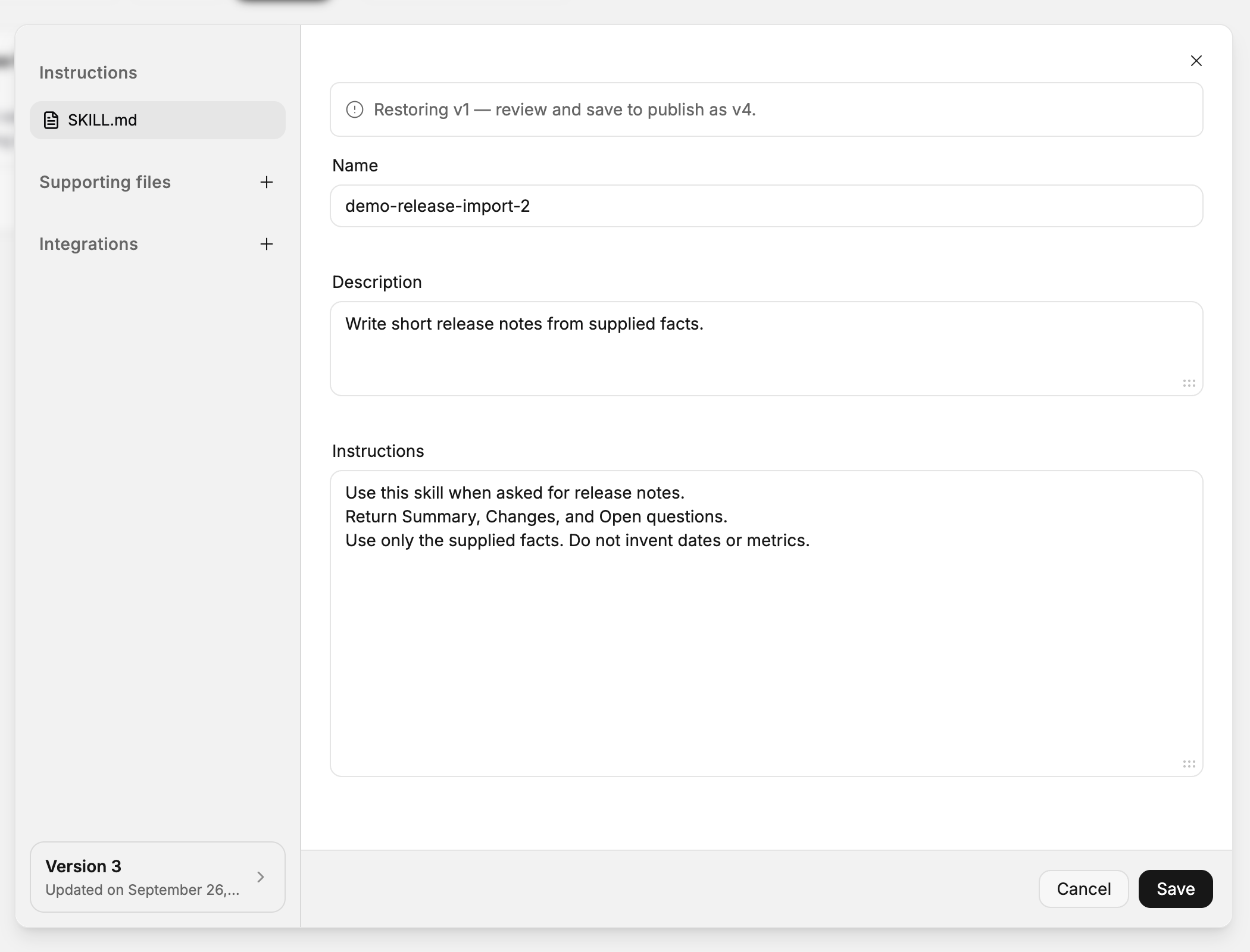
The restoration appears as a new version in the history.
Important behavior
Viewing an earlier version does not change the current skill. A restoration takes effect when you save it.
Use the saved skill
Follow Attach skills and their tools to an agent to attach the skill and test a request against its instructions. After restoring a version, repeat that check before relying on the restored behavior.
Last updated
Was this helpful?