

Create a knowledge base
A knowledge base stores indexed source content for retrieval. Agents and workflows can search it for passages relevant to a request.
Before you start
Have permission to create a knowledge base and a small, representative set of source files you are allowed to use. Start with a few documents whose answers you can check before importing the whole collection. For files maintained in another service, use Import selected Google Drive files or Import from an external source as appropriate.
Keep the preselected processing values for an initial configuration unless your organization specifies a configuration. Enable OCR if important text appears only in scans or images. Read Chunking, OCR, and embedding settings before the first upload: chunking algorithm, length, overlap, OCR, embedding provider, and embedding model become read-only once the base contains files.
Create the knowledge base
Open Knowledge Bases and select New Knowledge Base.
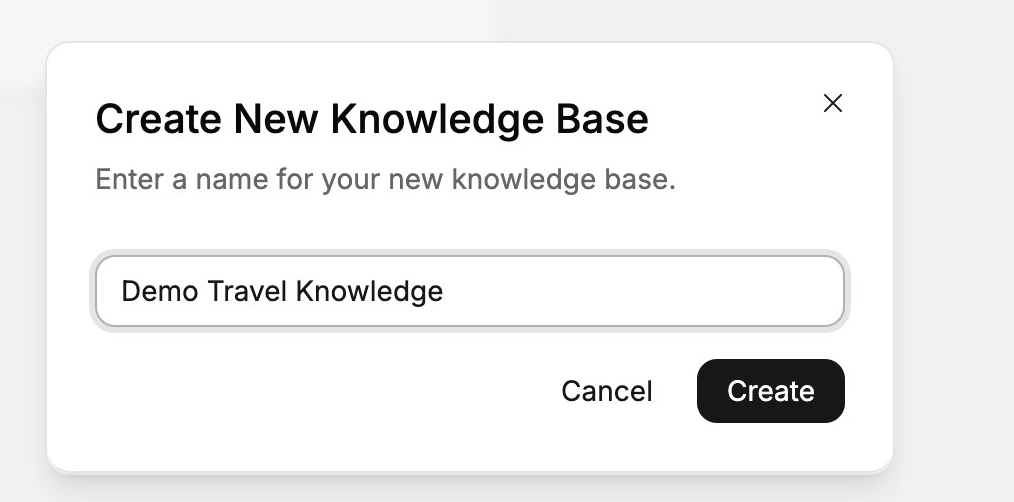
Enter a descriptive name, then create the base so you can add and manage its sources together.
Choose processing settings
Before uploading, open More Options → Update Settings.
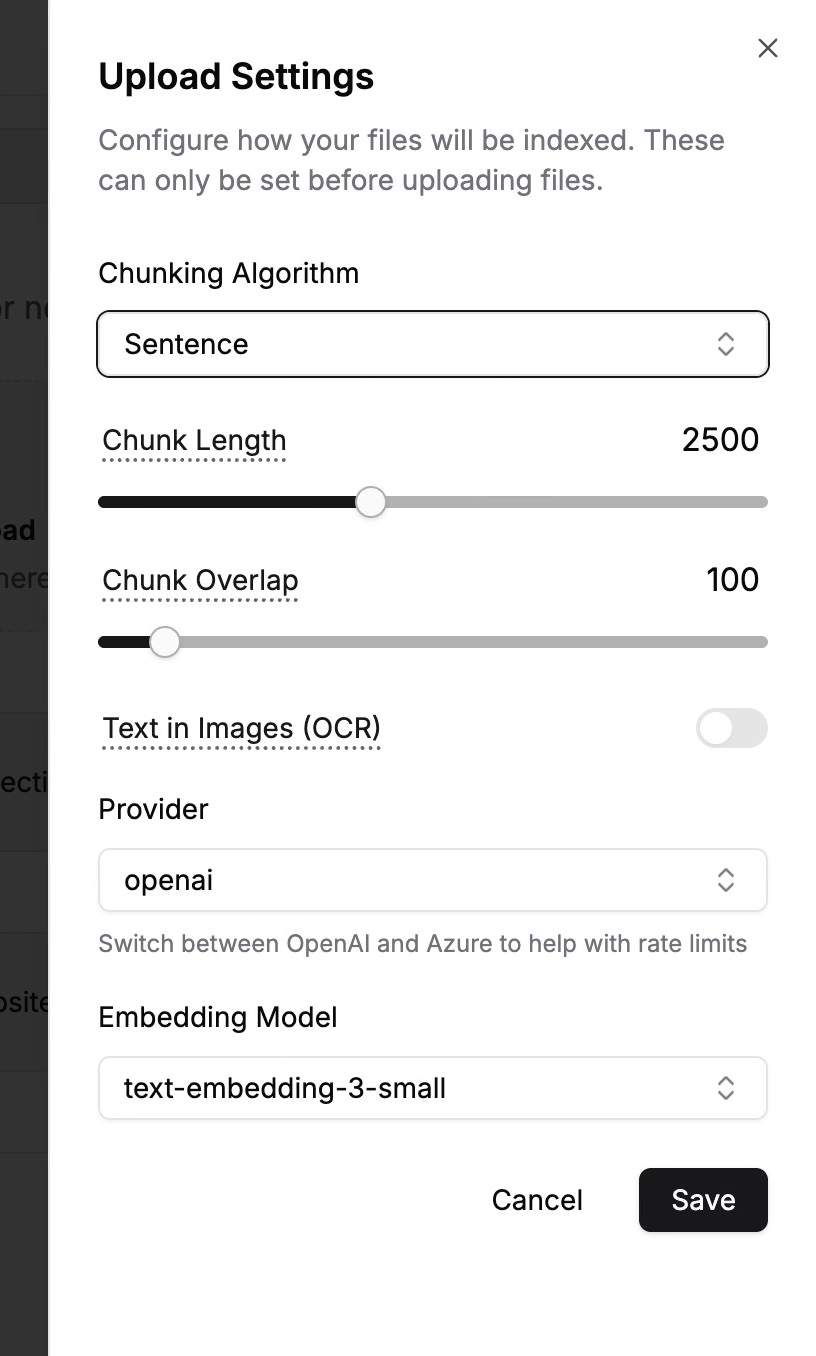
Review chunking, OCR, and the embedding model. Confirm the selected model is available in your organization before uploading. These upload settings can be configured only while the knowledge base is empty.
Upload and process documents
Select Upload files and choose the documents you want to make searchable.
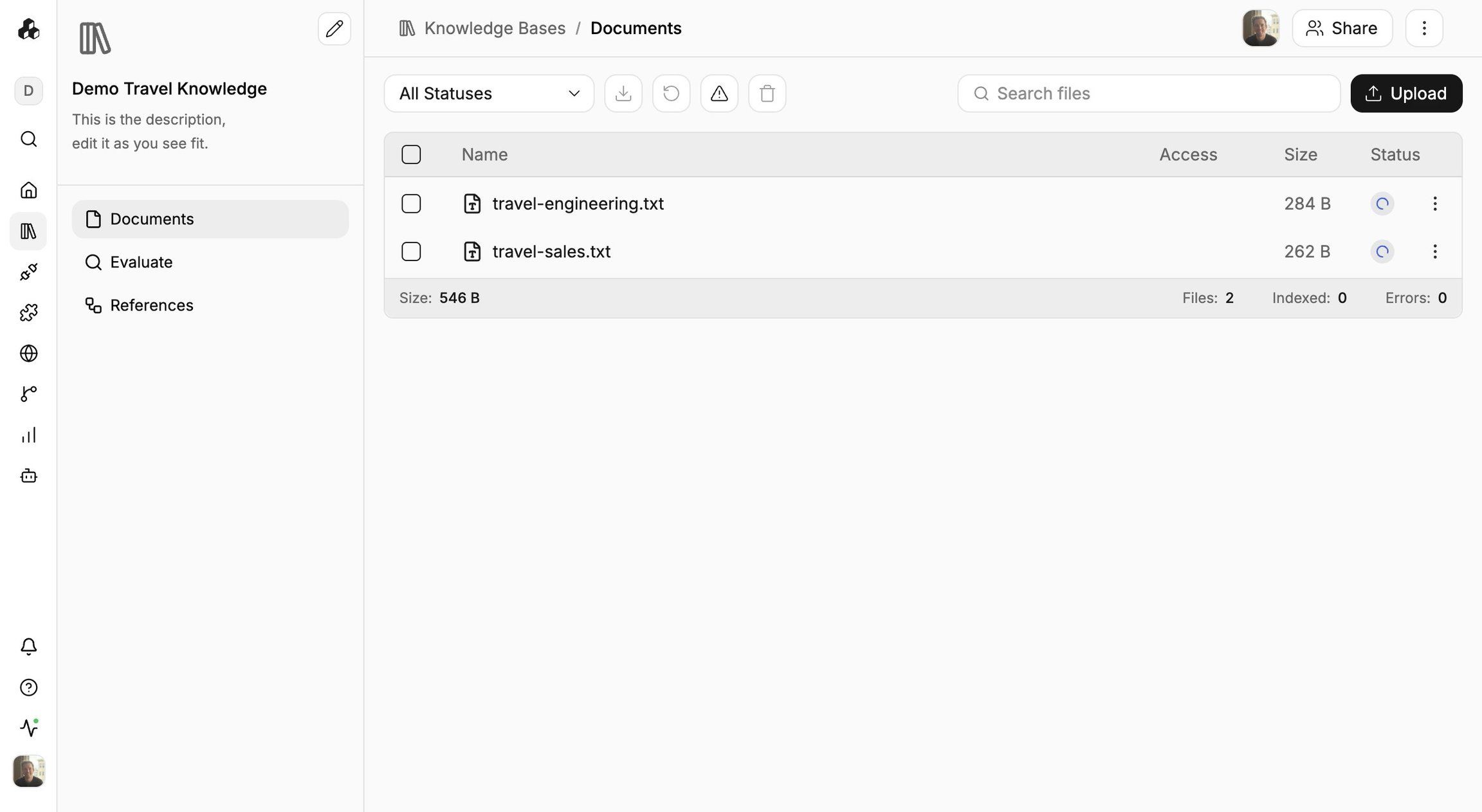
Check the filenames in the document list and allow processing to complete.
Use All Statuses to find Indexed documents and inspect any processing errors.

Upload completion alone does not mean that a document is ready for retrieval.
Inspect document content
Open a document and select Parsed to inspect the extracted text.
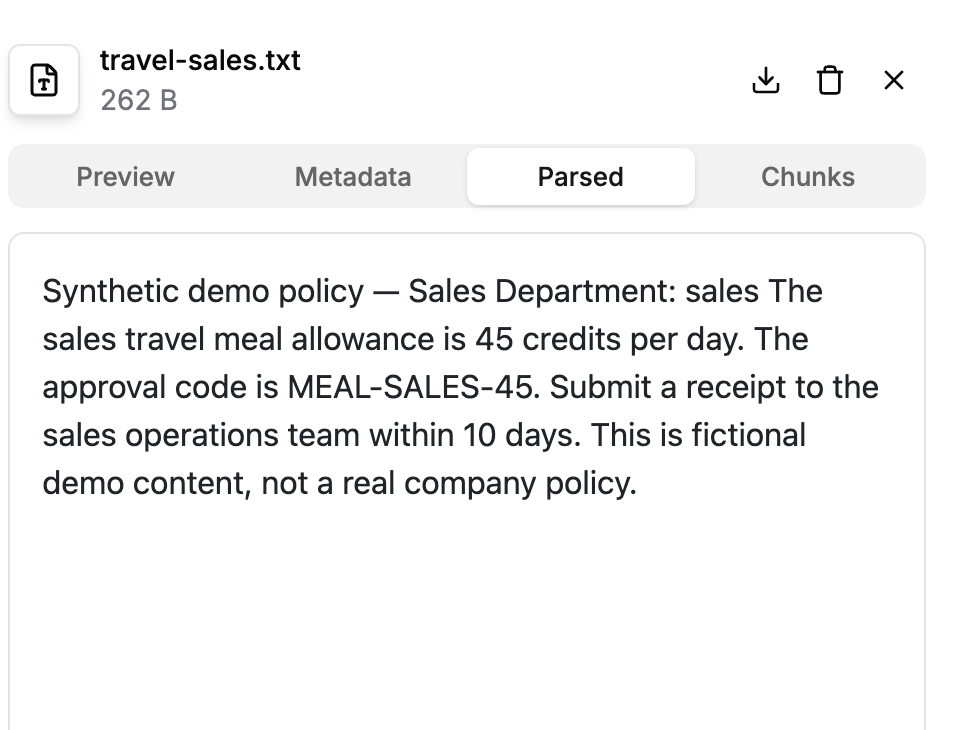
Compare it with the original file, especially where tables or scanned pages contain important information.
Select Chunks to inspect the passages stored for retrieval.
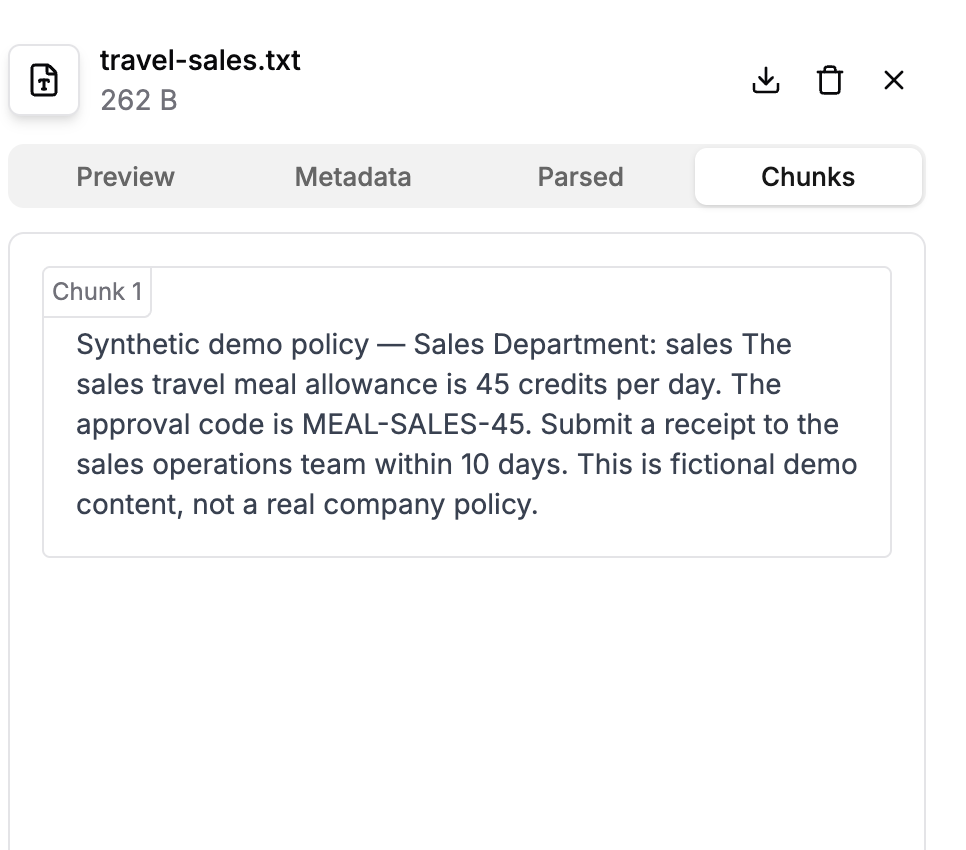
Chunk length and overlap affect how source text is divided and how much surrounding context each passage contains.
Select Metadata to inspect the document's properties.
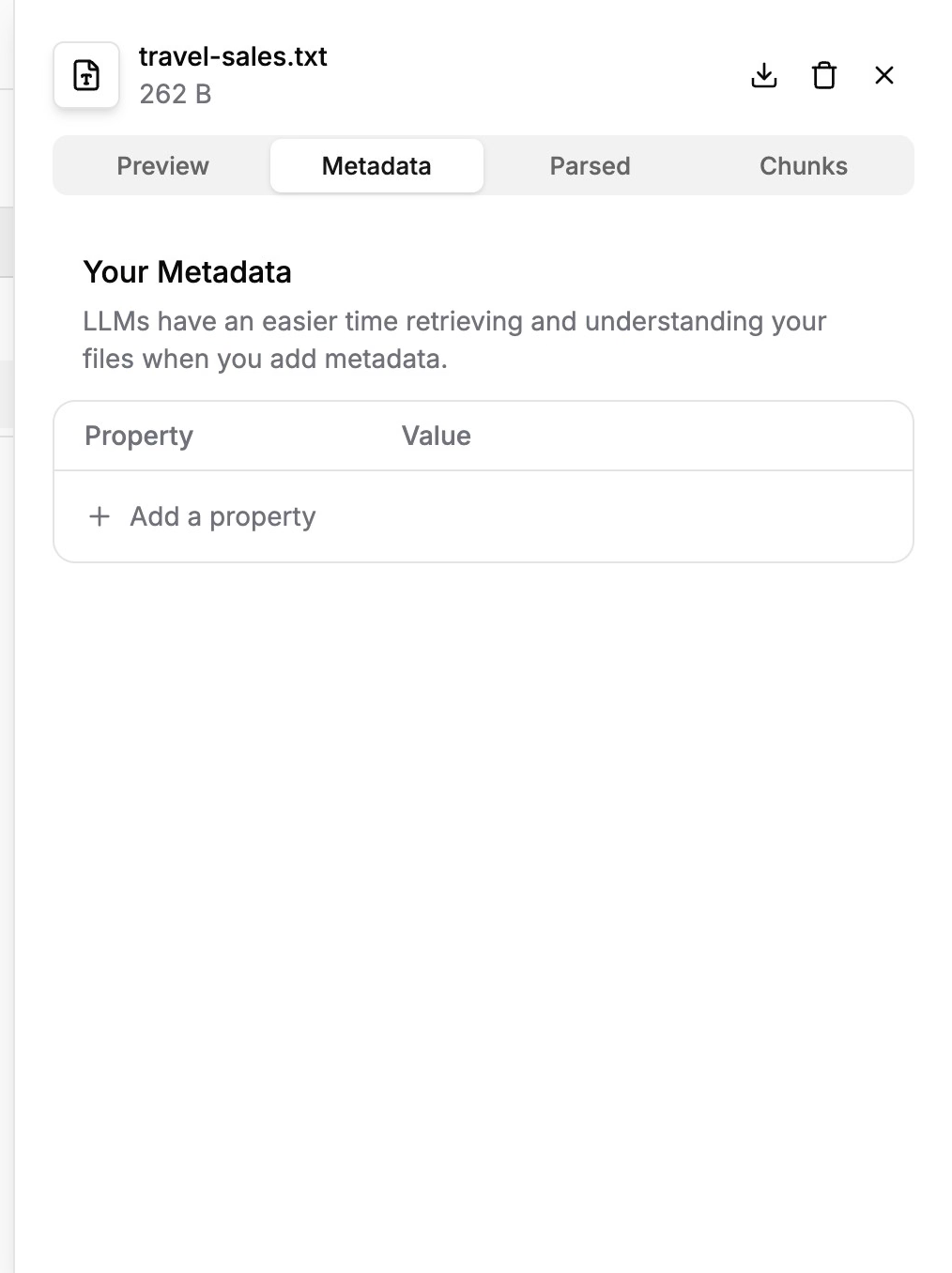
These properties can help identify the source and narrow retrieval when metadata filters are used.
Search the indexed content
Open Evaluate, enter a question, and select Execute.
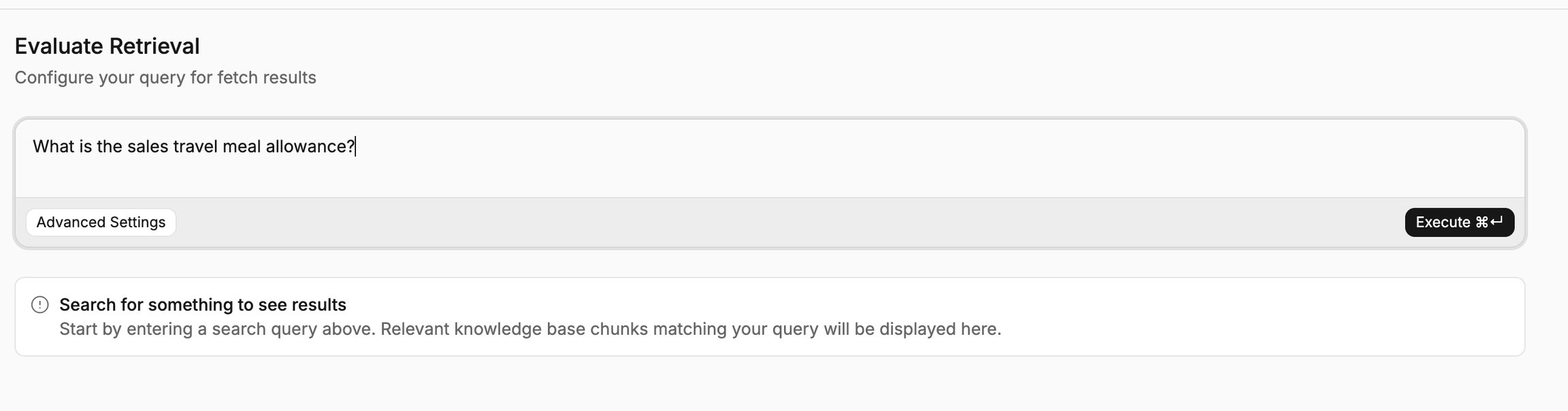
This searches the indexed passages without generating an agent's final answer.
Expand a returned passage and check its source filename.
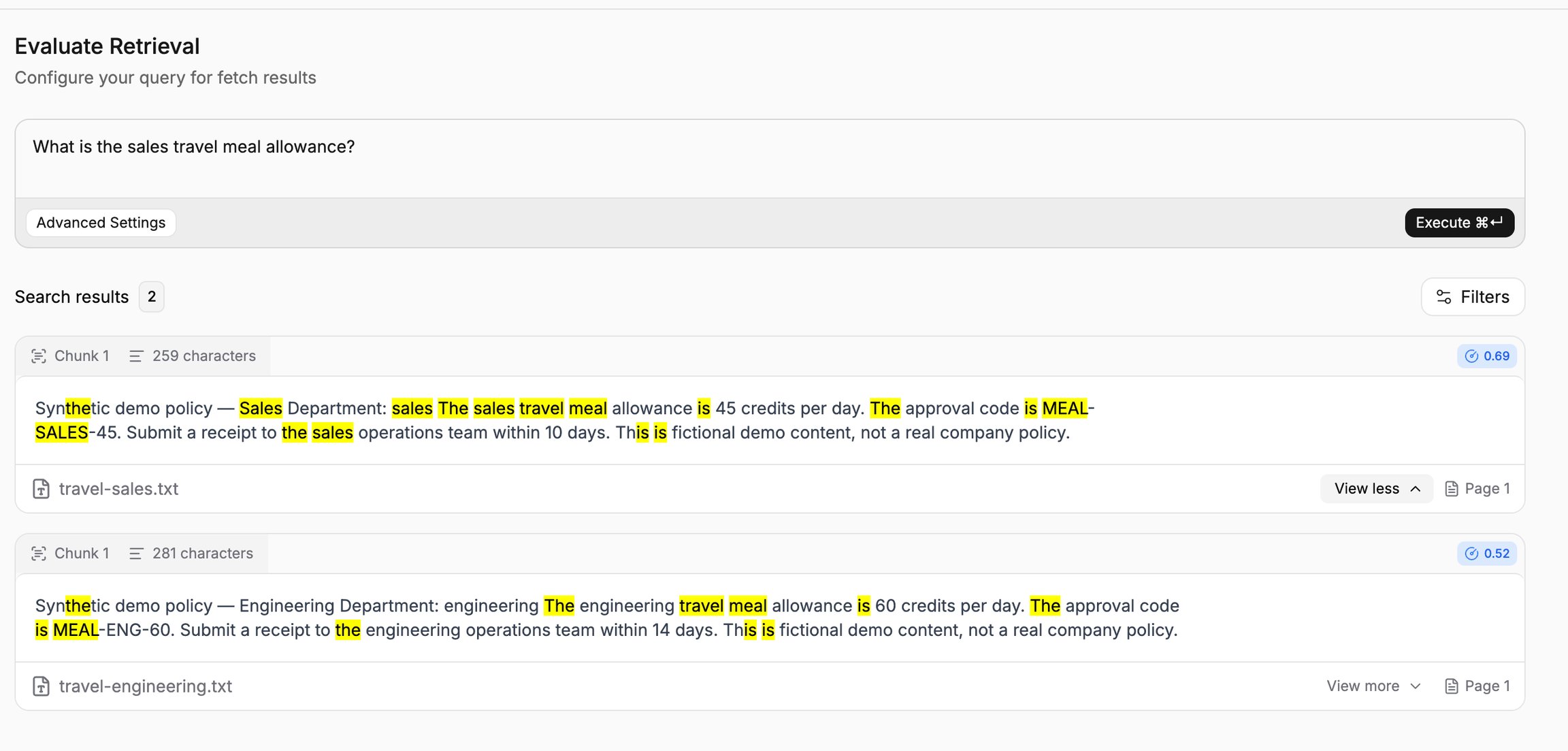
Confirm that the passage contains the information needed to answer the question.
If a file is not ready
For Error, read the error information for the file or operation and correct the reported cause before retrying. For Pending, allow processing to finish before running retrieval checks. Follow the status and recovery guide to distinguish a failed upload, a stale provider copy, and a retrieval problem. Use Reindex only when retrying content already present in the base.
Important behavior
A document is ready for retrieval after indexing finishes. If its status is Error, inspect the reported processing issue.
Evaluate searches the indexed content. It does not generate an agent’s final answer.
Continue
Last updated
Was this helpful?