

Feature Access catalog controls
Feature Access controls which product capabilities are available in your organization. Use it to manage providers and individual actions that your team can select.
Before you start
Identify the provider or action and the business workflows that depend on it. You need permission to manage organization feature access. Coordinate a restrictive change with the affected workflow owners; the effect on existing runs is explained below. Use Per feature configuration for options beyond availability.
You need permission to manage organization feature access.
Find a feature or provider
Open Settings → Feature Access and review the categories and default controls.
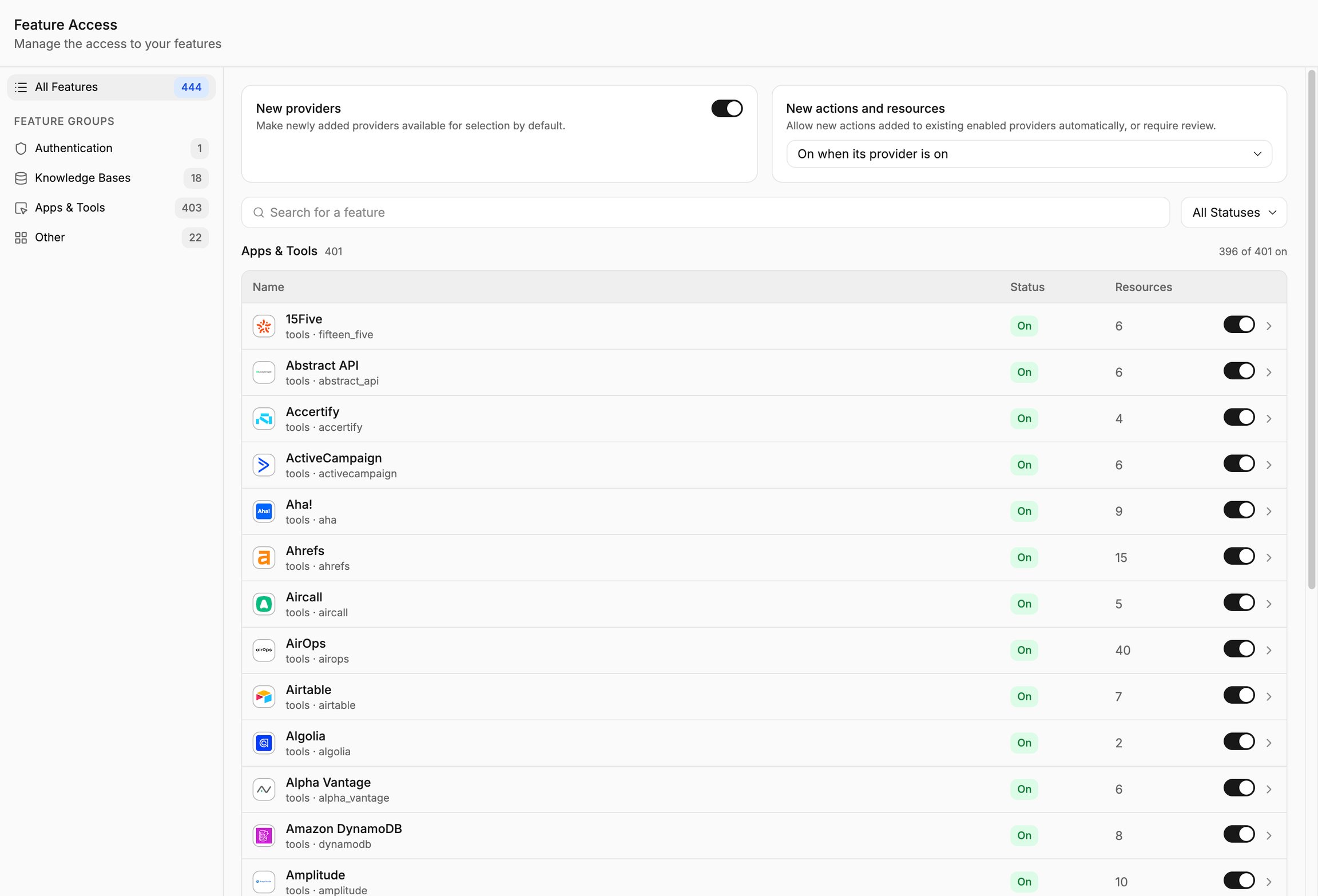
These settings determine which product capabilities the organization makes available.
Search for the provider or feature you want to manage.
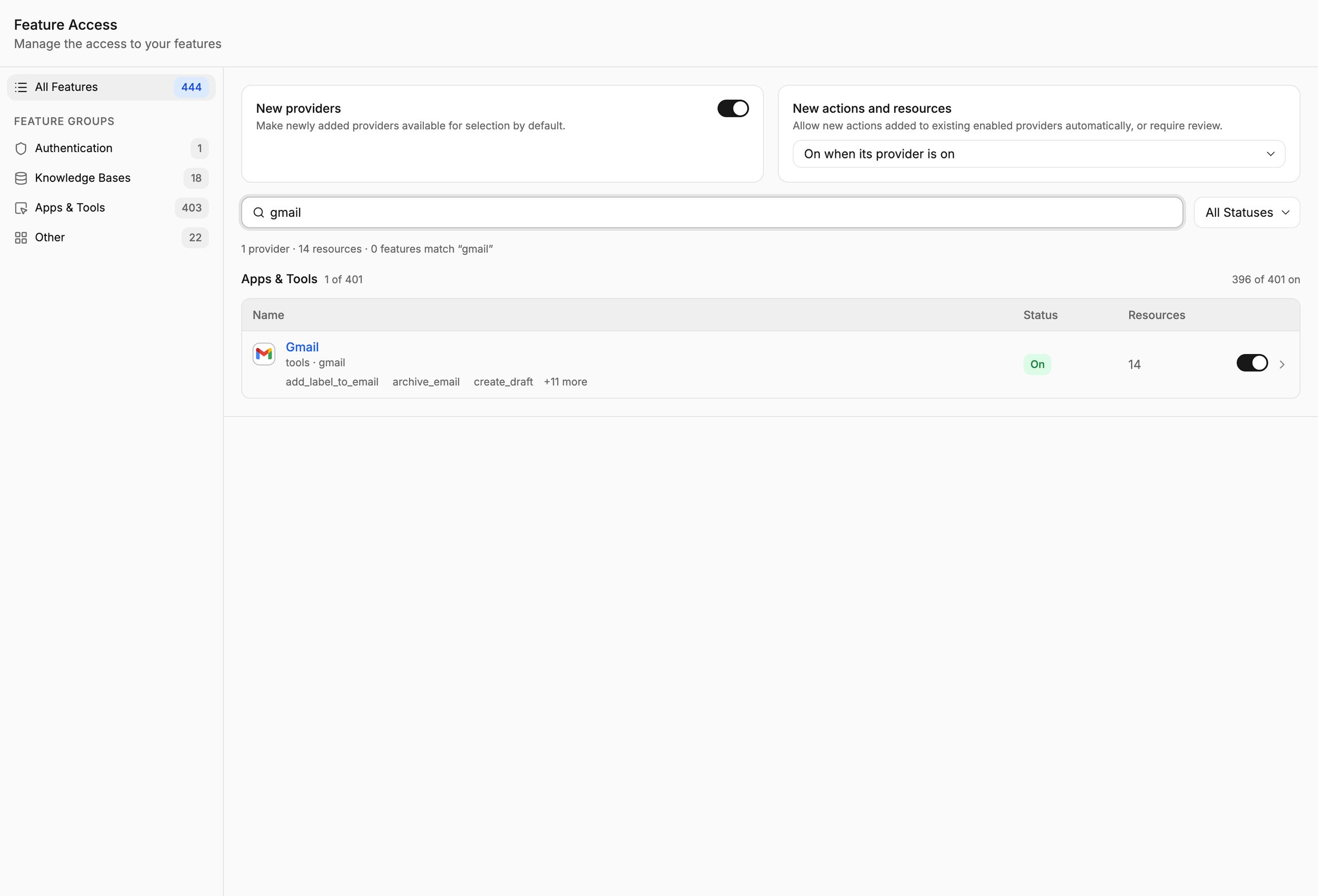
Open its details to distinguish provider-wide controls from individual action settings.
Review the provider's connection type and Actions list.
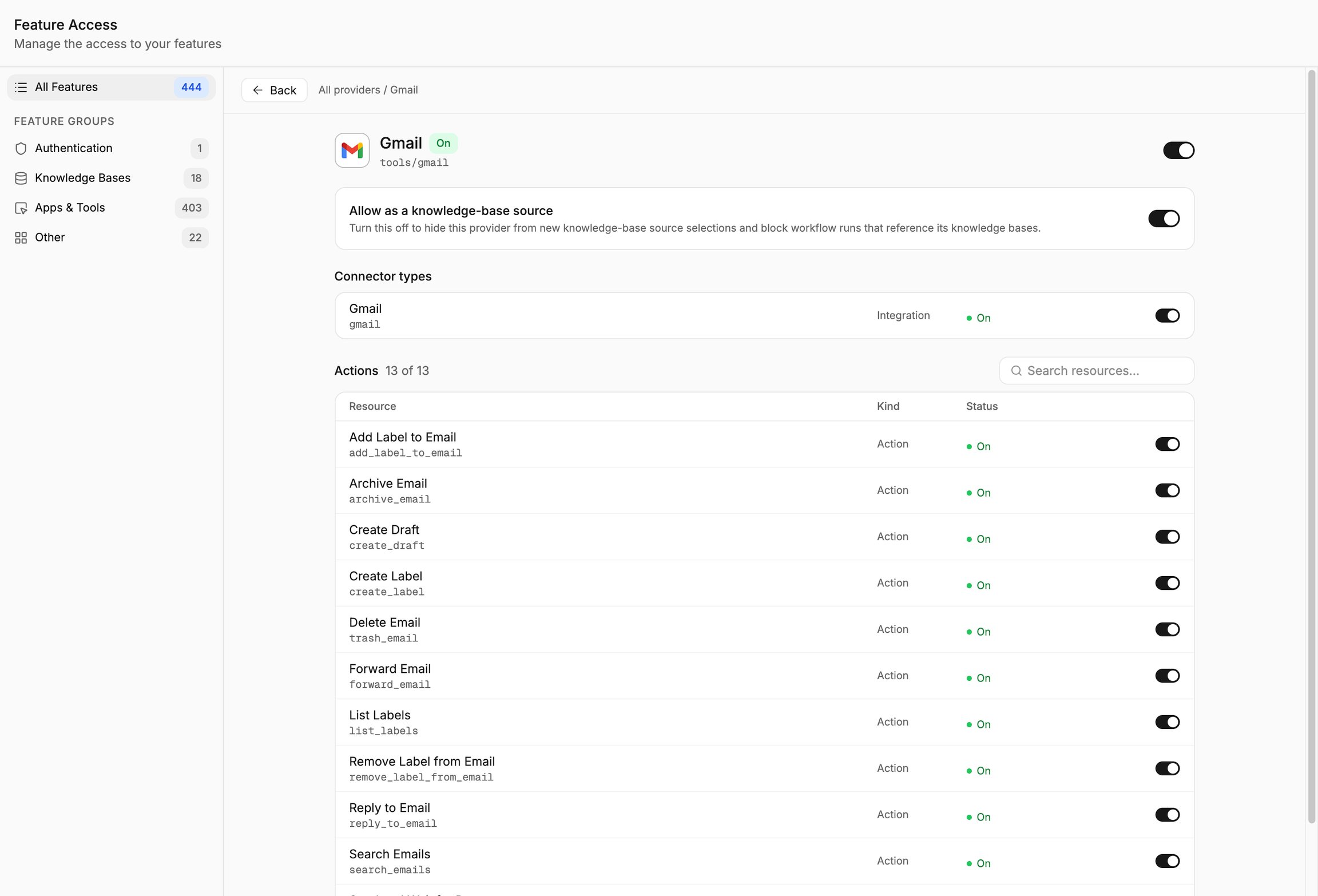
Read each switch label before changing availability.
Plan the effect on existing workflows
Disabling a catalog provider or action affects more than its appearance in a picker. Workflow runs check the organization's current catalog policy, including references saved in existing workflow versions. New runs of an already-published workflow can therefore fail when they reference a disabled provider or action; a published version does not preserve an exemption from the current policy.
A provider-level restriction can block its child actions even if an individual action was previously enabled. Existing saved configuration and connection credentials are not a substitute for policy permission. Availability also does not grant access to the provider account: a valid connection and provider-side authorization are still needed.
Before a team-wide restriction, identify projects that use the provider or action and coordinate the change with their owners. For example, disabling an action used to retrieve records can stop a published assistant from completing its response. Decide whether those owners will replace the action before the restriction or accept the interruption.
After saving, check both the picker and a representative run of an affected existing workflow. Use a safe input and avoid unnecessary external writes. Inspect the actual error or response in Inspect project analytics; a hidden picker entry alone does not verify the effect on existing projects.
If a required workflow is unexpectedly blocked, have the authorized policy owner review the provider and action states. Restore the intended availability when organizational policy permits, then rerun the affected request. If the restriction must remain, the workflow owner must remove or replace the dependency, test the changed draft, and release it. Do not treat the toggle as a credential-revocation procedure or assume it cancels a run that was already in progress.
Set availability
Change the required provider or action setting and inspect the remaining enabled actions.
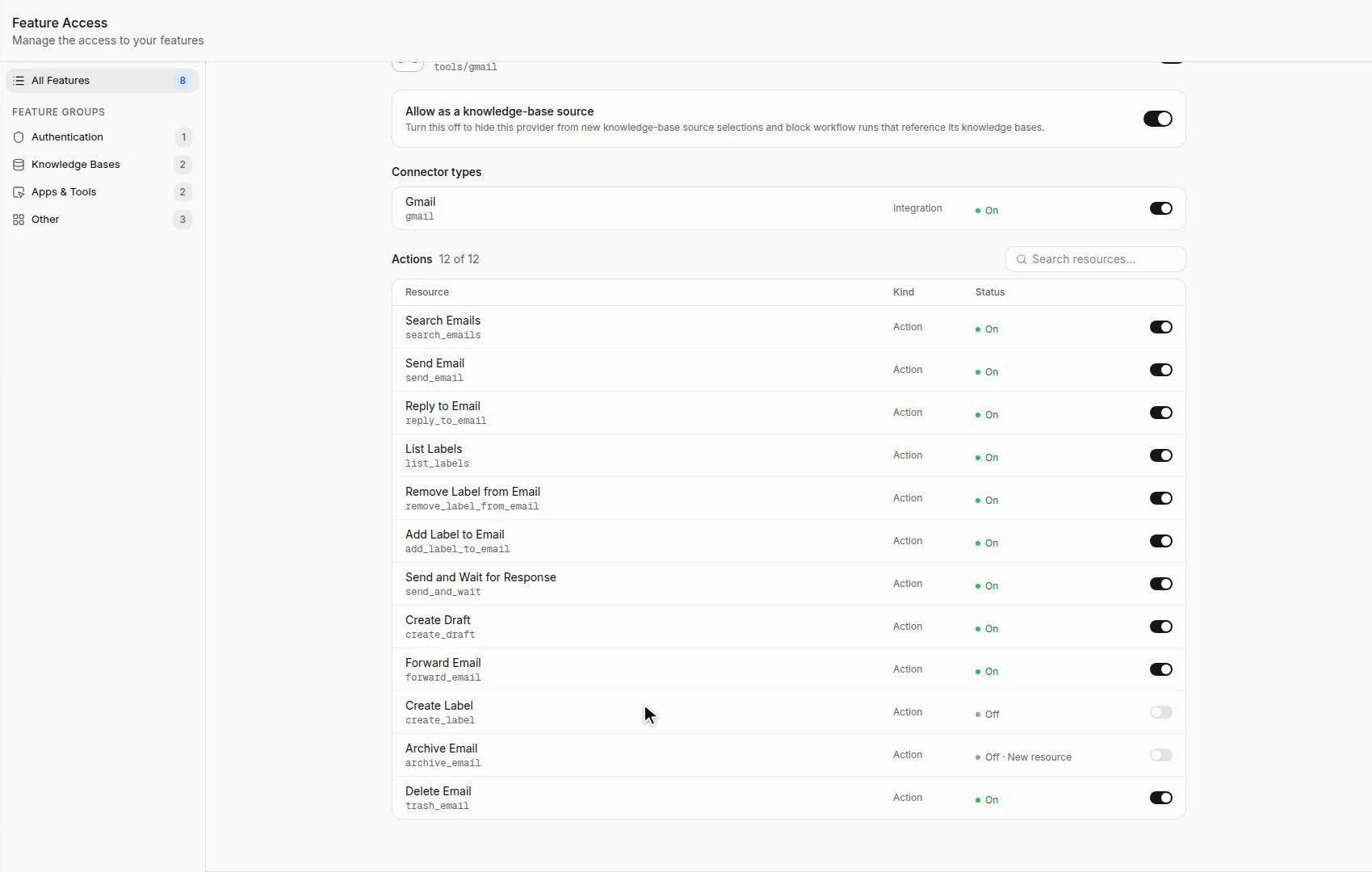
Keep the configuration aligned with the operations the organization permits.
Open a workflow's node or tool picker and search for the affected provider.
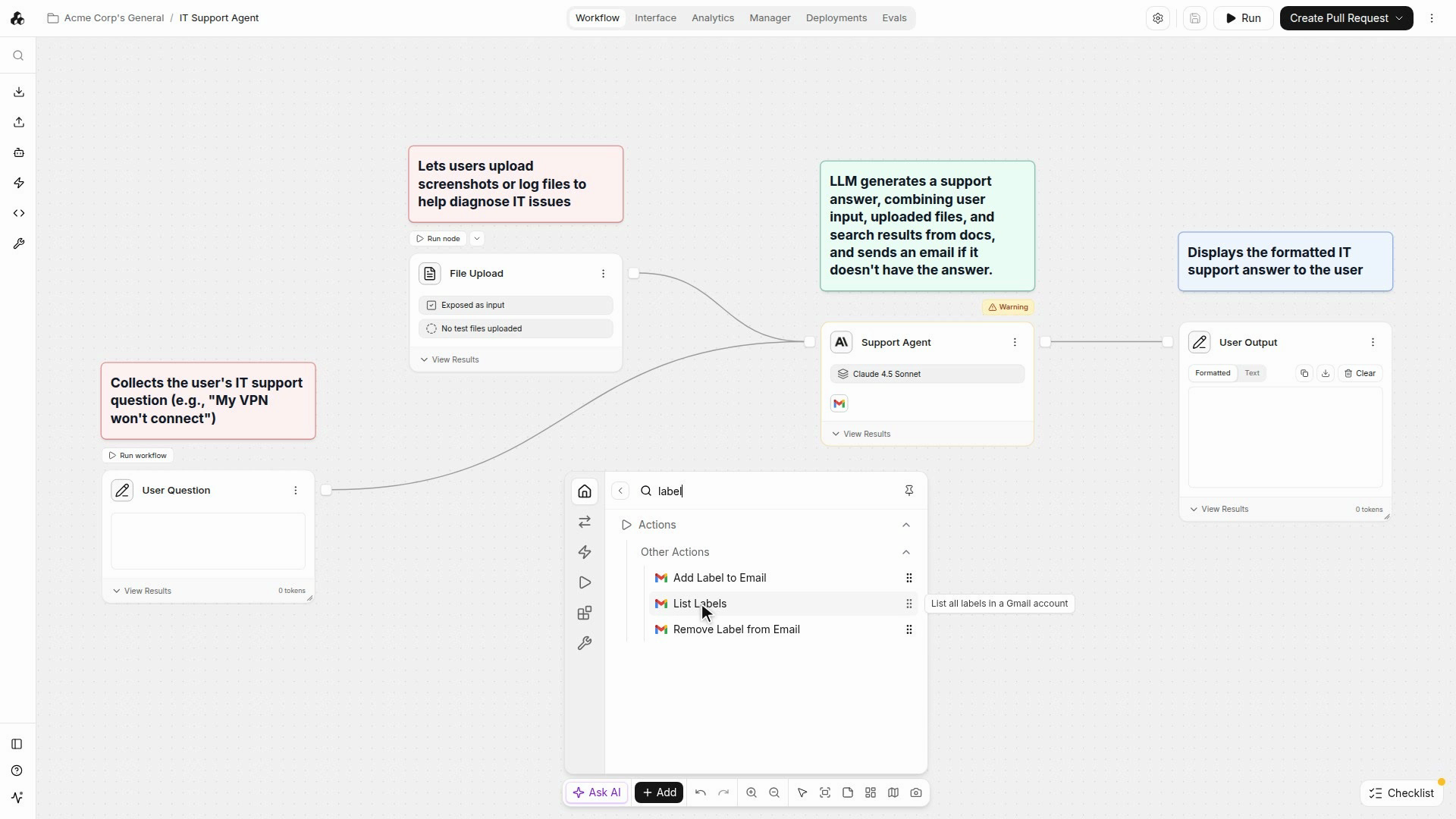
Check which actions are available under the updated policy.
Return to Feature Access and review the final provider and action states together.
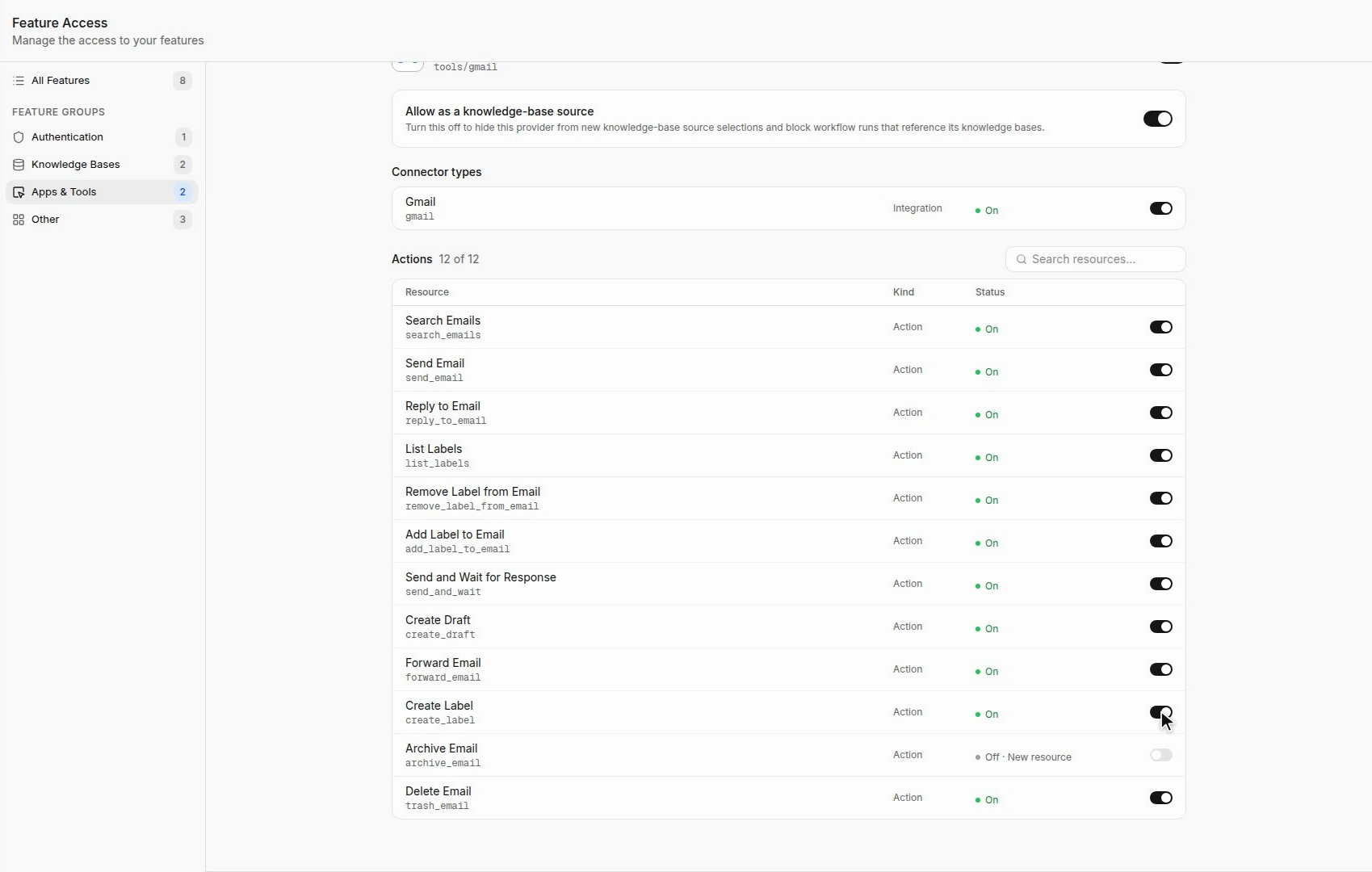
Remove unintended changes before leaving the configuration.
Important behavior
Making an action available does not authorize it to access a provider account. Users still need the required connection and provider permissions.
Last updated
Was this helpful?