

SCIM provisioning with Okta
Use Okta SCIM provisioning to manage StackAI users and groups from your directory. Configure user lifecycle operations, role mappings, and Group Push for the records you want to synchronize.
Before you start
Complete the prerequisites in SCIM provisioning, including SSO, the default role, and an agreed activation and group-sync policy. Have your Okta administrator configure the application and own user assignments and Group Push. Test one intended assignment before expanding the scope.
You need administrative access to the Okta application and StackAI provisioning settings.
Configure StackAI provisioning
Select Okta in SCIM Provisioning and review the default role and synchronization options.
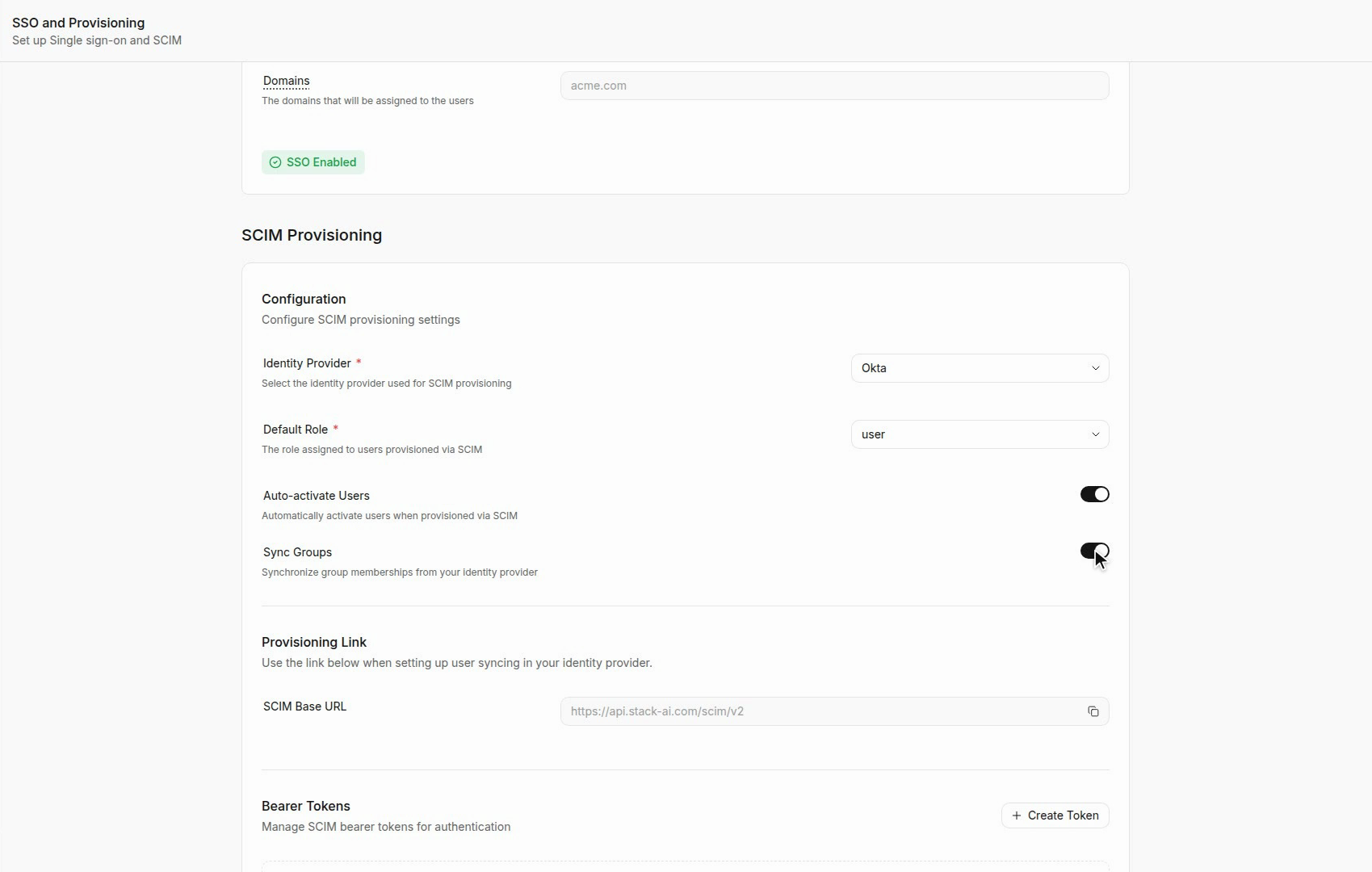
Use a default role appropriate for newly provisioned users.
Create a dedicated token and review the enablement and role-mapping notices.
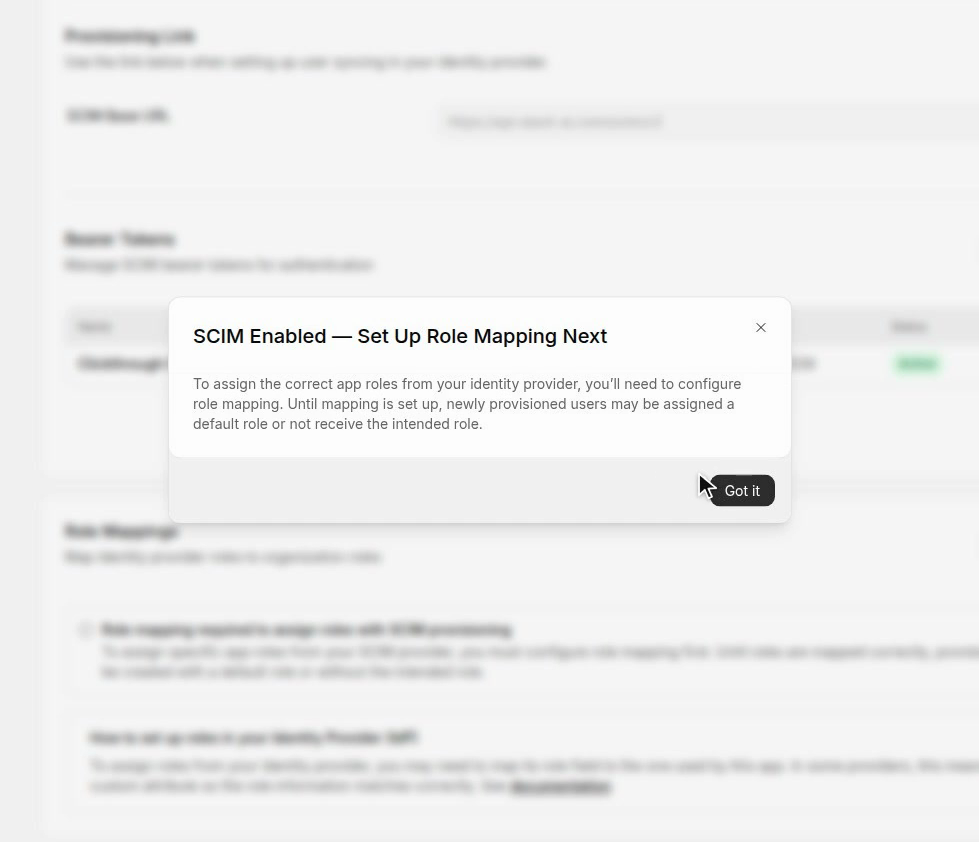
Store the credential securely for the Okta integration.
Map the role value sent by Okta to the required StackAI organization role.
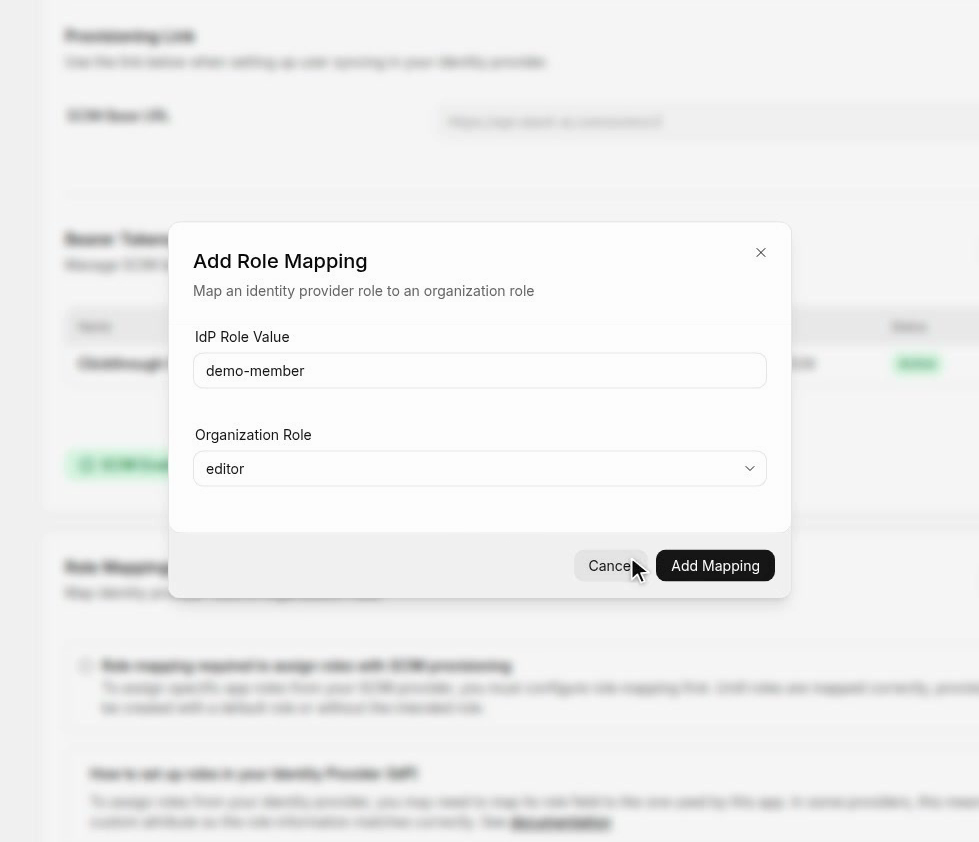
Complete the mapping before provisioning users who depend on it.
Configure Okta provisioning
In Okta's Provisioning integration, enter the StackAI base URL and configure the user identifier and bearer authentication.
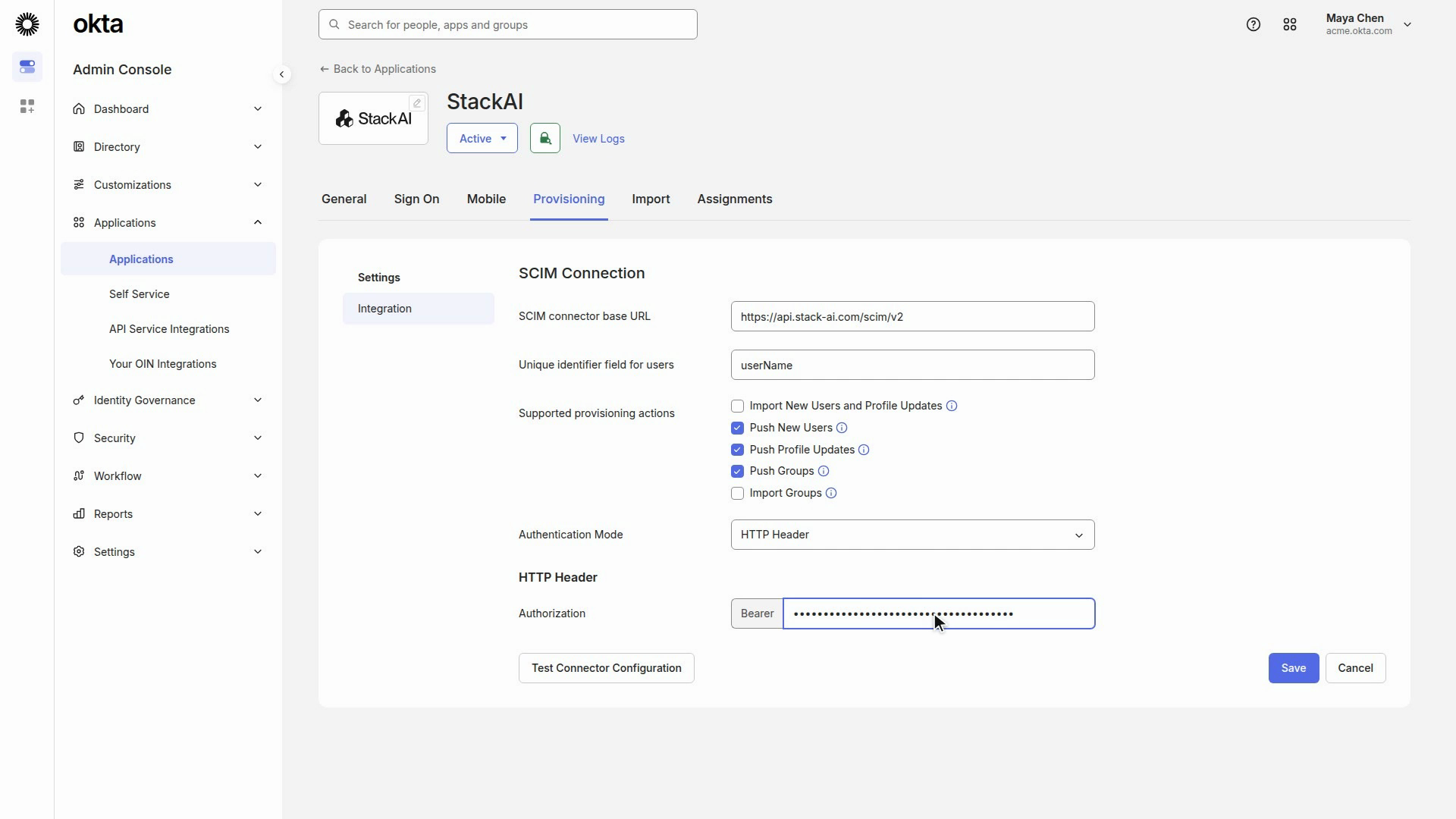
Check connectivity using the intended provisioning configuration.
Open Provisioning → To App and review creation, profile update, and deactivation settings.
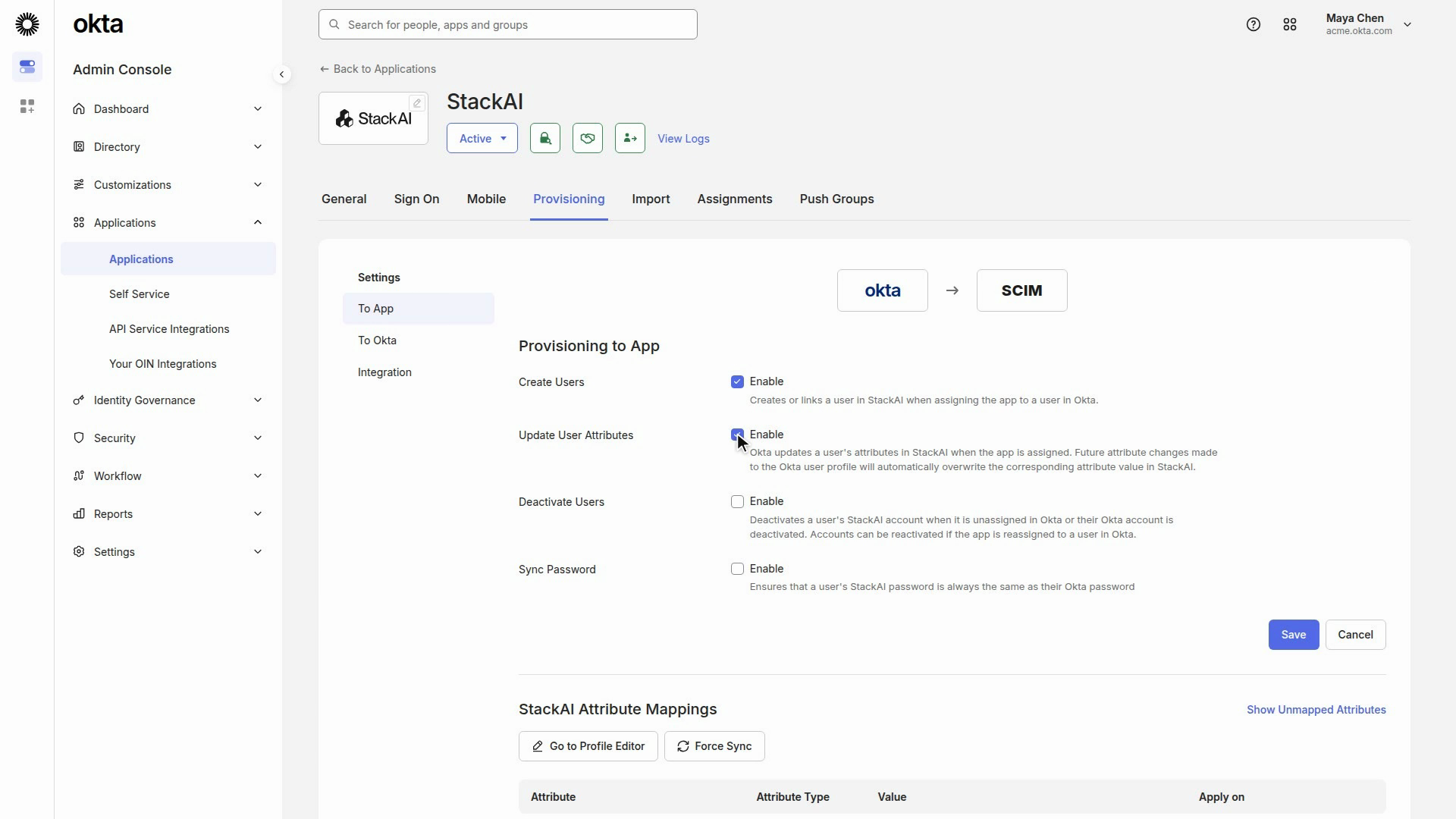
Save only the lifecycle operations the organization intends to manage through Okta.
Inspect the application profile and role attribute mapping.
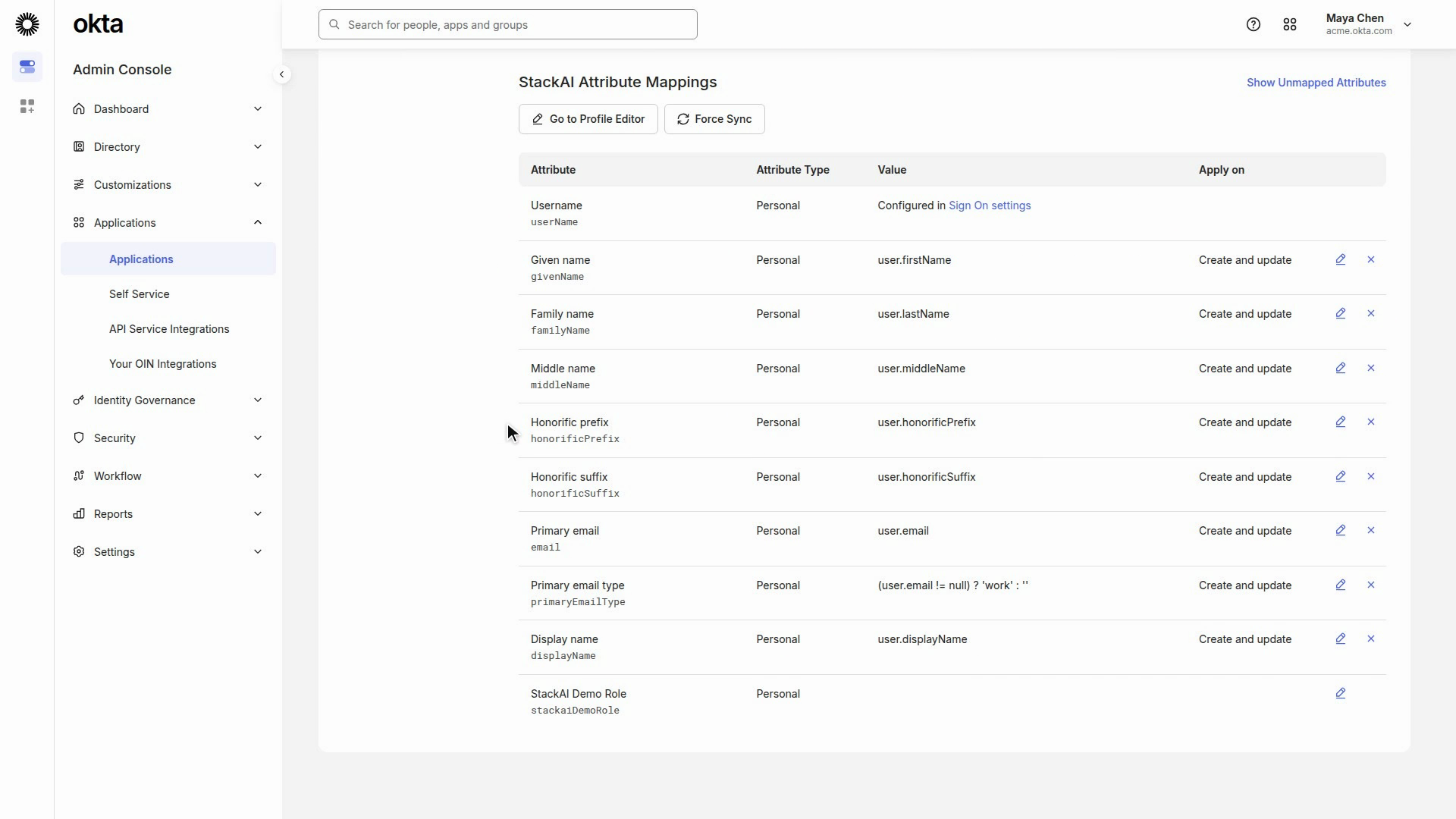
The value Okta sends must match the incoming role value configured in StackAI.
Inspect provisioning events
Review the relevant Okta System Log events.
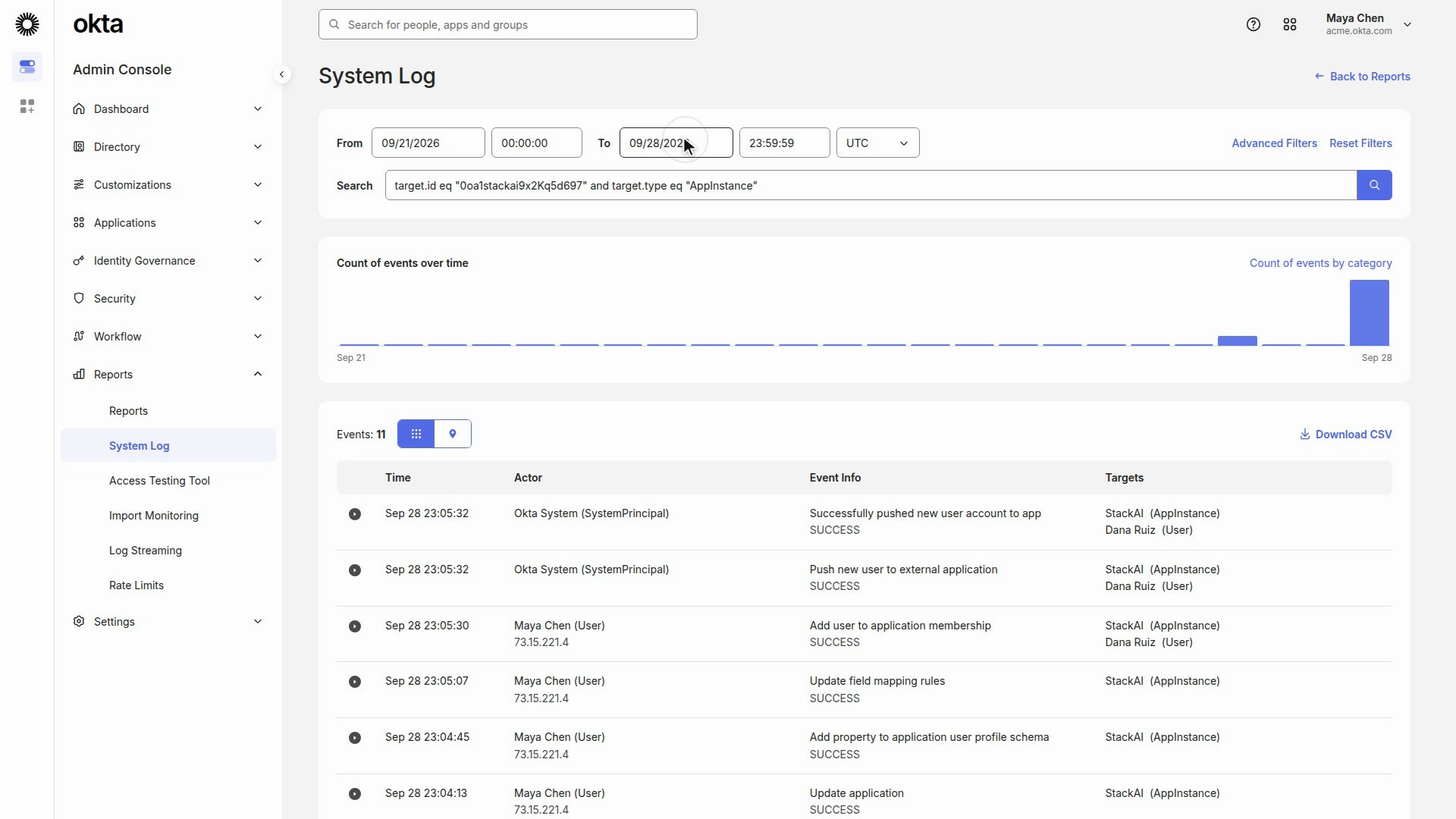
Inspect each operation's outcome instead of relying only on the application's Active status.
Synchronize groups
Open Push Groups and inspect the intended group.
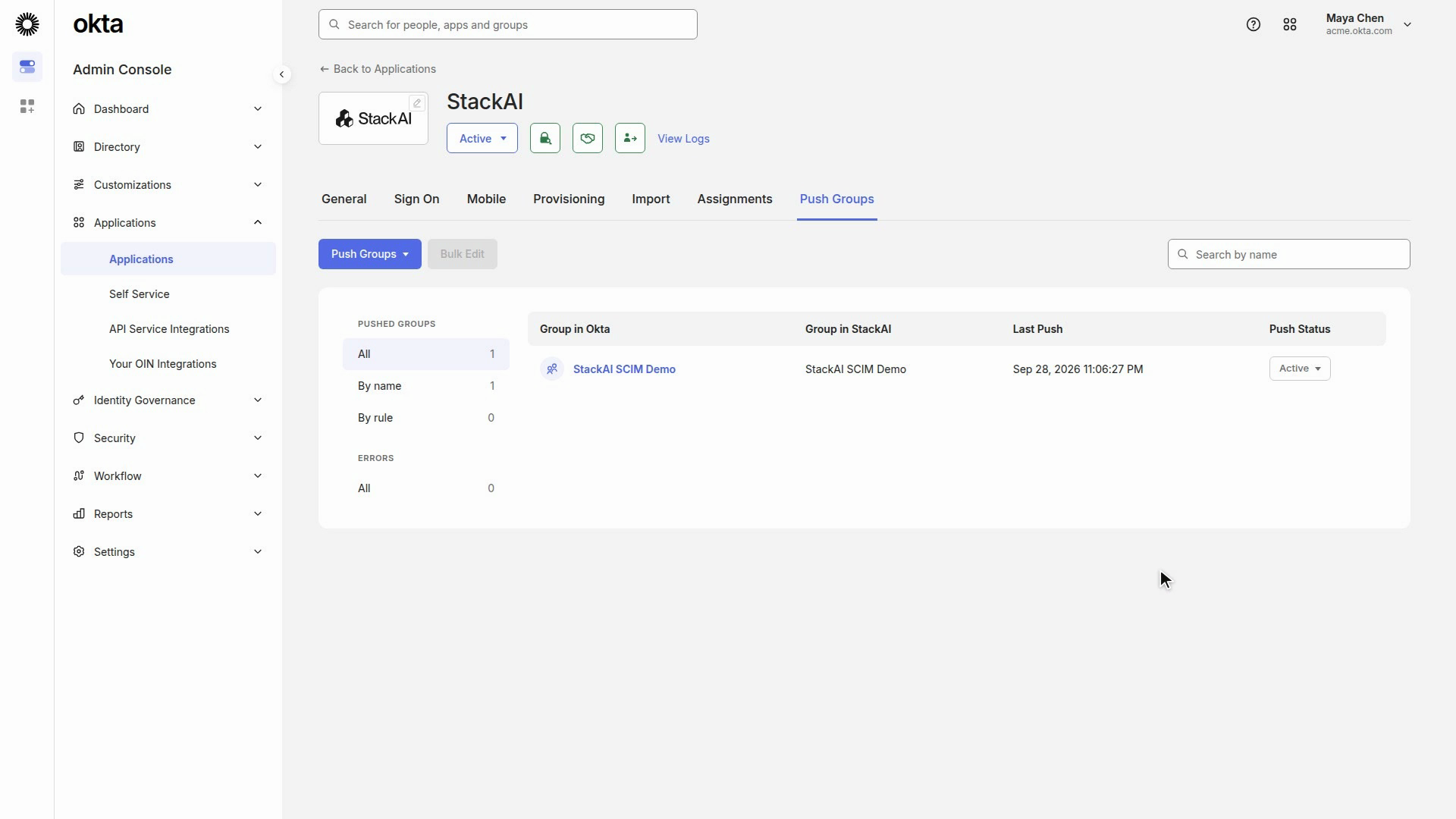
Follow Okta's requirements for group assignment and Group Push configuration.
After changing membership, inspect the corresponding group and member state in StackAI.
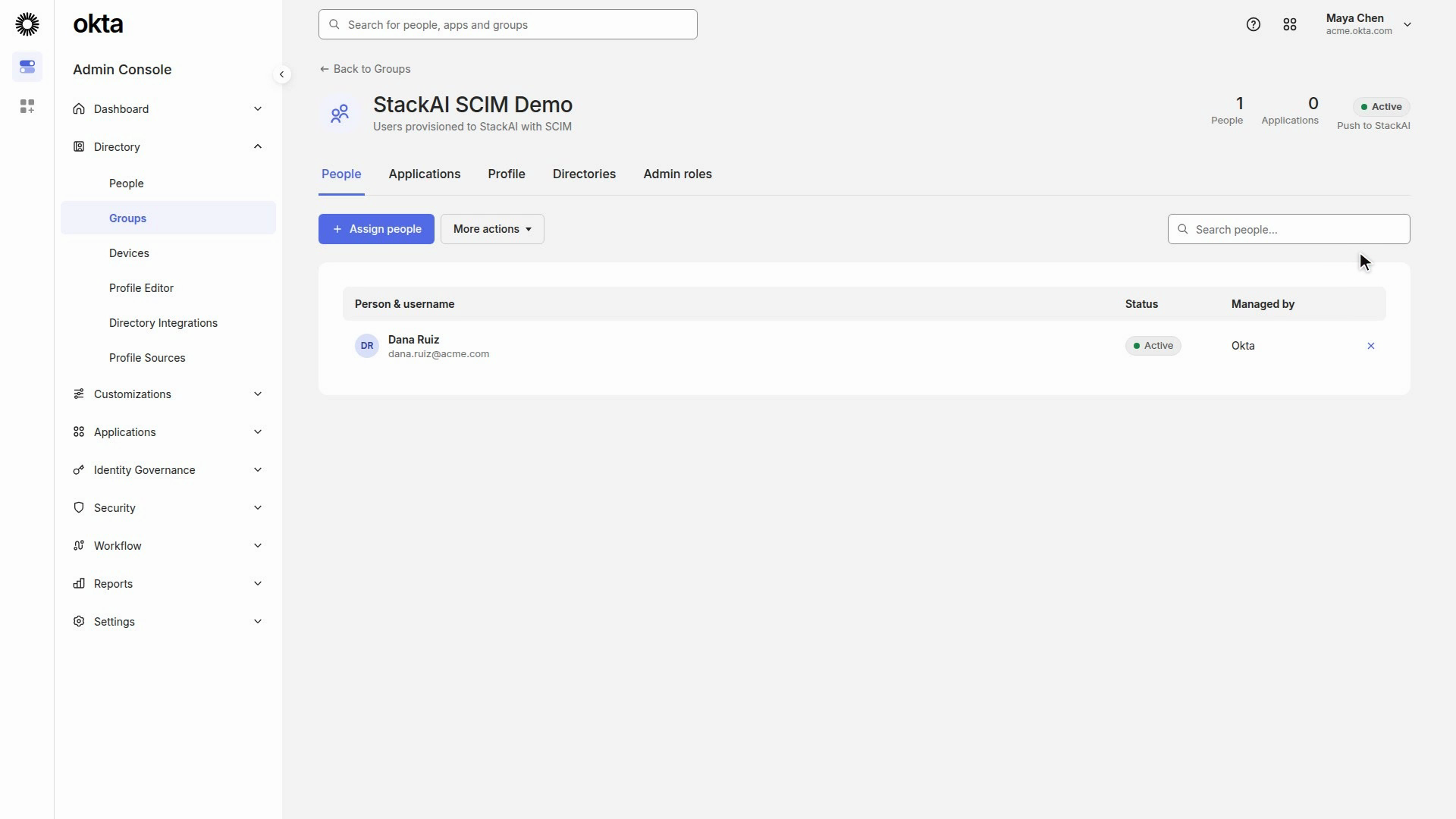
Confirm the intended change without affecting unrelated assignments.
Important behavior
Okta application assignments and Group Push serve different purposes. Configure both according to your intended user and group scope.
The role value sent by Okta must match the incoming value in the StackAI role mapping.
Last updated
Was this helpful?