

Password recovery and MFA
Use password recovery when you cannot sign in to a password-based account. Multi-factor authentication (MFA) adds a verification code to the sign-in process.
Before you start
First identify where you sign in: StackAI password, Google, or organizational SSO. Use the recovery flow for that sign-in provider. If your authenticator is unavailable, go directly to the lost-authenticator section below instead of repeatedly requesting a password reset.
To set up MFA, have an authenticator application available. Keep access to the email address used by your account for password recovery.
Reset a forgotten password
On the sign-in page, select Forgot password?
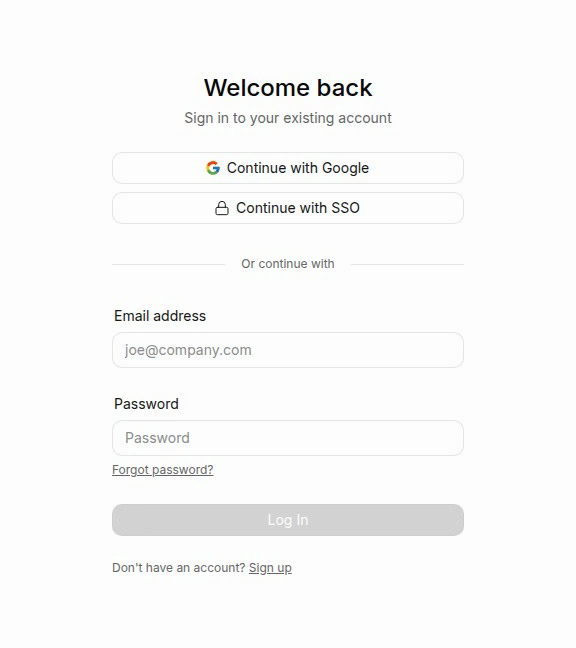
Enter your account email address and request a recovery email.
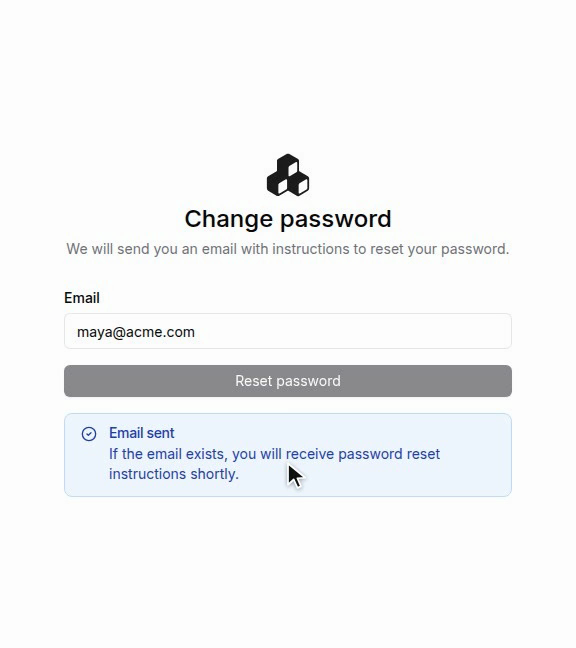
Open the reset link in that email. Enter and confirm your new password, then select Update Password.
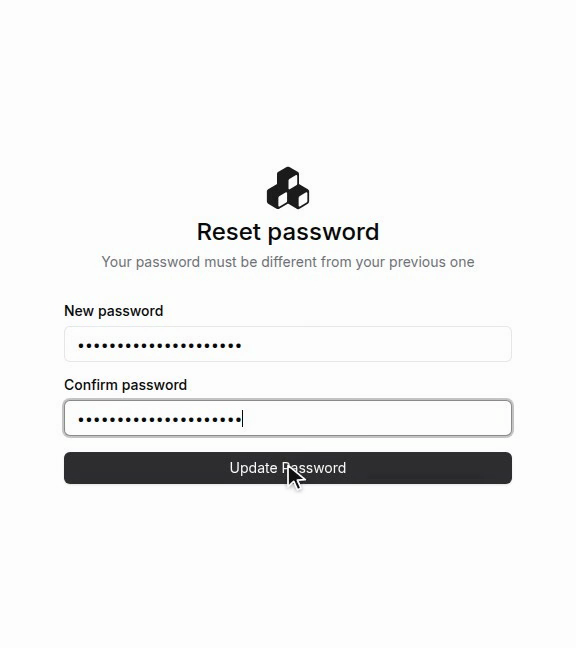
Return to the sign-in page and use the new password.
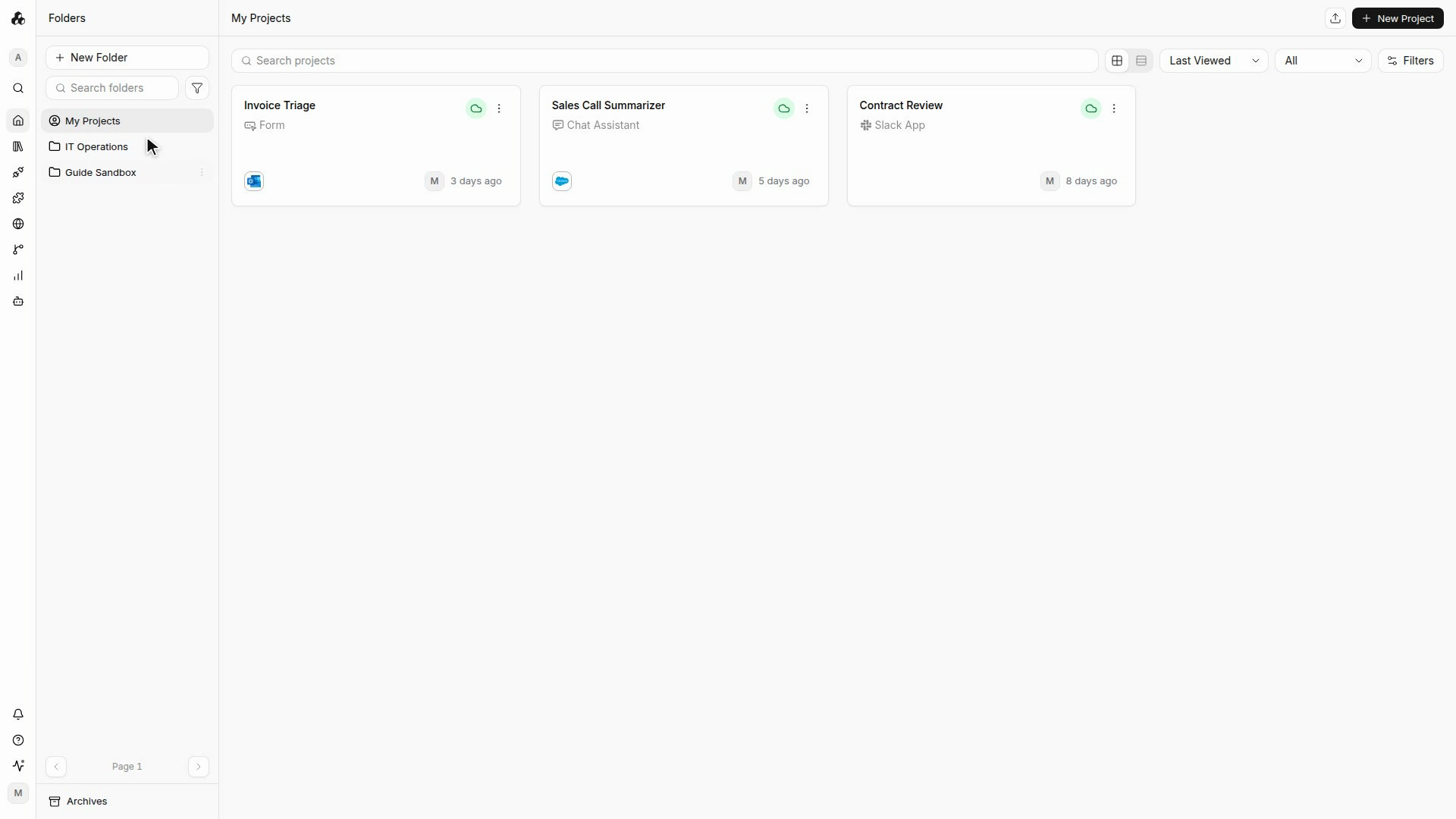
Change a password while signed in
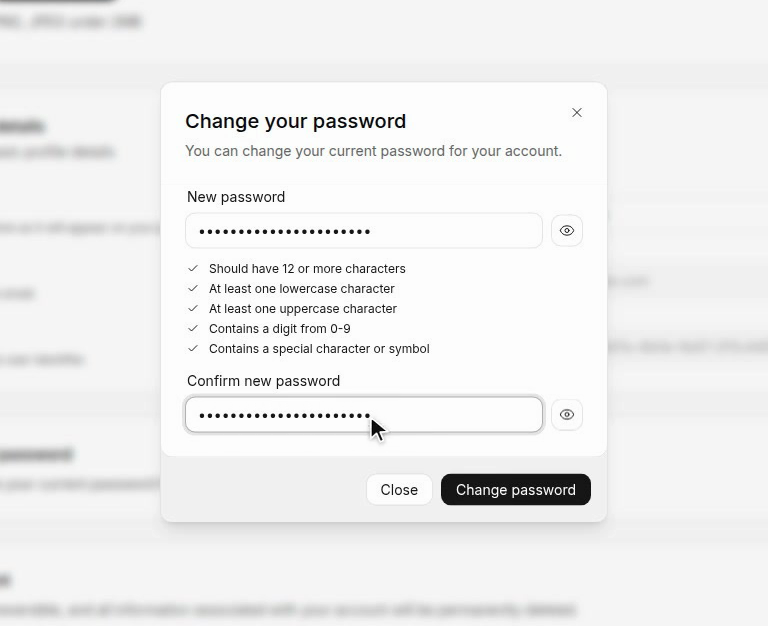
Open Settings → Profile → Change password, if this option is available. Complete the password fields and save the change.
Set up an authenticator
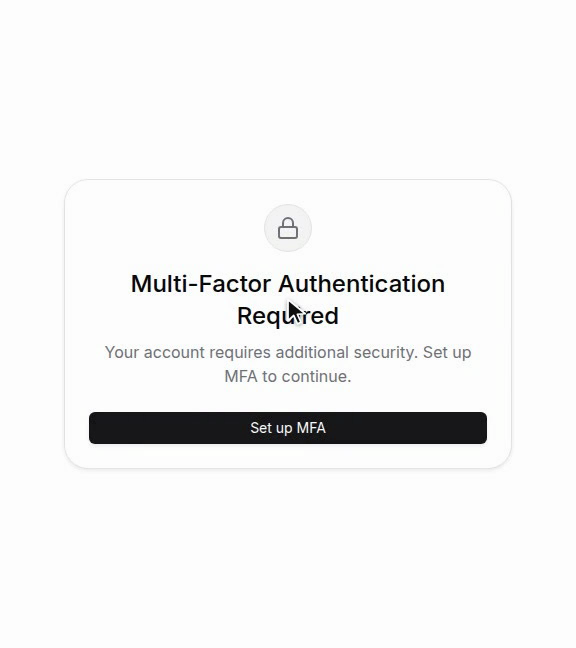
At the enrollment prompt, select Set up MFA.
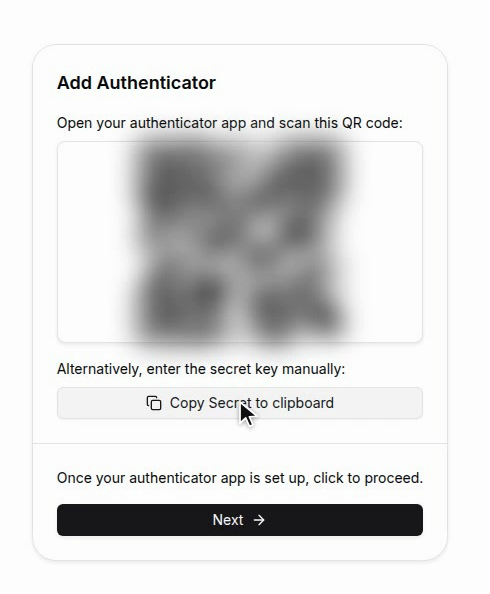
In your authenticator application, add an account. Scan the displayed QR code or enter the manual setup secret.
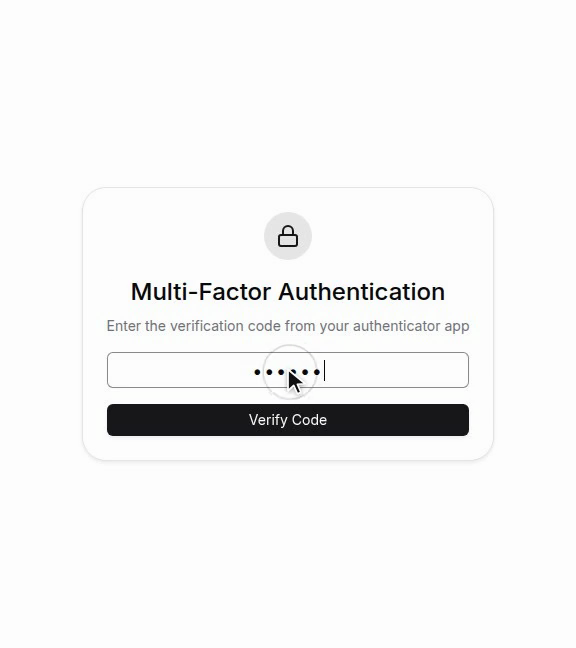
Enter the current code from your authenticator and select Verify Code. This completes enrollment.
Sign in with MFA
When StackAI asks for a verification code, open the matching account in your authenticator. Enter the current code.
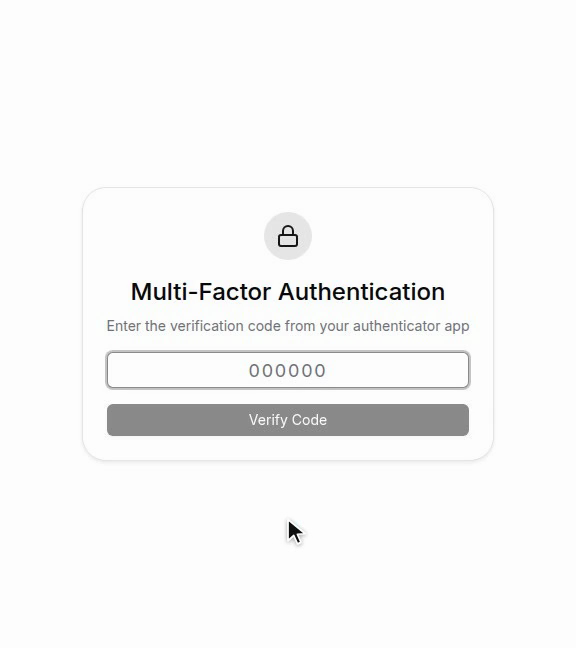
After successful verification, StackAI opens your account.
If you no longer have the authenticator
If the challenge is shown by your organization's identity provider, use that provider's recovery process or contact your IT help desk. StackAI password recovery does not manage the provider's MFA.
If StackAI asks for the code and you no longer have its authenticator account, contact your organization administrator and established StackAI support contact. There is no self-service option in this sign-in flow to remove a lost authenticator. Do not assume that resetting the password removes an enrolled factor.
Provide your account email, organization, deployment URL, the sign-in method, and the exact error or challenge you see. Never send a current code, QR code, setup secret, password, or session token. If you cannot reach Settings because you are locked out, ask an administrator who can sign in to use Support and deployment diagnostics on your behalf. Support can advise on the recovery process.
After recovery is completed, enroll the replacement authenticator if required and verify a fresh sign-in before closing the working session.
Important behavior
For Google or SSO sign-in, use your identity provider’s password recovery process.
If a verification code is rejected, check that you selected the correct account in the authenticator. Check your device time and use a new code if the previous one expired.
Last updated
Was this helpful?