

Triggers and scheduled and event runs
Triggers start a workflow when a schedule or supported external event occurs. Use them for work that should begin without a person submitting each request.
Before you start
Have a working workflow and permission to publish its configuration. This guide walks through a schedule; for provider events, see Use an external event below. A draft schedule does not run automatically. Complete publication and check registration before waiting for the first scheduled run.
Connect the trigger
Connect Scheduled Execution to the processing steps and Output.
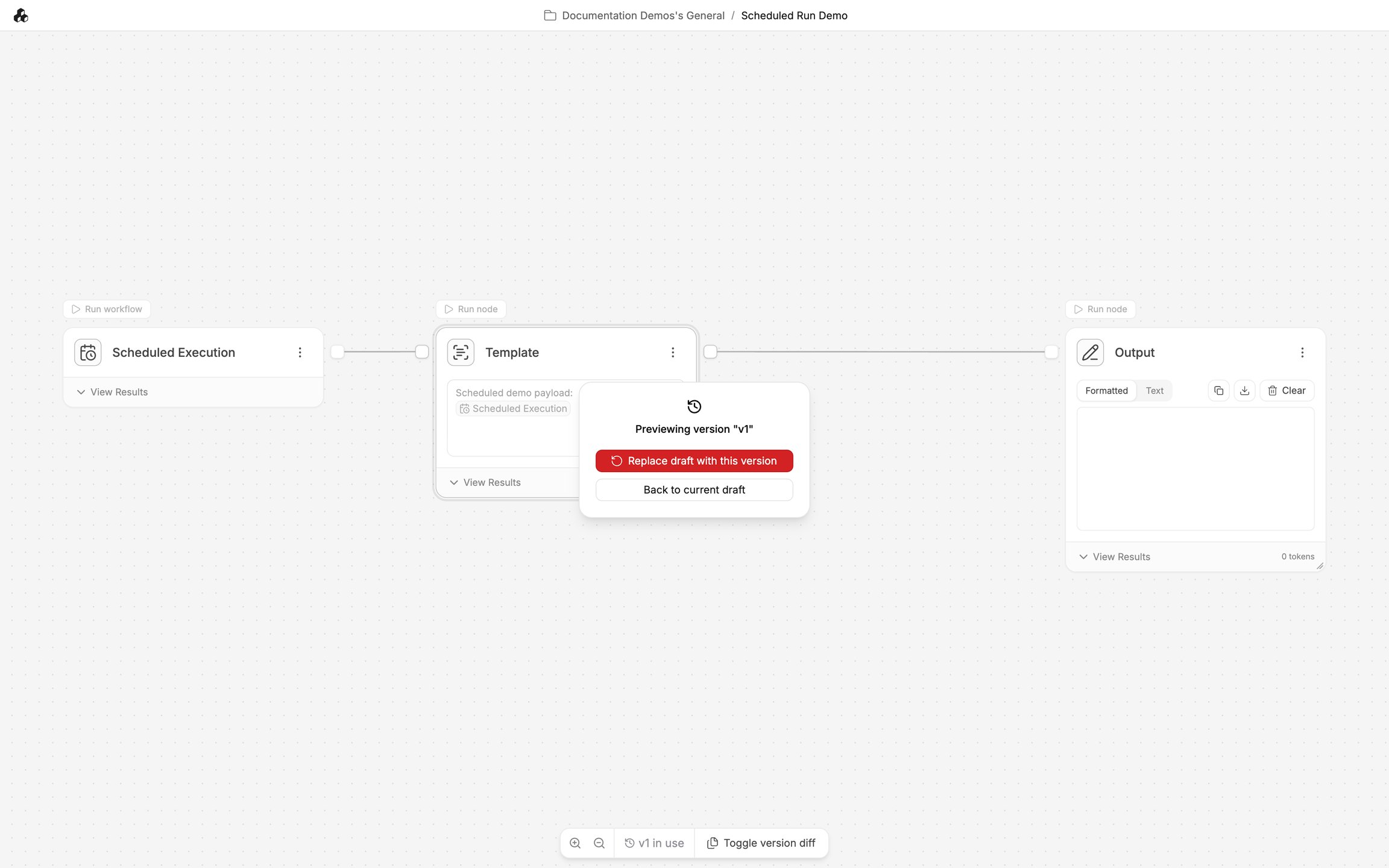
The schedule starts this path automatically when its registration is enabled.
Set the schedule
Open Scheduled Execution → Configuration and set the frequency, time, and time zone.
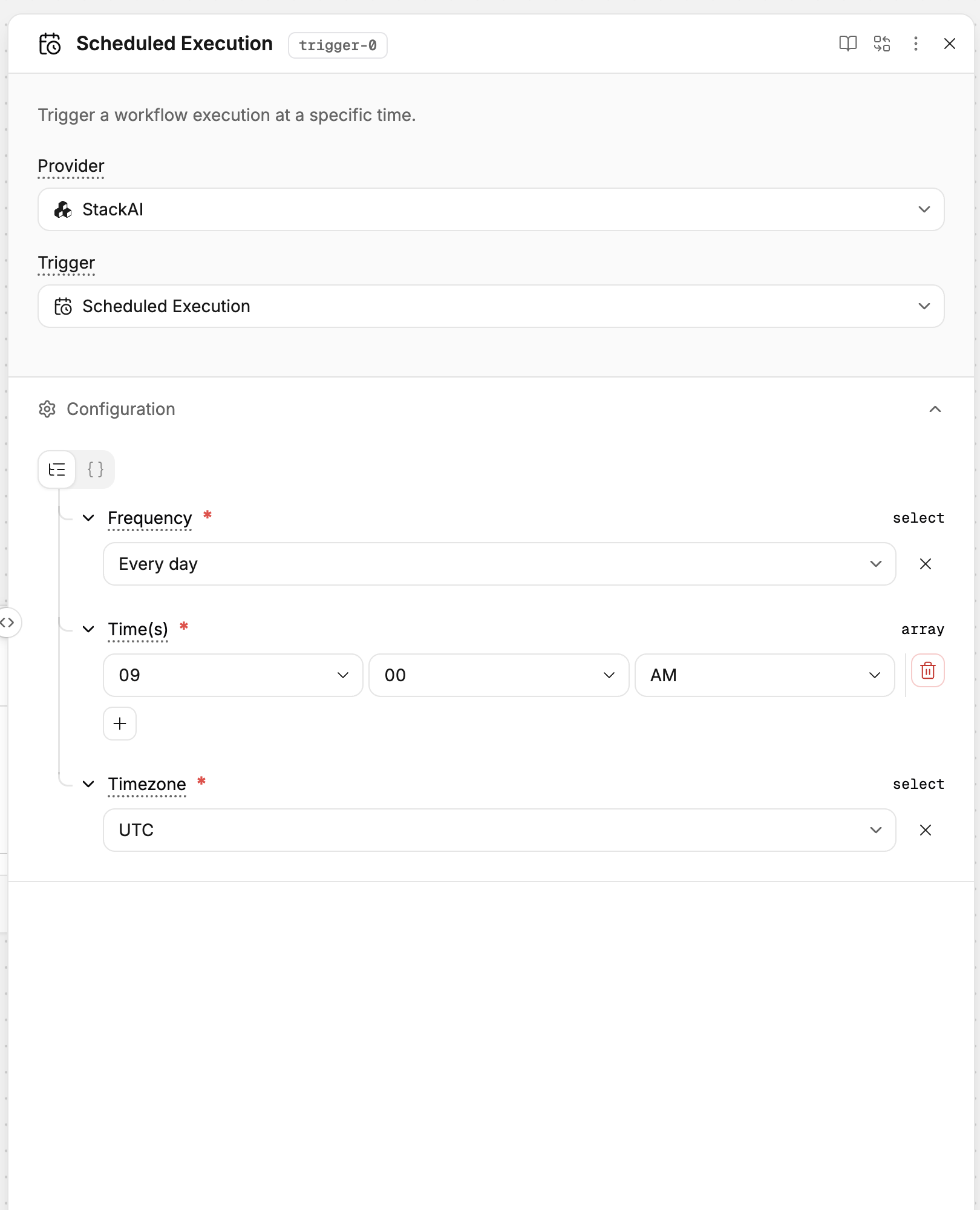
Check the time zone carefully so the schedule runs at the intended local time.
Use the trigger data
Insert the Scheduled Execution reference into the step that consumes its payload.
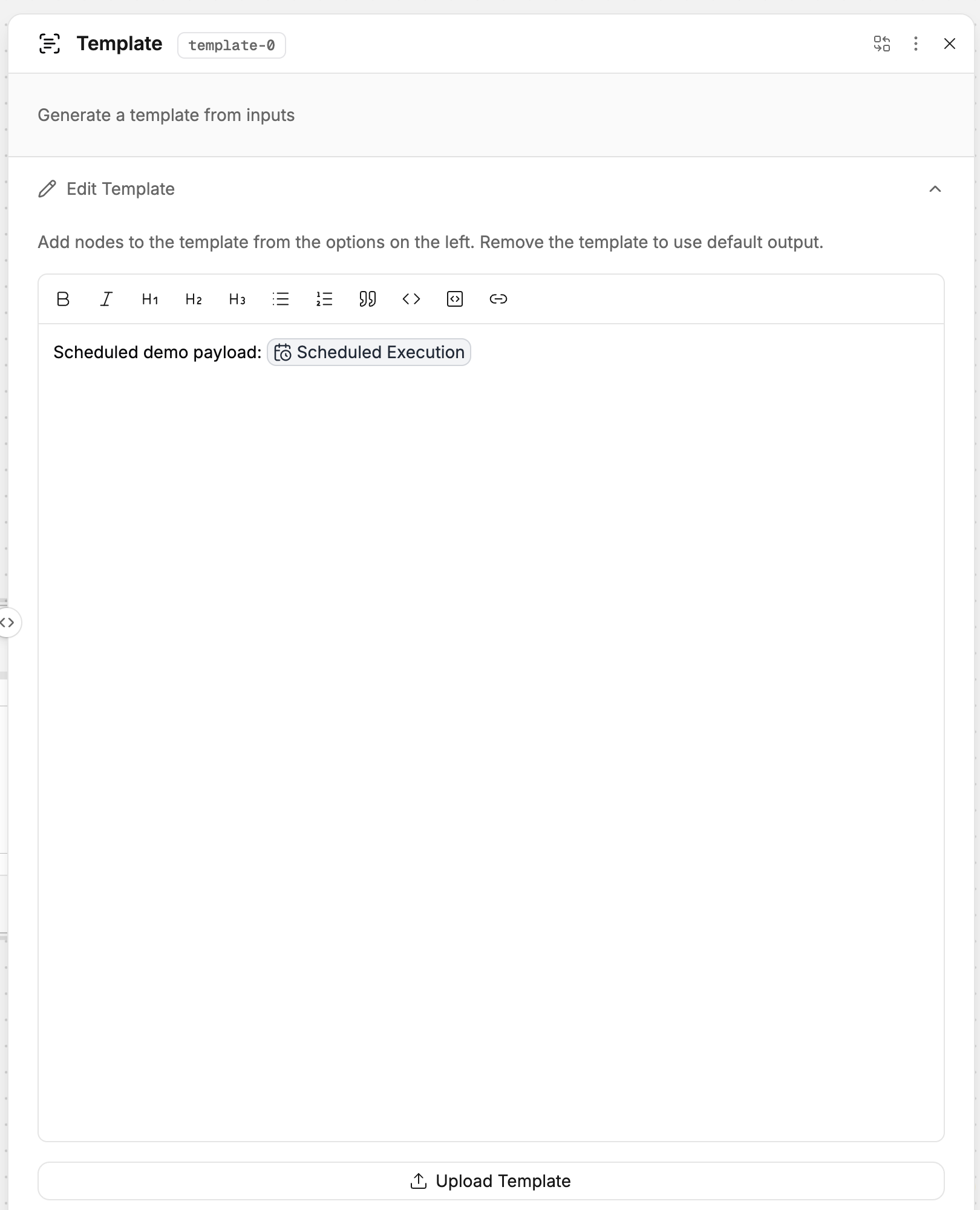
A live reference passes the trigger's actual value into the workflow.
Publish the schedule
Save the draft and publish the configuration. If your organization requires approval, follow Deployments and approval requirements. Check the schedule’s time zone and choose a future occurrence that you can observe.
Check trigger registration
Open Settings → Integrations → Triggers and review the registration status.
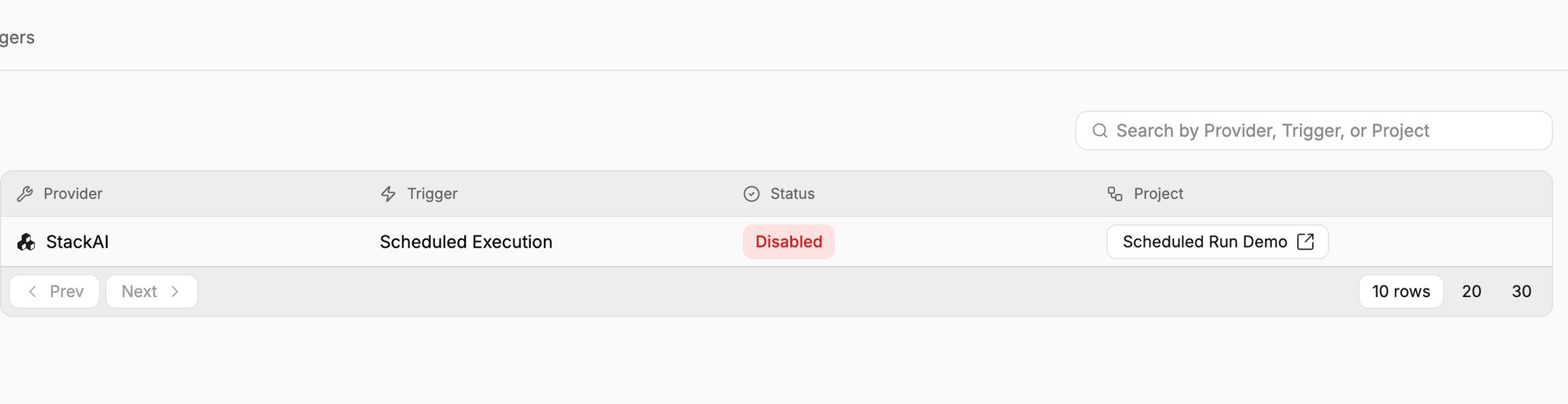
A schedule configured inside a workflow must also have an enabled registration to run automatically.
Inspect scheduled runs
Open Analytics and inspect a run whose type is Scheduled.

Check its status, time, input, and output to confirm what happened during that occurrence.
Important behavior
Save and deploy the required configuration. Schedule fields in an unpublished draft do not activate a schedule.
If no scheduled run appears, check the registration status, deployed version, schedule, and time zone.
Use an external event
For event-driven work, choose the trigger provided by the application that produces the event, supply its required connection and configuration, and connect it to the processing path. The event fields vary by provider, so inspect that trigger’s available outputs when mapping downstream inputs. Use Provider connector configuration for connection setup and Manage configured triggers to locate and review the registration.
Publish the required configuration and check that its registration is enabled. Then cause an event that matches the trigger’s configured conditions and inspect the resulting execution in Analytics. A manual run tests the processing path; it does not prove that the external event listener is active.
Last updated
Was this helpful?