

Folders and project organization
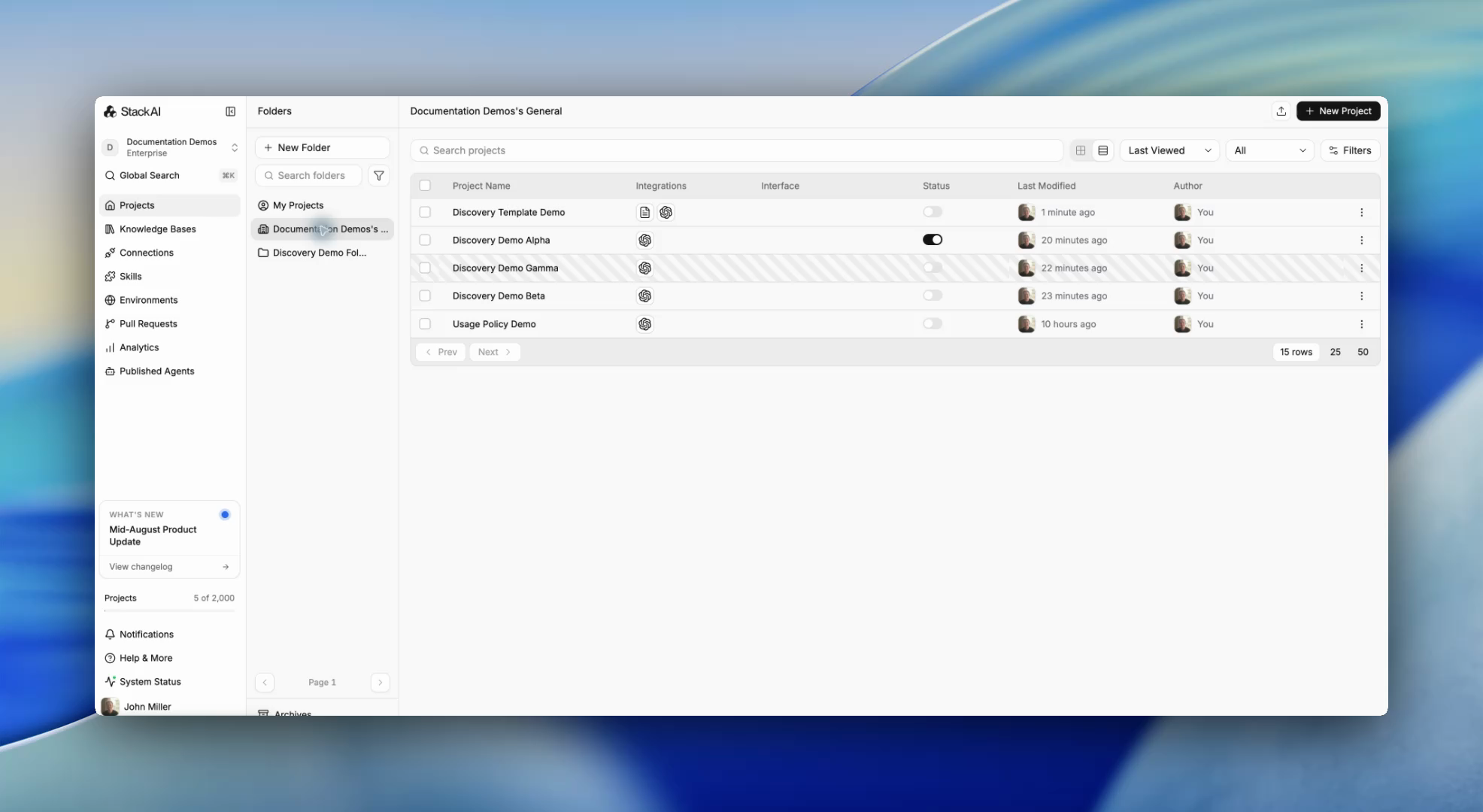
Folders keep related projects together. Create a folder for a team or purpose, then move projects into it.
Create a folder
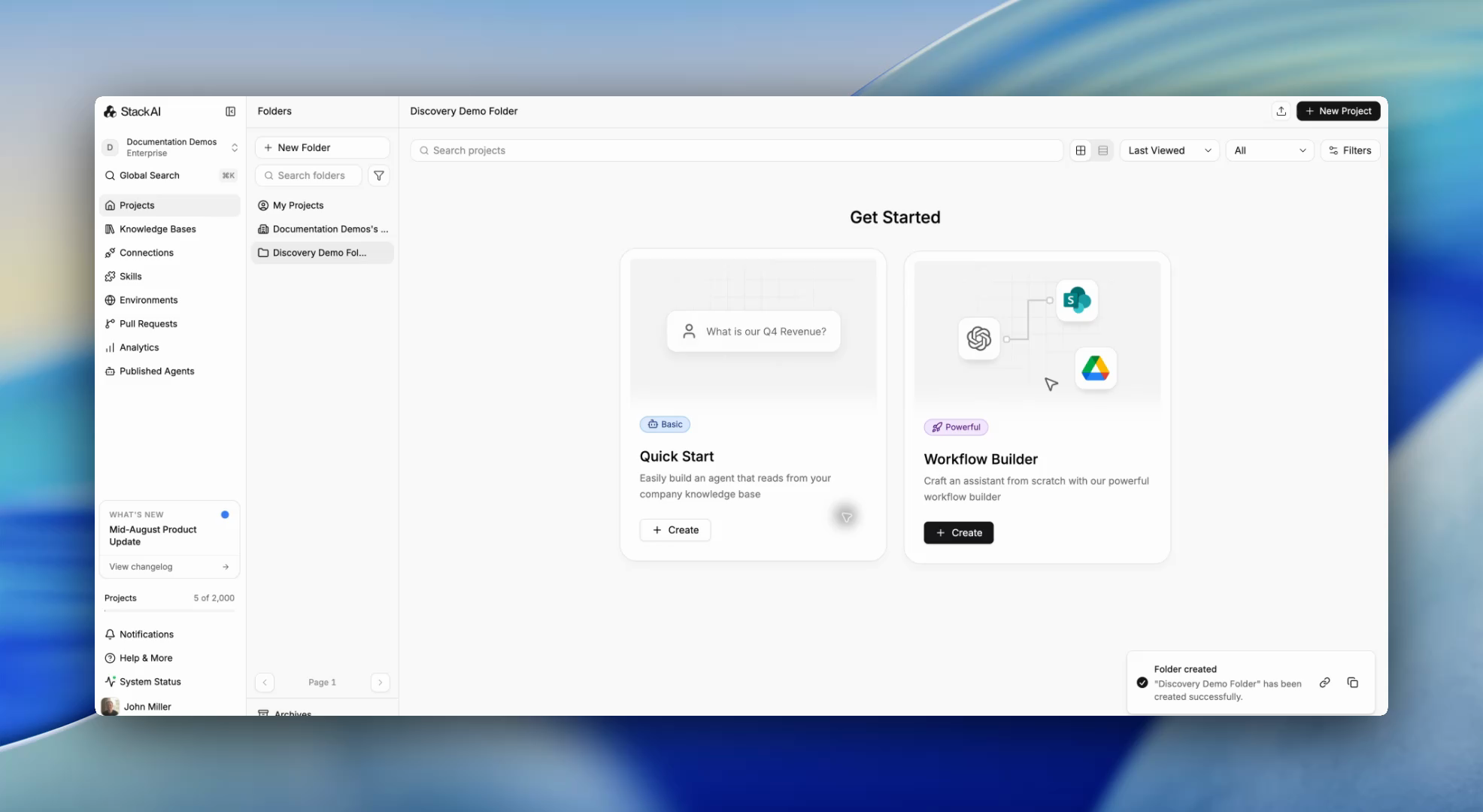
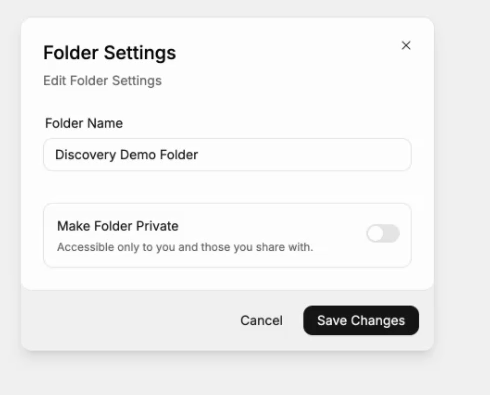
In Projects, select New Folder. Enter a name and choose whether to make the folder private. Select Create Folder.
Move a project
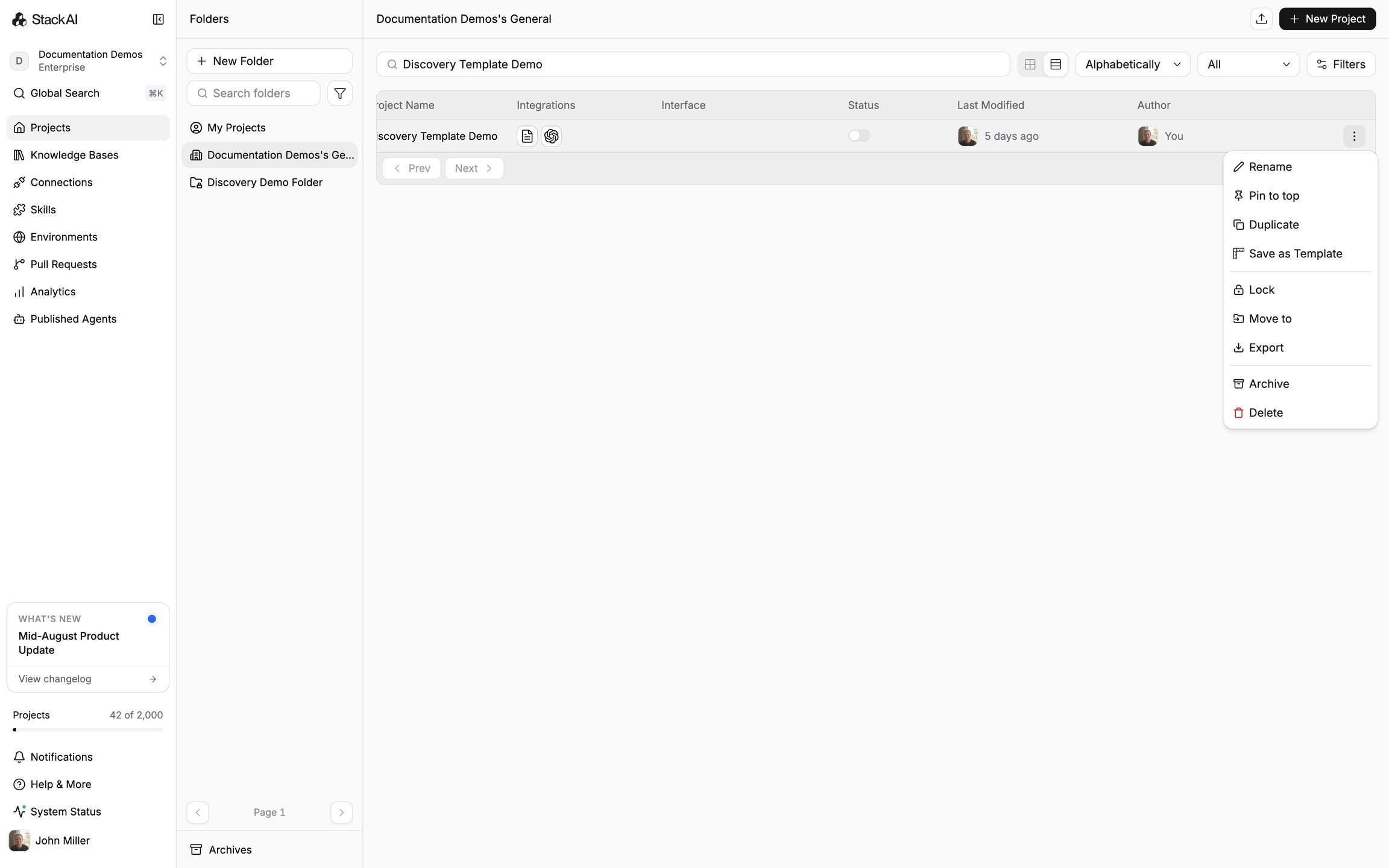
Open the project menu and select Move to.
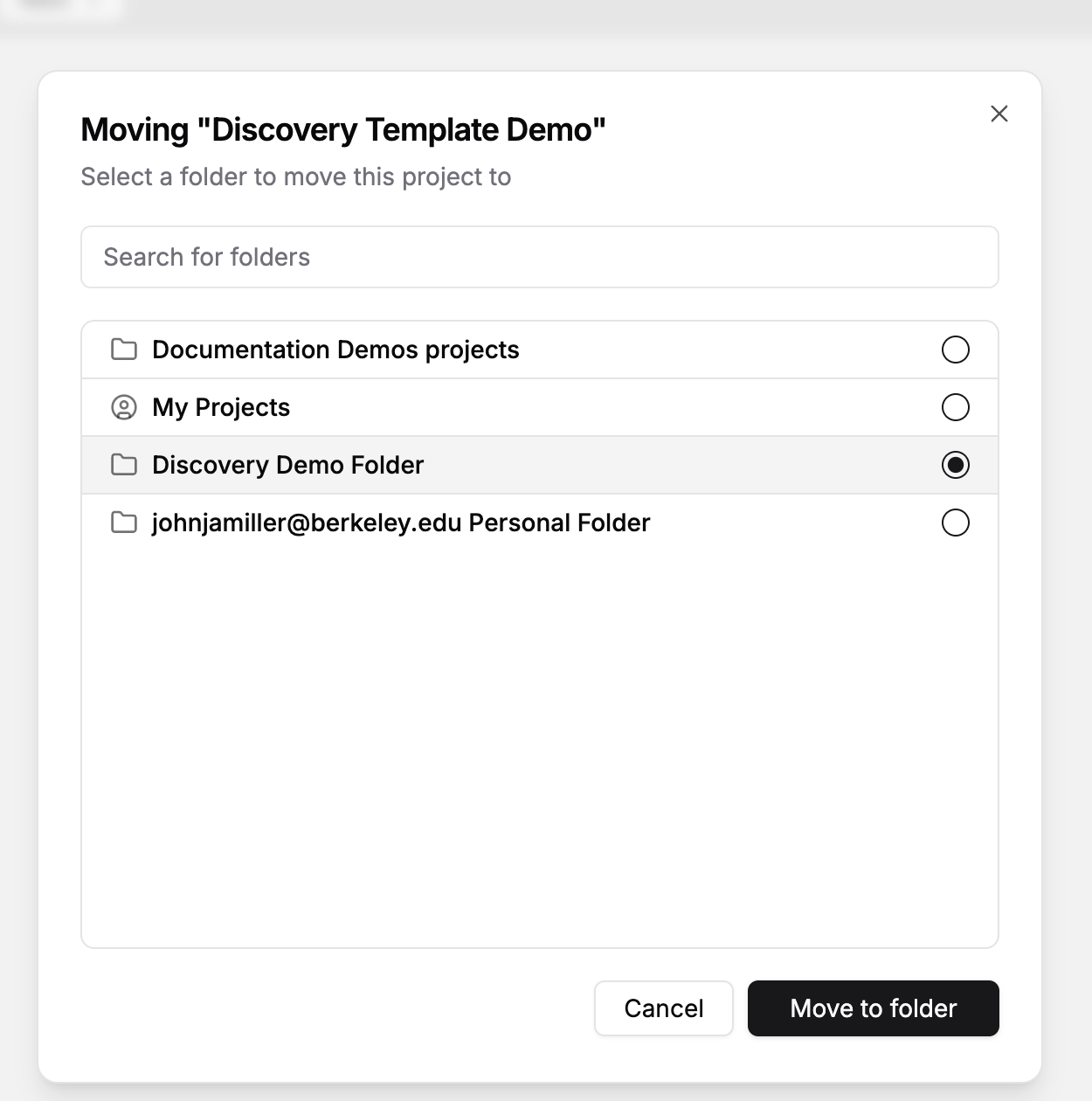
Choose the destination folder, then select Move To Folder.
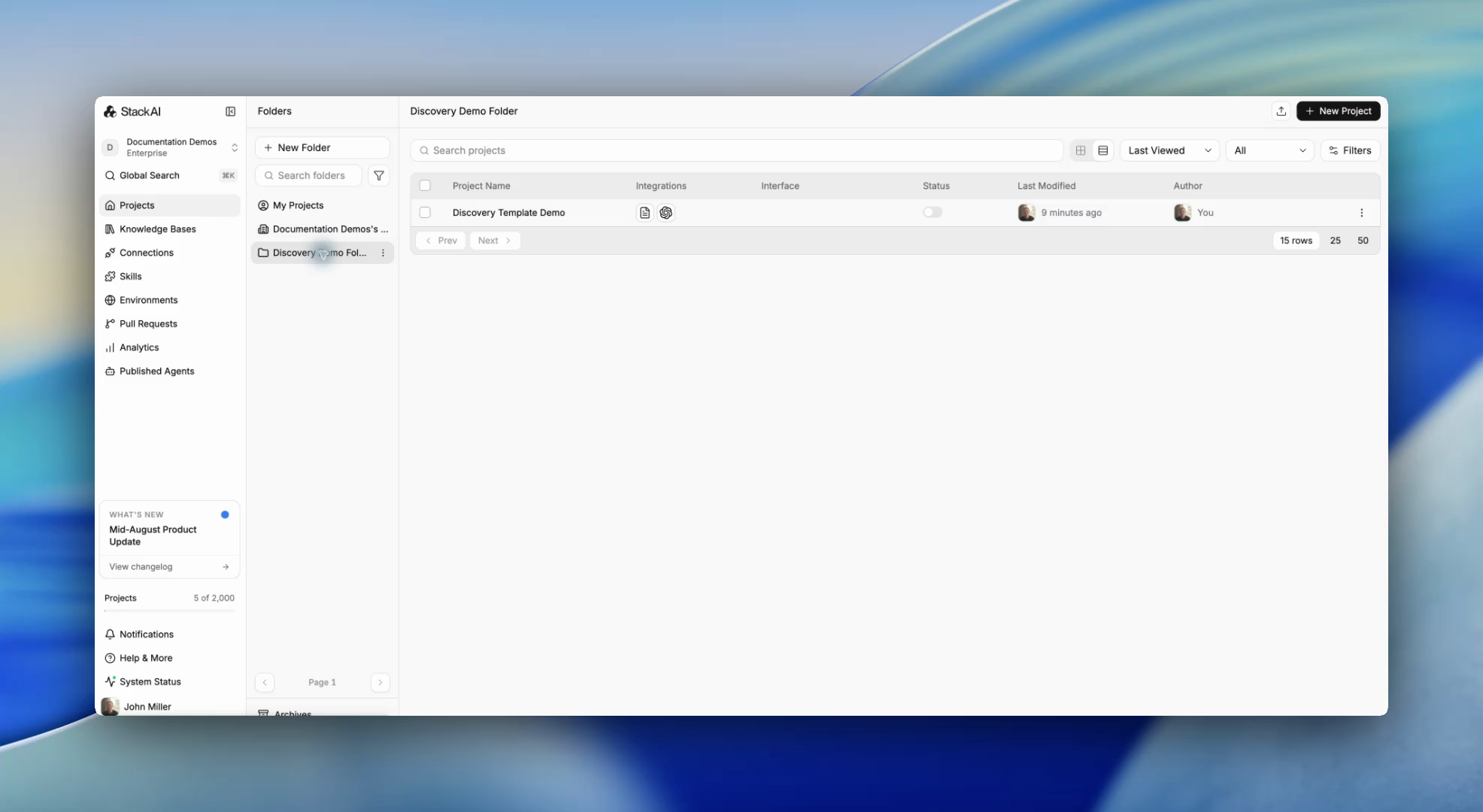
The project appears in the destination folder and leaves its previous location.
Manage a folder
Open the folder menu and select Settings to change its name or privacy. Select Pin To Top to keep it near the top of the sidebar.
To move a project to a different folder later, use Move to again and choose the new destination.
Important behavior
Moving a project preserves the project. A private folder has its own access controls, so review folder sharing when moving work that other people use.
Check access after moving a project
If colleagues need the destination folder, follow Project sharing and permissions and ask an intended member to open the project after the move.
Last updated
Was this helpful?