

Project sharing and permissions
Share folder access so colleagues can open the projects inside it. Send a project link after the recipient has the required access.
Copy the project link
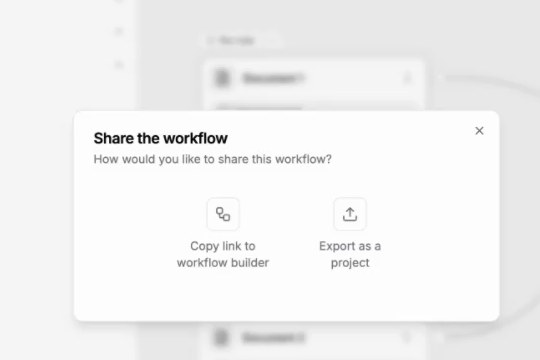
Open the project’s Share dialog and select Copy link to workflow builder.
Check the recipient’s access
The recipient must use an account in the correct organization. If the project is in a private folder, they also need access to that folder.
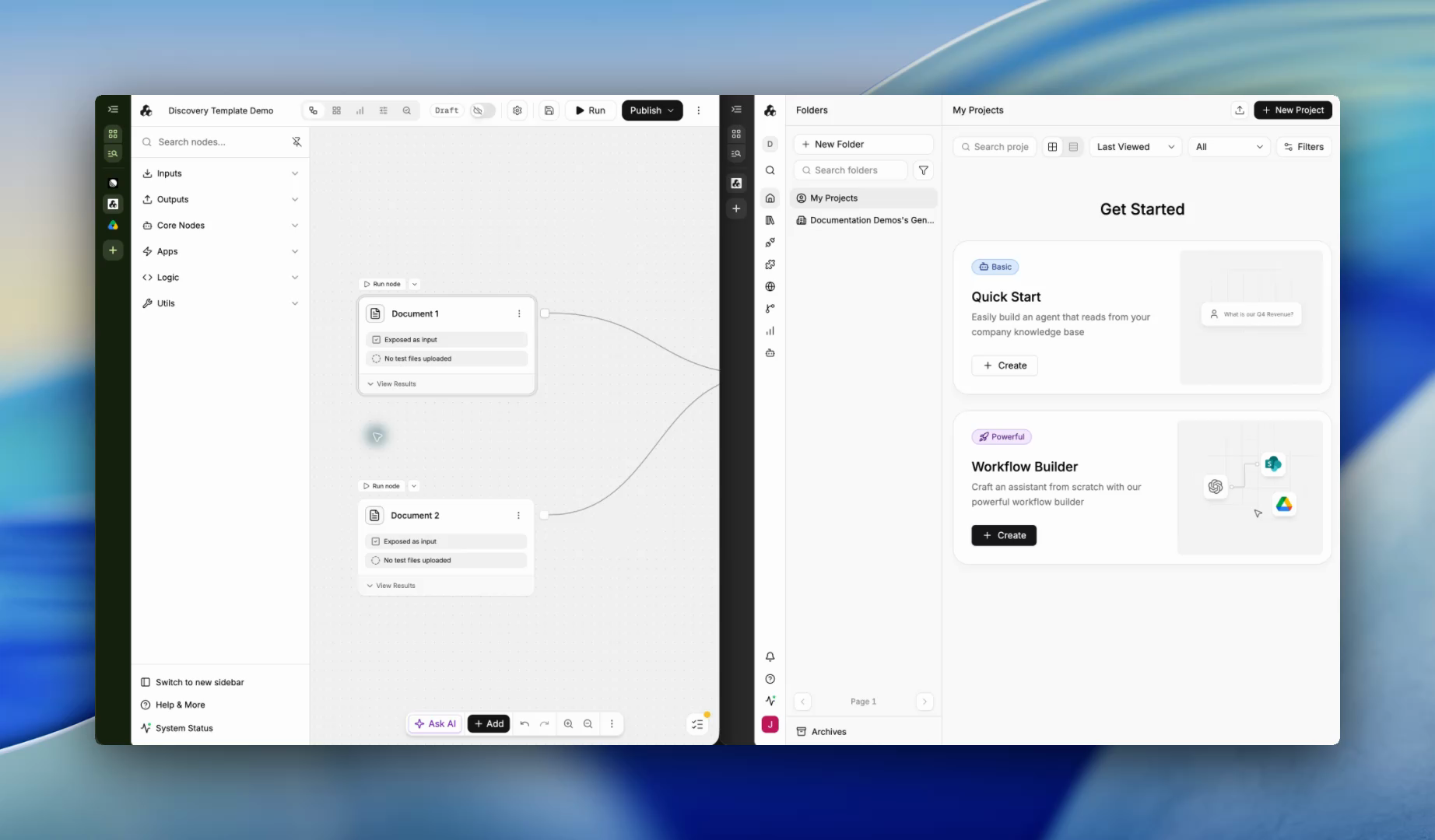
Share a private folder
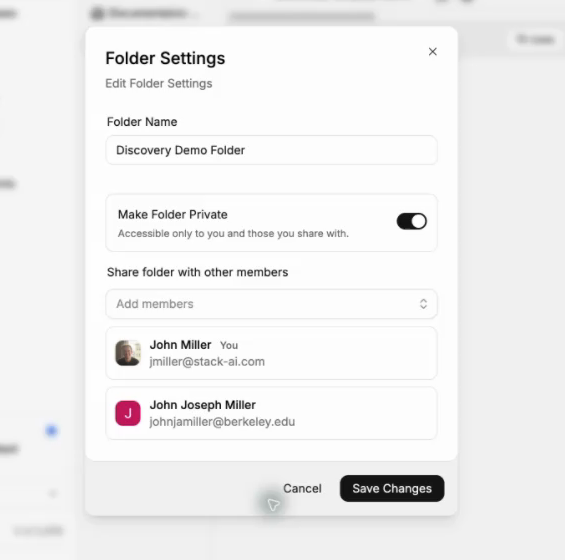
Open the folder menu and select Settings. Find Share folder with other members.
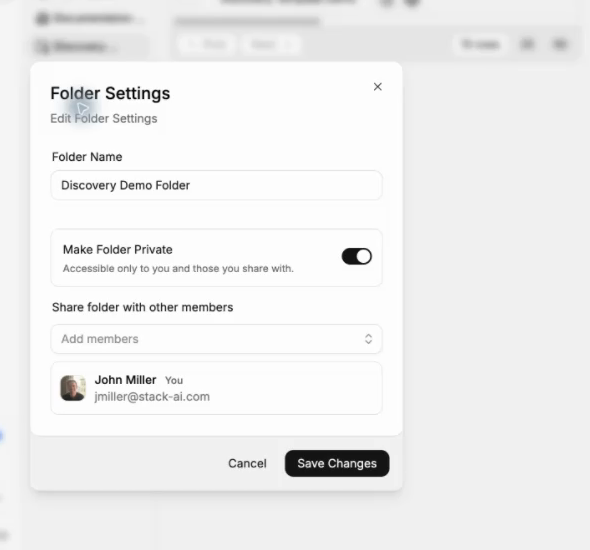
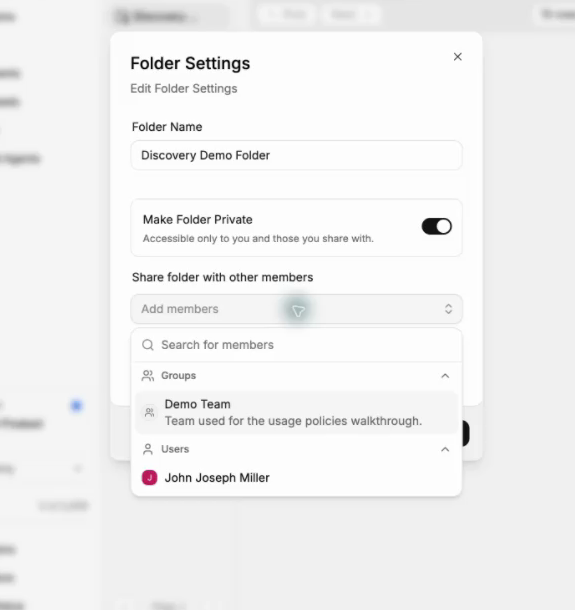
Select Add Members and choose the members or groups that need access.
Select Save Changes.
Open the shared project
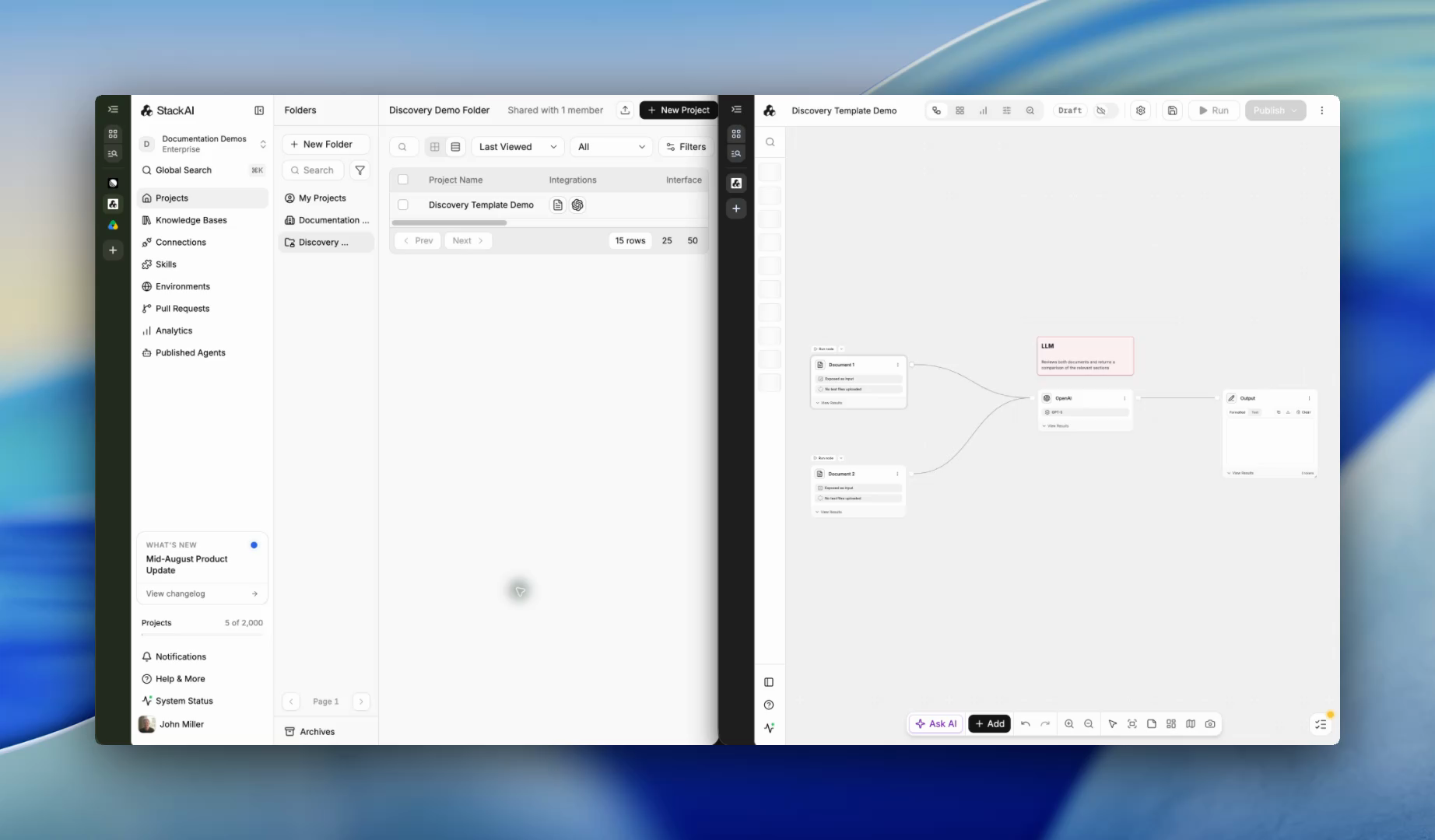
The recipient can now open the project link with the authorized account.
Important behavior
A project link does not grant access by itself. The member’s organization role determines which actions they can perform after opening the project.
Access to a published interface is configured separately in the interface’s security settings.
Next steps
If a recipient cannot find the folder, check Roles and permissions with an administrator. To share the user-facing chat instead of the builder, use Interface authentication and access and Publish a Chat Assistant.
Last updated
Was this helpful?