

Schedules, Time Zones, and Calendar Edge Cases
Schedules start workflows at configured times. Choose an explicit time zone so the schedule matches the team’s operating hours.
Before you begin
Permission to configure and activate the schedule.
Key concepts
Daylight-saving time
A seasonal change to local clock offset in some time zones. Review local schedules around clock changes instead of assuming a fixed UTC offset.
Trigger
A schedule or event source that starts a workflow. It must be configured and activated; discovering it in the catalog does not activate it.
Activation
The state in which a configured trigger can start work. Saving or listing a trigger does not establish that it is active.
Configuration options
Time zone
The geographic or fixed-offset time basis for a schedule.
Select it explicitly when a schedule must follow local working times.
Cron expression
A structured expression describing a schedule on interfaces that support it.
Confirm it matches the human-readable schedule and the selected time zone.
Configure a schedule
Choose the frequency and time zone.
Set the days and times, then review the displayed schedule.
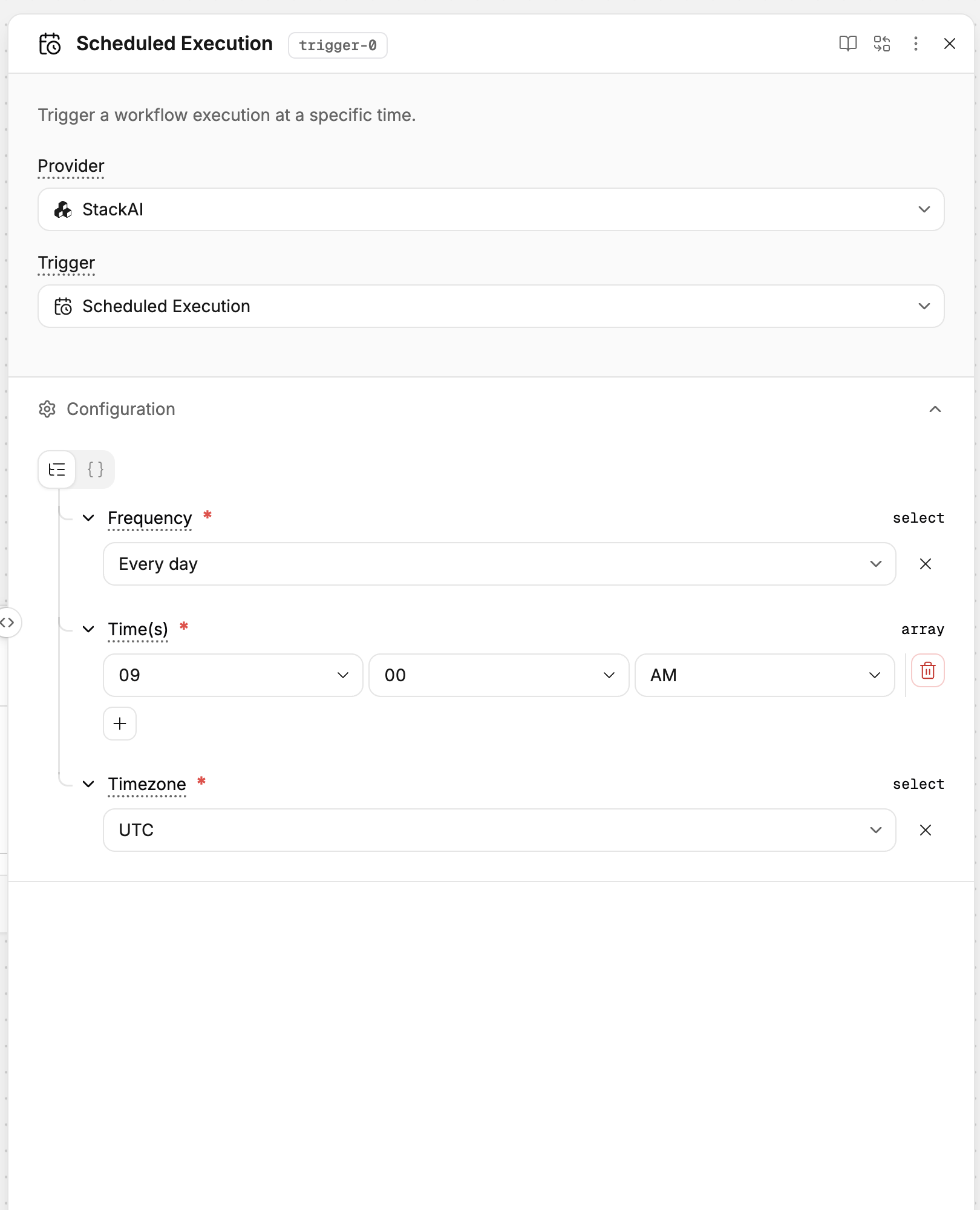
Set the schedule’s frequency, time, and time zone in Configuration.
Activate the schedule and inspect the next run’s time and inputs.
Runs start according to the active schedule.
Behavior and limitations
The default time zone is UTC where no other zone is selected. A monthly schedule for the 29th, 30th, or 31st can skip months without that date. Daylight-saving changes affect local clock times. Avoid overlapping schedules unless repeated execution is intentional, and use run history to confirm the actual start time.
Related resources
Was this helpful?