> For the complete documentation index, see [llms.txt](https://docs.stackai.com/llms.txt). Markdown versions of documentation pages are available by appending `.md` to page URLs; this page is available as [Markdown](https://docs.stackai.com/welcome-to-stackai/security-and-governance/security-in-stackai/workspace-and-folder-access.md).
# Workspace and Folder Access
Use private folders to control which teams can see specific projects.
Workspace and folder access is your “scope control” layer. Use it to segment projects by team, function, or sensitivity.
Folder access works alongside:
* [Role-Based Access Control (RBAC)](/welcome-to-stackai/security-and-governance/security-in-stackai/role-based-access-controls-rbac-and-groups.md) (what users can do)
* [Connection and Knowledge Base Permissions](/welcome-to-stackai/security-and-governance/security-in-stackai/connection-and-knowledge-base-permissions.md) (who can view/use specific resources)
### What folder access controls
Folders are **public by default**. When you make a folder private, only the allowed users and groups can see:
* the folder
* the projects inside that folder
This is the simplest way to ensure teams only see the projects meant for them.
{% hint style="info" %}
Folder access controls **visibility in the StackAI workspace**. It does not replace interface security for published deployments (SSO, password, allowlists).
{% endhint %}
***
### Make a folder private
Use private folders for projects that include sensitive data, regulated workflows, or restricted connections.
{% stepper %}
{% step %}
### Open the folder settings
Go to the Projects dashboard. Find the folder you want to restrict. Open the folder’s settings menu.
{% endstep %}
{% step %}
### Enable private access
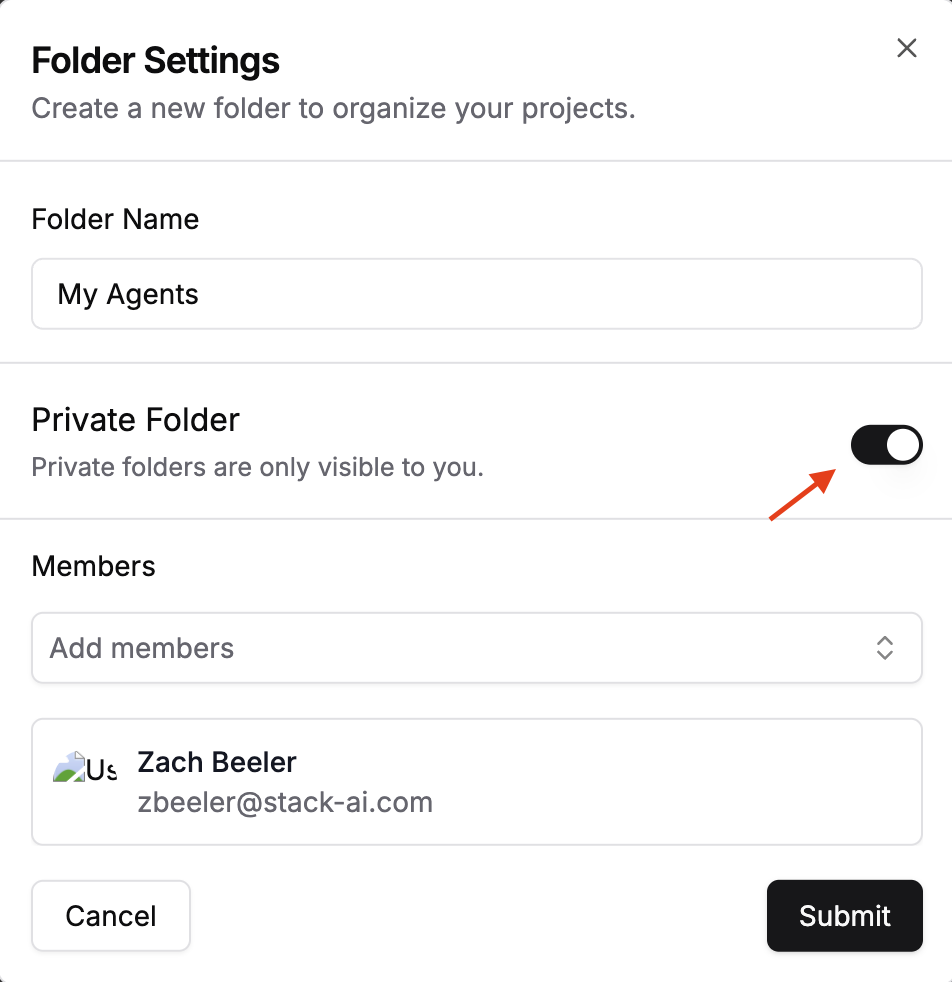
Turn on **Private Folder**. Add the users and groups that should have access.
{% endstep %}
{% step %}
### Confirm access
Verify that only the selected users and groups can see the folder and its projects.
{% endstep %}
{% endstepper %}
Example: configuring a private folder and selecting who can access it.
### Update folder access
You can update folder access at any time. Changes apply immediately.
To update access:
1. Open the folder’s settings.
2. Add or remove users and groups from the allowlist.
To make the folder public again, turn off **Private Folder**.
### Best practices
* Prefer **groups** over individual users.
* Create dedicated folders for sensitive teams (Legal, Finance, HR).
* Keep production workflows in a restricted folder to reduce accidental edits.
### How folder access interacts with permissions
Folder access is a visibility layer. It typically works like this:
* **Folder access** decides whether a user can see a project in the workspace.
* **RBAC** decides what that user can do after they can see it (build, edit, run).
* **Connection and Knowledge Base permissions** control who can view and manage those resources directly.
{% hint style="warning" %}
If a workflow uses sensitive connections or Knowledge Bases, do both:
1. Put the workflow in a **private folder**.
2. Restrict the **connection / Knowledge Base** to the same users or groups.
{% endhint %}
### Settings visibility by role
The Settings menu depends on your role.
{% tabs %}
{% tab title="Admins" %}
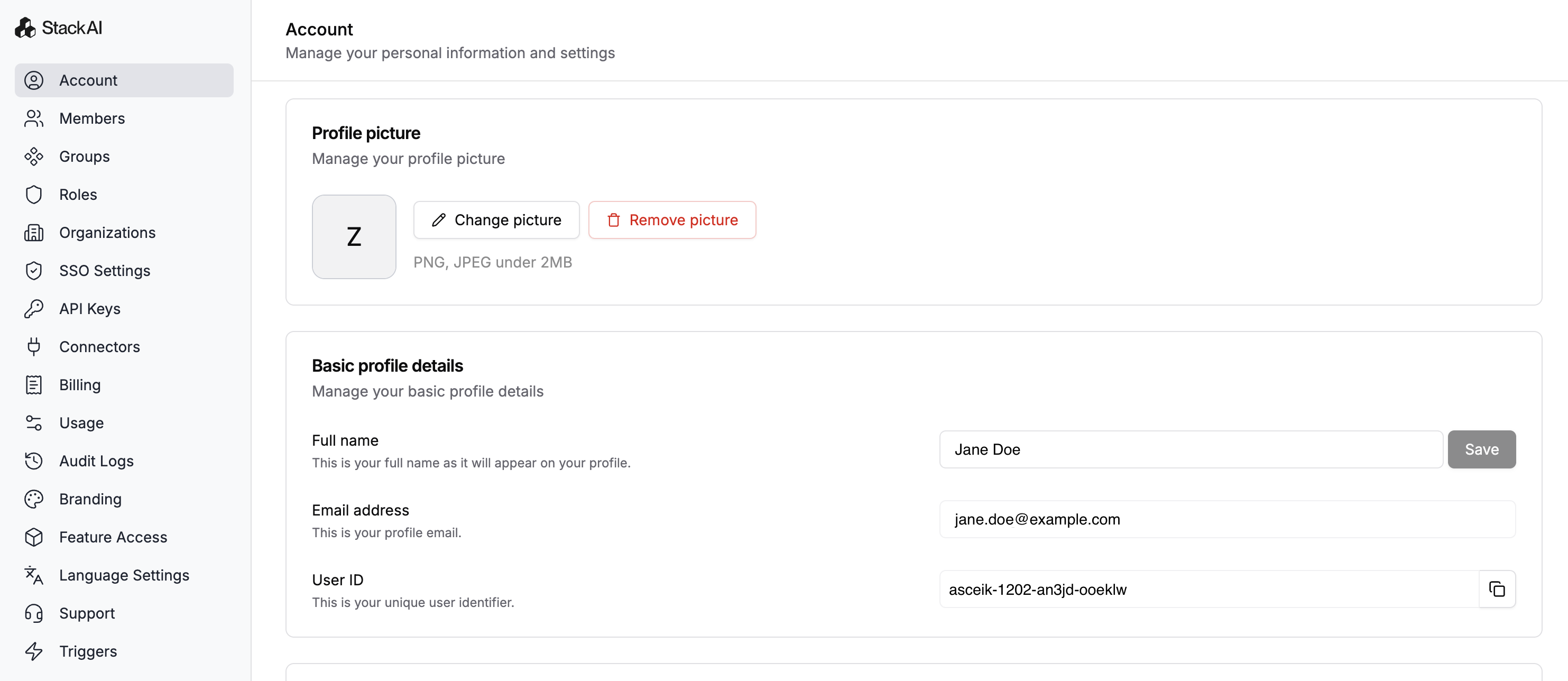
Admins can access all organization settings. This includes governance, security, and user management.
Settings menu for Admins.
{% endtab %}
{% tab title="Editors" %}
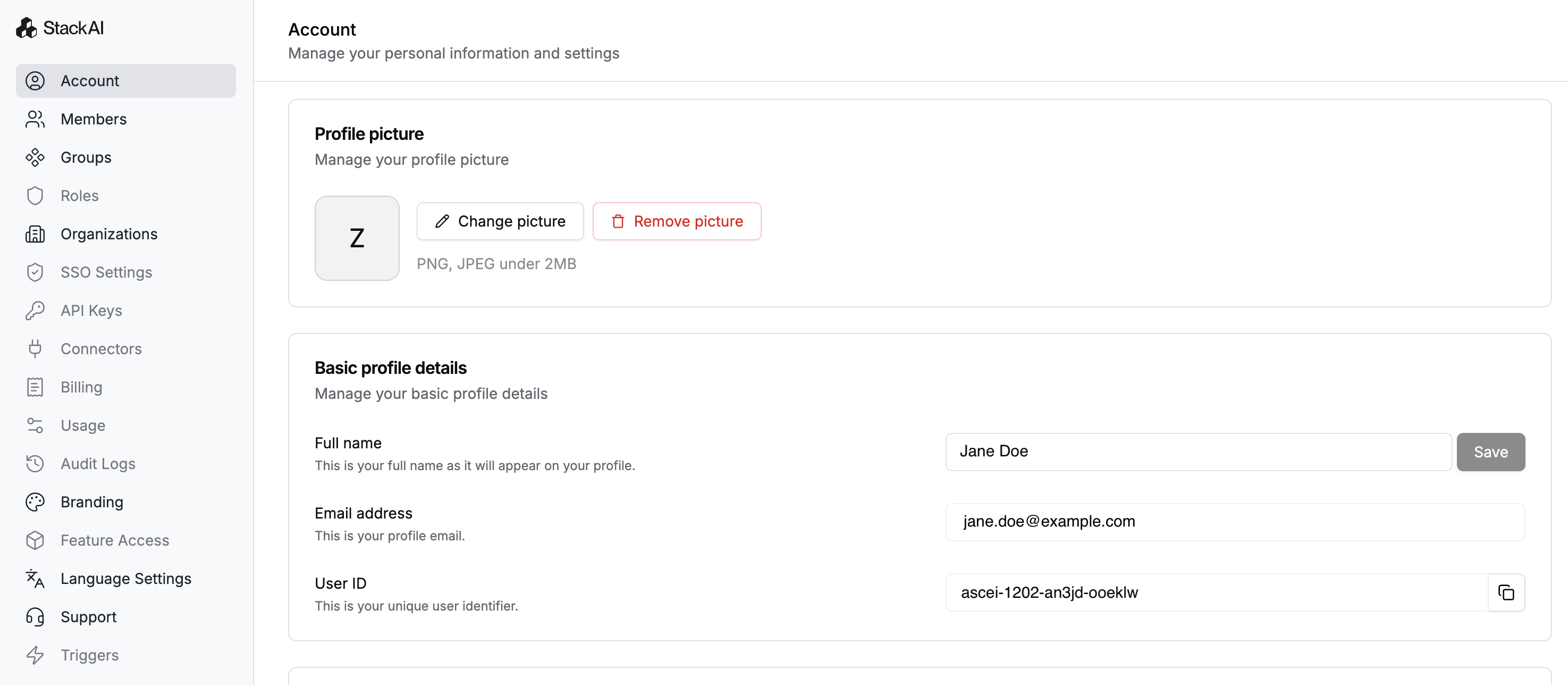
Editors have limited access to Settings. They can build and manage projects, but can’t manage org-wide controls.
Settings menu for Editors (Limited).
{% endtab %}
{% tab title="Users & Viewers" %}
Users and Viewers don’t have access to organization settings. They primarily work from the Projects dashboard.
Projects dashboard for Users and Viewers.
{% endtab %}
{% endtabs %}
### Troubleshooting
#### I don’t see the “Private Folder” option
Your role may not include access to manage folders. Check your permissions in [Role-Based Access Control (RBAC)](/welcome-to-stackai/security-and-governance/security-in-stackai/role-based-access-controls-rbac-and-groups.md) or ask an admin to update your access.
#### A user can’t find a project
Confirm:
* The project is in the expected folder.
* The user (or one of their groups) is included in the folder allowlist.
* The user’s role allows the action they’re trying to take (view/run/edit).
---
# Agent Instructions
This documentation is published with GitBook. GitBook is the documentation platform designed so that both humans and AI agents can read, navigate, and reason over technical content effectively. Learn more at gitbook.com.
## Querying This Documentation
If you need additional information that is not directly available in this page, you can query the documentation dynamically by asking a question.
Perform an HTTP GET request on the current page URL with the `ask` query parameter, and the optional `goal` query parameter:
```
GET https://docs.stackai.com/welcome-to-stackai/security-and-governance/security-in-stackai/workspace-and-folder-access.md?ask=&goal=
```
`ask` is the immediate question: it should be specific, self-contained, and written in natural language.
`goal` is optional and describes the broader end goal you are ultimately trying to accomplish on behalf of the user. GitBook uses it to tailor the answer towards what is most useful for that goal.
The response will contain a direct answer to the question and relevant excerpts and sources from the documentation.
Use this mechanism when the answer is not explicitly present in the current page, you need clarification or additional context, or you want to retrieve related documentation sections.