> For the complete documentation index, see [llms.txt](https://docs.stackai.com/llms.txt). Markdown versions of documentation pages are available by appending `.md` to page URLs; this page is available as [Markdown](https://docs.stackai.com/workflow-builder/apps/docraptor.md).
# DocRaptor
DocRaptor is a document generation service that converts HTML or XML content into PDF or Excel files. Use it in your workflows to programmatically generate invoices, reports, contracts, or any formatted document — and get back a download link instantly.
{% hint style="info" %}
You can try DocRaptor without an account using the public test key `YOUR_API_KEY_HERE`. Documents generated with this key are always watermarked (a "TEST" stamp overlaid on every page). To generate production documents without a watermark, you need a DocRaptor account and a real API key from [docraptor.com](https://docraptor.com).
{% endhint %}
### Test mode and quota
You can start building and testing your workflow without a DocRaptor account. Use the public test key `YOUR_API_KEY_HERE` in your connection — no sign-up required. Documents generated this way are always watermarked (a "TEST" stamp overlaid on every page) and, for Excel files, are limited to a small number of rows, but are otherwise fully functional for development purposes.
Once you are happy with your workflow and ready to go to production, create a DocRaptor account, replace the test key with your real API key, and switch **Test mode** to `Off`. From that point your documents will be clean and unbranded, and each run will consume your DocRaptor plan quota.
### Setting Up the Connection
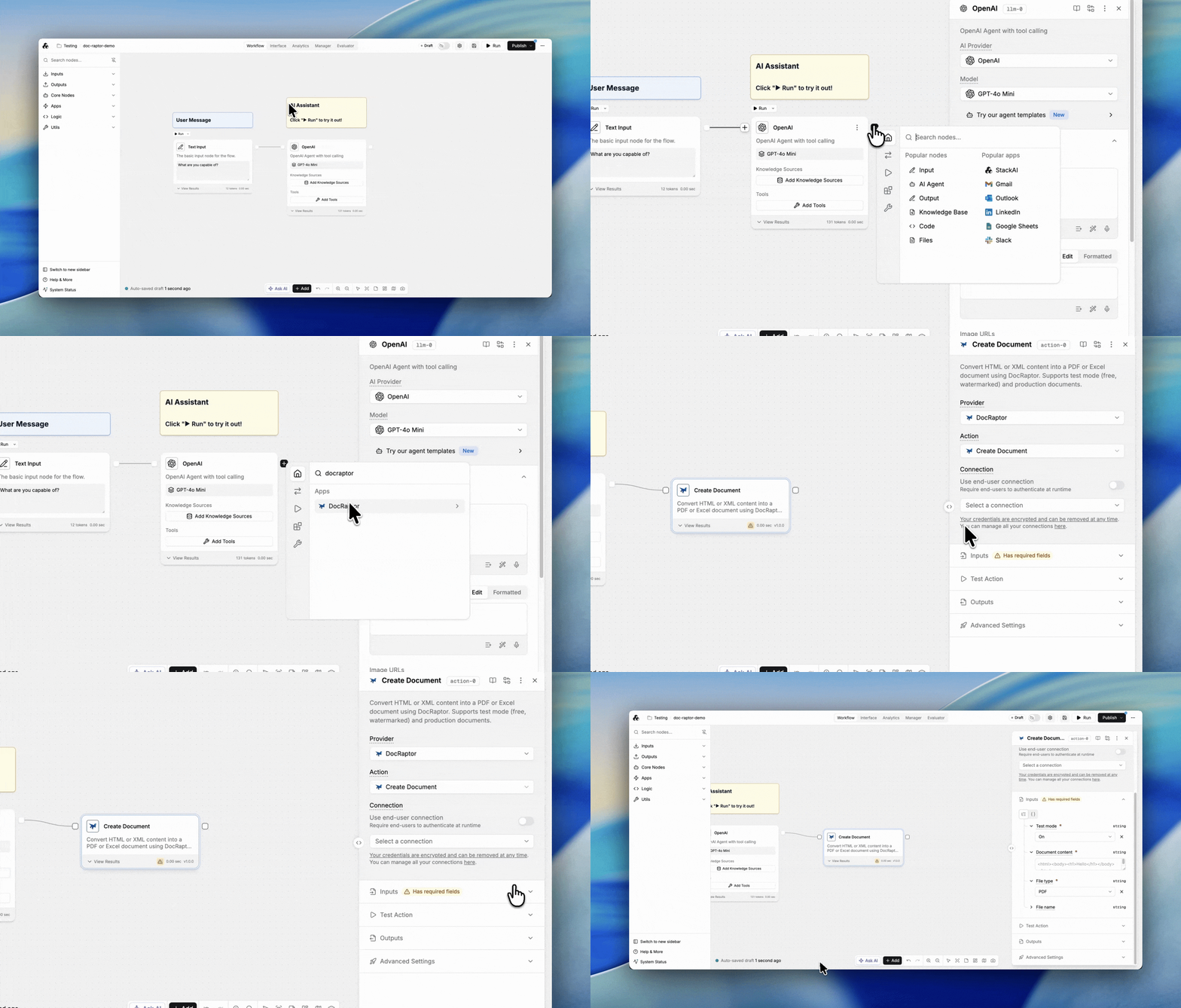
1. In Stack AI, navigate to the **Connections** page.
2. Click **Add Connection** and select **DocRaptor**.
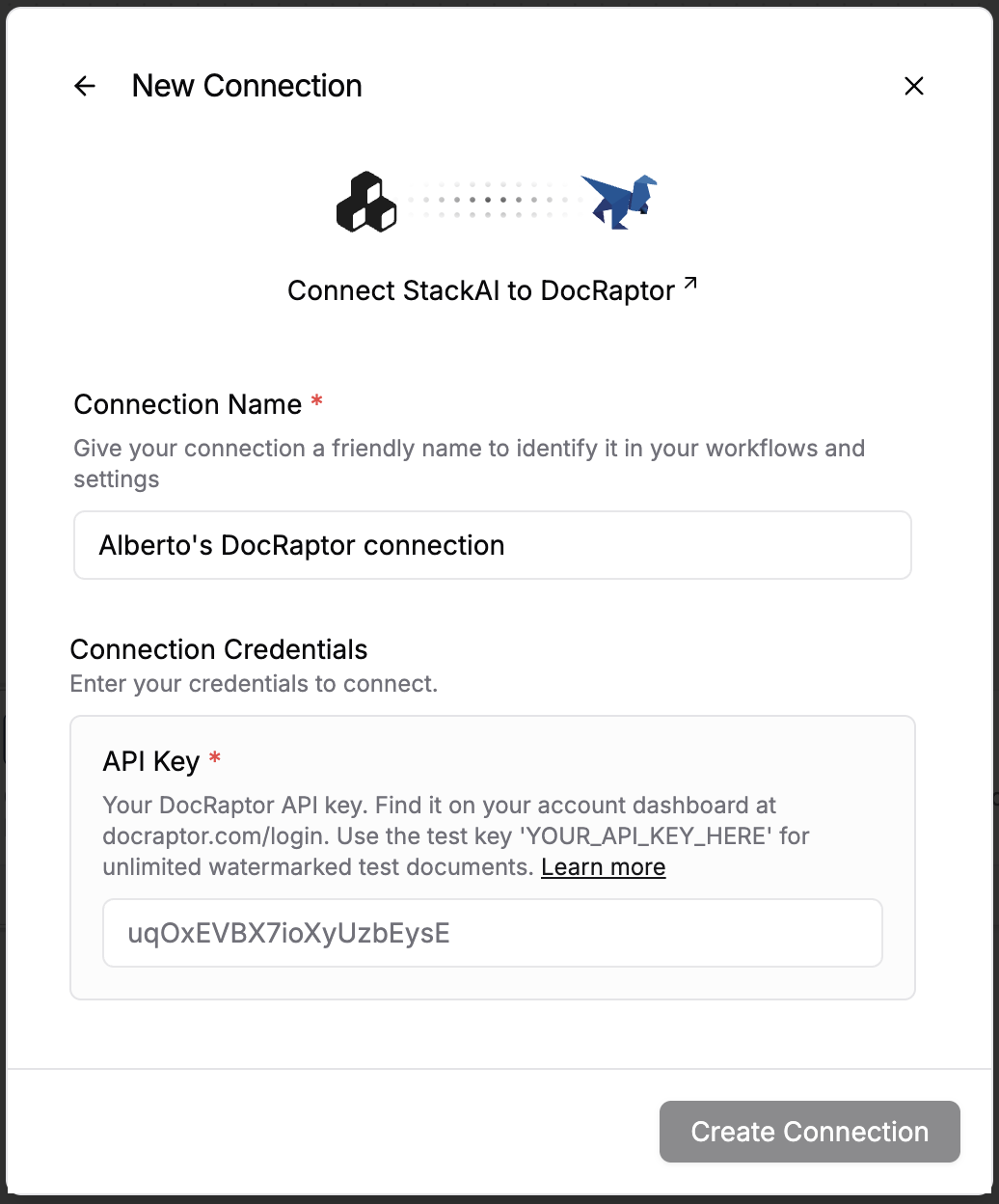
3. Enter your API key:
* To test without an account, use `YOUR_API_KEY_HERE`
* For production use, log in at [docraptor.com/login](https://docraptor.com/login) and copy your API key from the dashboard
4. Click **Save**.
### Available Actions
#### Create Document
Converts HTML or XML content into a PDF or Excel file and returns a download URL.
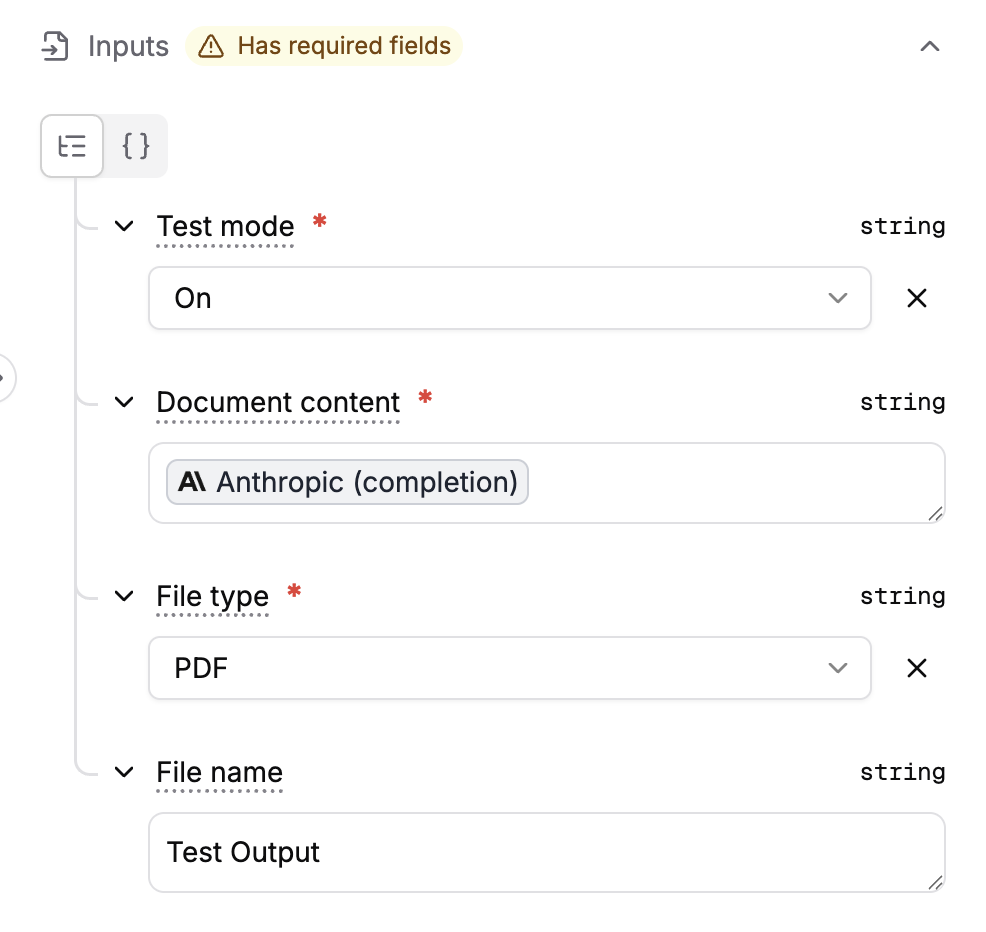
**Inputs:**
| Parameter | Type | Required | Description |
| ---------------- | ------ | -------- | ----------------------------------------------------------------------------------------------------------------------------------------------------------------------------- |
| Test mode | Select | Yes | `On` generates a free document (does not count against your key quota) with a "TEST" watermark on every page; `Off` generates a clean production document and uses your quota |
| Document content | Text | Yes | The HTML (for PDF) or XML (for Excel) content to convert |
| File type | Select | Yes | Output format: `pdf`, `xls`, or `xlsx` |
| File Name | Text | No | Optional name for the document, used in DocRaptor logs and as the filename |
**Outputs:**
| Field | Type | Description |
| -------------------------- | -------- | --------------------------------------------- |
| `download_url` | String | Pre-signed URL to download the generated file |
| `expiration_date` | DateTime | When the download URL expires |
| `file_metadata.filename` | String | Name of the generated file |
| `file_metadata.mime_type` | String | MIME type of the file |
| `file_metadata.bytes` | Integer | File size in bytes |
| `file_metadata.created_at` | DateTime | When the file was created |
{% hint style="info" %}
Keep **Test mode** set to `On` while building your workflow. Switch to `Off` only when you are ready to generate production documents — production runs consume your DocRaptor quota.
{% endhint %}
### Structuring your HTML for PDF output
In a typical Stack AI workflow, an LLM node generates the HTML that gets passed to DocRaptor. To get a well-structured PDF with headers, footers, and logos, include the formatting requirements directly in your prompt to the model. For example:
> *"Generate an HTML invoice for the following data. Include a `` with the company logo at `https://your-cdn.com/logo.png` and the invoice number, a `