> For the complete documentation index, see [llms.txt](https://docs.stackai.com/llms.txt). Markdown versions of documentation pages are available by appending `.md` to page URLs; this page is available as [Markdown](https://docs.stackai.com/workflow-builder/apps/hyperbrowser.md).
# HyperBrowser
Learn how to automate browser tasks with the HyperBrowser node in StackAI. Discover available actions, required inputs, configurations, and output details.
HyperBrowser is a StackAI integration that enables you to automate and control browser-based tasks programmatically. It is ideal for scenarios such as web automation, scraping, testing, and simulating user interactions on websites.
***
#### **How to use HyperBrowser**
First, create a connection to HyperBrowser if you are using it for the first time. You must have a HyperBrowser account.
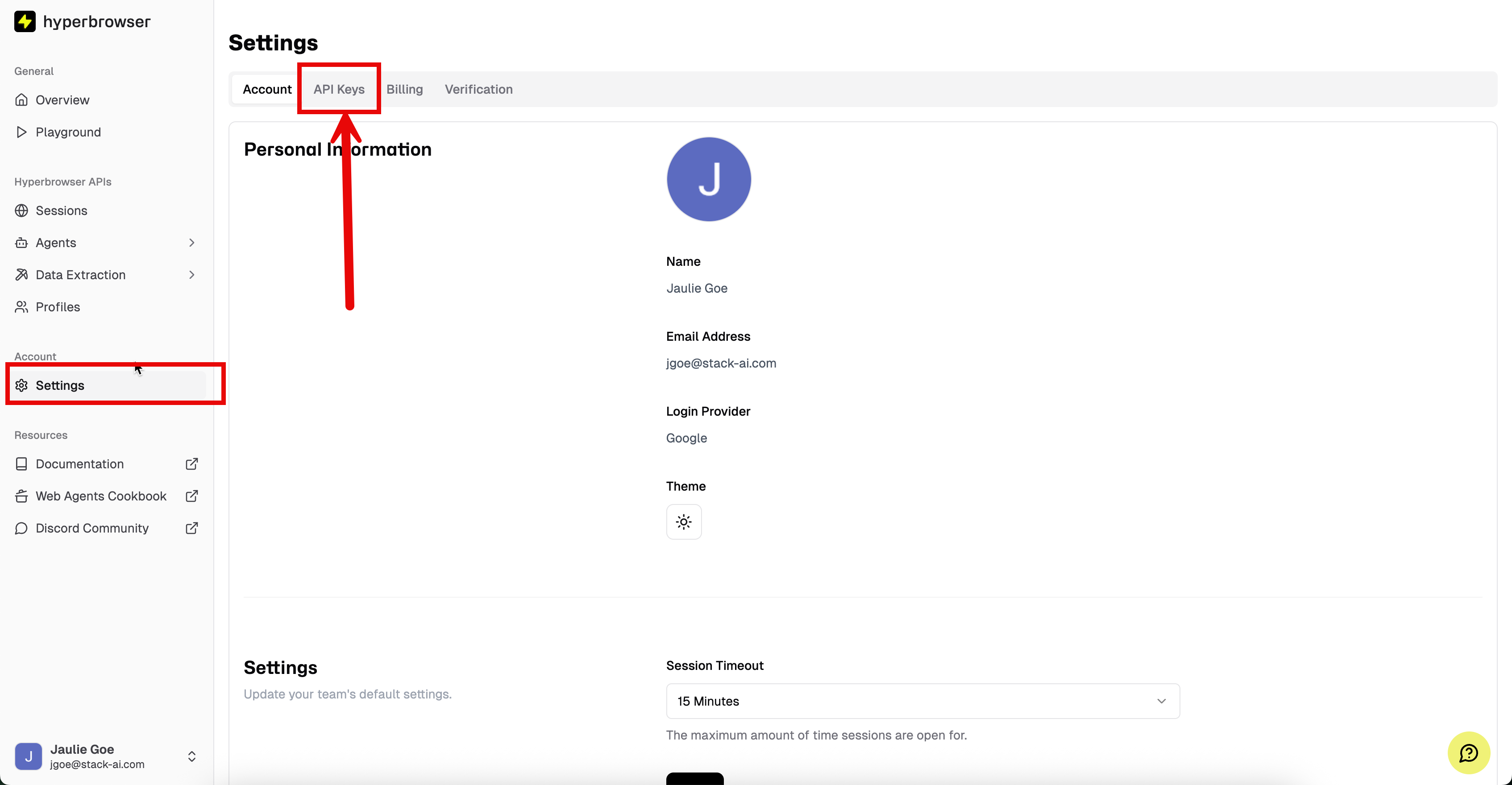
In HyperBrowser, select **Settings** and then select **API Keys.** Create a new key and copy/paste the key into the new connection window in your StackAI workflow. Your connection will now be saved and can be reused across different workflows.
There are two ways to include HyperBrowser in your workflow:
1. As a tool: Allow your LLM to decide when a query necessitates searching the web. Click on your LLM, and choose "Add Tool". Select HyperBrowser. Make sure to reference this tool in your prompt for [best results](/getting-started/core-ai-concepts/prompt-engineering.md).
2. As a node: Enforce Hyperbrowser usage every run. To set up HyperBrowser as a Node, make sure to reference all the Hyperbrowser actions in your LLM prompt.
You can monitor the job status and retrieve results or errors upon completion.
***
**Available Actions**
#### 1. Use Browser
Automate a browser session to perform a specific task.
**Inputs**
* **Task** (Required)
* Description: The task to perform in the browser (e.g., "Log in to example.com and scrape the dashboard data").
* Example:
```
Log in to https://example.com with username 'user' and password 'pass', then extract the text from the dashboard.
```
* **Session ID** (Optional)
* Description: The ID of an existing browser session to use.
* Example:
```
"session_abc123"
```
* **Max Failures** (Optional, default: 1)
* Description: The maximum number of failures allowed before stopping the browser.
* Example:
```
2
```
* **Max Steps** (Optional, default: 25)
* Description: The maximum number of steps to allow before stopping the browser.
* Example:
```
10
```
* **Keep Browser Open** (Optional, default: false)
* Description: Whether to keep the browser open after the task is completed.
* Example:
```
true
```
**Configurations**
All configuration options are provided as part of the input parameters above. No additional required configurations.
**Outputs**
* **Job ID** (Required)
* Description: The unique identifier for the browser automation job.
* Example:
```
"job_456def"
```
* **Live URL** (Required)
* Description: The URL to view the live browser session.
* Example:
```
"https://hyperbrowser.live/session/job_456def"
```
* **Status** (Required)
* Description: The current status of the job. Possible values: `pending`, `running`, `completed`, `failed`, `stopped`.
* Example:
```
"completed"
```
* **Final Result** (Optional)
* Description: The final result or output of the browser task.
* Example:
```
"Dashboard data: { ... }"
```
* **Error** (Optional)
* Description: Error message if the task failed.
* Example:
```
"Login failed: Invalid credentials"
```
* **Session Stopped** (Optional, default: false)
* Description: Indicates if the browser session was stopped after completion.
* Example:
```
true
```
***
**Summary Table**
| Input Name | Required | Description | Example |
| ----------------- | -------- | --------------------------------------------- | ----------------------------- |
| Task | Yes | The browser task to perform | "Log in and scrape dashboard" |
| Session ID | No | Use an existing browser session | "session\_abc123" |
| Max Failures | No | Max failures before stopping (default: 1) | 2 |
| Max Steps | No | Max steps before stopping (default: 25) | 10 |
| Keep Browser Open | No | Keep browser open after task (default: false) | true |
| Output Name | Required | Description | Example |
| --------------- | -------- | ----------------------------------------- | ---------------------------------------------------- |
| Job ID | Yes | Unique job identifier | "job\_456def" |
| Live URL | Yes | URL to view live browser session | ",," |
| Status | Yes | Job status (,pending,, ,running,, etc.) | "completed" |
| Final Result | No | Final result of the task | "Dashboard data: { ... }" |
| Error | No | Error message if failed | "Login failed: Invalid credentials" |
| Session Stopped | No | Was the session stopped after completion? | true |
***
**Best Practices**
* Always provide a clear and specific task description.
* Use session management for multi-step or persistent workflows.
* Monitor the job status and handle errors gracefully in your workflow.
***
HyperBrowser in StackAI empowers you to automate and control browser tasks efficiently, making it a powerful tool for web automation and data extraction.
---
# Agent Instructions
This documentation is published with GitBook. GitBook is the documentation platform designed so that both humans and AI agents can read, navigate, and reason over technical content effectively. Learn more at gitbook.com.
## Querying This Documentation
If you need additional information that is not directly available in this page, you can query the documentation dynamically by asking a question.
Perform an HTTP GET request on the current page URL with the `ask` query parameter, and the optional `goal` query parameter:
```
GET https://docs.stackai.com/workflow-builder/apps/hyperbrowser.md?ask=&goal=
```
`ask` is the immediate question: it should be specific, self-contained, and written in natural language.
`goal` is optional and describes the broader end goal you are ultimately trying to accomplish on behalf of the user. GitBook uses it to tailor the answer towards what is most useful for that goal.
The response will contain a direct answer to the question and relevant excerpts and sources from the documentation.
Use this mechanism when the answer is not explicitly present in the current page, you need clarification or additional context, or you want to retrieve related documentation sections.