> For the complete documentation index, see [llms.txt](https://docs.stackai.com/llms.txt). Markdown versions of documentation pages are available by appending `.md` to page URLs; this page is available as [Markdown](https://docs.stackai.com/workflow-builder/inputs/files-node.md).
# Files Node
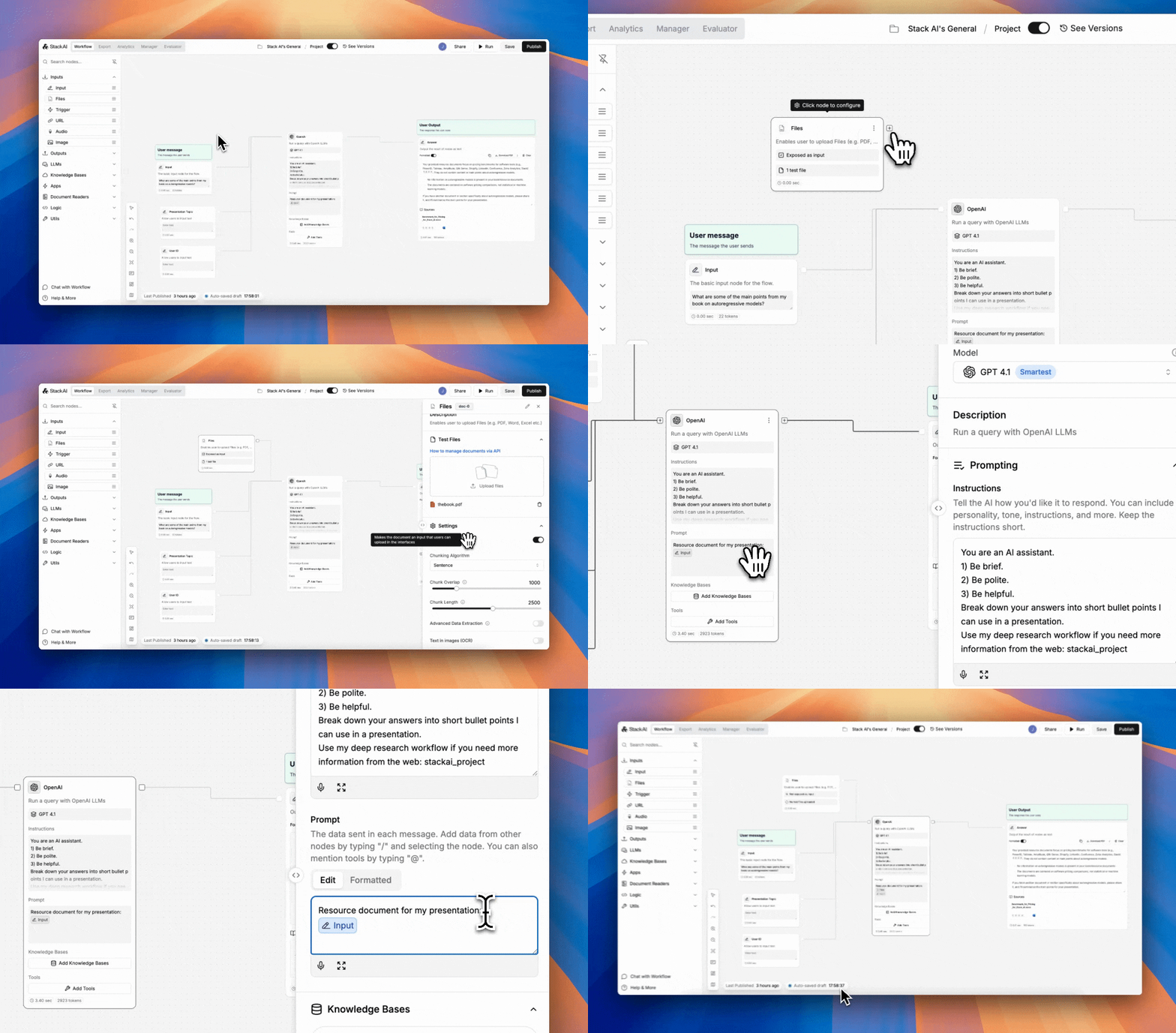
The Files Node allows users to upload a file to the flow and use it as an input to the LLM.
The Files Node is not a Knowledge Base; RAG will not be performed over the files. Instead, the contents of the file will always be given directly to the LLM as context.
This makes the Files Node ideal for:
* One-off or user-provided documents
* Ad-hoc analysis (e.g. “analyze this PDF”)
* Inputs that change frequently per run
If the **same file needs to be reused across multiple workflows or queries**, consider using a **Knowledge Base node instead** for better performance and scalability. ([more on knowledge bases](/workflow-builder/core-nodes/knowledge-bases.md)).
**Expose as Input:** This toggle displays the files node as an available input on the user-facing interface, allowing the user to upload their own file. Toggle this OFF to keep the files static. The workflow will then always use the files you uploaded, and the user won't be able to change this.
### Files Node Settings
Click on the node to see the available settings.
#### **Expose as input**
When **Expose as Input** is enabled, the Files Node appears as an input field in the **user-facing interface**, allowing end users to upload their own files at runtime.
* **ON** → Users can upload or replace the file when running the workflow.
* **OFF** → The workflow always uses the file(s) you uploaded in the editor, and users cannot modify them.
#### Enable Parsing
* When enabled, Stack AI extracts readable text from the uploaded file and makes it available to the LLM as context.
* This is **required for most non-plain-text formats** such as PDFs, Word documents, and presentations. Without parsing, the LLM cannot access the file’s contents.
* ⚠️ **Performance note:** Parsing adds extra processing steps and can slow down workflows, especially for large or complex files. For this reason, only enable it when the file’s contents are actually needed by the LLM.
#### **Chunking Settings**
* **Chunking Algorithm**: Defines how the data is split (e.g., Sentence-based).
* **Chunk Overlap**: The number of overlapping tokens between chunks.
* **Chunk Length**: Max length of each chunk sent to the LLM.
More on [chunking](/getting-started/core-ai-concepts/chunking.md).
#### **Additional Features**
* **Advanced Data Extraction**: Enable more precise field-level parsing (toggle option).
* Use this when you need specific fields, more consistent outputs or structured downstream processing.
* **Text in Images (OCR)**: Extract and include text from images (toggle option).
* ⚠️ **Efficiency warning:** OCR significantly increases processing time and cost. Enable it only if the document contains critical information embedded in images.
### How to Expose the Files Node to your Users
1. Go to the **Interface** tab.
2. Ensure to select "Expose as input" in the Files Node.
3. Enable the files node in the **Inputs** section.
4. Press **Save Interface** to save your changes.
5. Your users should now see an upload button in the interface.
---
# Agent Instructions
This documentation is published with GitBook. GitBook is the documentation platform designed so that both humans and AI agents can read, navigate, and reason over technical content effectively. Learn more at gitbook.com.
## Querying This Documentation
If you need additional information that is not directly available in this page, you can query the documentation dynamically by asking a question.
Perform an HTTP GET request on the current page URL with the `ask` query parameter, and the optional `goal` query parameter:
```
GET https://docs.stackai.com/workflow-builder/inputs/files-node.md?ask=&goal=
```
`ask` is the immediate question: it should be specific, self-contained, and written in natural language.
`goal` is optional and describes the broader end goal you are ultimately trying to accomplish on behalf of the user. GitBook uses it to tailor the answer towards what is most useful for that goal.
The response will contain a direct answer to the question and relevant excerpts and sources from the documentation.
Use this mechanism when the answer is not explicitly present in the current page, you need clarification or additional context, or you want to retrieve related documentation sections.